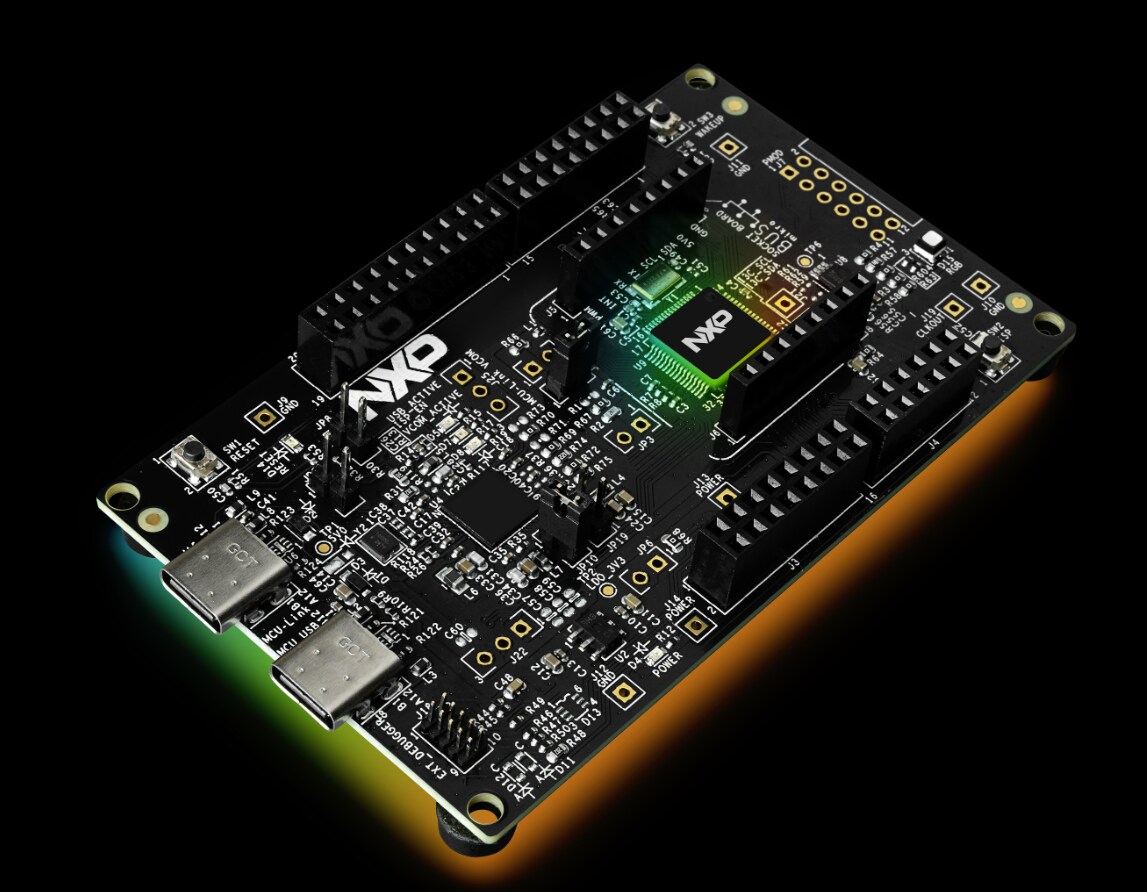
FRDM Training Hub

cancel
Showing results for 
Show  only  | Search instead for 
Did you mean: 

FRDM Training Hub

FRDM Training Hub


Restricted Beta Program

  • Comprehensive software and tools for seamless prototyping and rapid development
  • Scale your project with modular, quick-start FRDM and expansion boards
  • Leverage our application code hub or GoPoint to access 180+ code snippets and demos

  • Leverage FRDM Training Hub to learn from the experts
  • Not sure where to start ?

Discussions

Sort by:
Whether you're a student, hobbyist, or professional developer, the FRDM Development Platform by NXP is your gateway to building powerful embedded applications—quickly and affordably. In this beginner-friendly guide, you’ll learn: What FRDM boards are and how they compare to other NXP evaluation kits Who the platform is designed for How to buy and get started with your first board What’s new in the latest FRDM series featuring MCX microcontrollers and i.MX processors How the FRDM ecosystem supports your development with modular hardware, software tools, and ready-to-use code examples
View full article
In this lab, you will learn how to: Bring up Wi-Fi interfaces. Run basic Wi-Fi scan Configure and bring up Wi-Fi STA mode using WPA_SUPPLICANT. Configure and bring up UDHCP server for dynamic IP assignment for associated client devices. Run UDHCP client to get dynamic IP address. Configure and bring up Wi-Fi AP mode using hostapd. Connect STA to external AP Connect AP to external STA Start ping  Wi-Fi Basic Hands-on Demo Guide  Community Support If you have questions regarding this training, please leave your comments in our Wireless MCU Community! here 
View full article
FRDM Training and Resources This article provide a guide of available resources for FRDM Development boards to help you to find and use available resources (Boards, Guides, Hands-On Trainings and more)
View full article
GoPoint   GoPoint is a user-friendly application that allows the user to launch preselected demonstrations included in the NXP provided BSP and follows the quarterly release roadmap for BSP How to launch GoPoint     GoPoint Demo On FRDM-IMX93 Board Since FRDM-IMX93 board’s BSP is based on standard BSP release, GoPoint is included in FRDM-IMX93 Yocto build by default. List of 9 demos available on FRDM-IMX93 Board: Image Classification Object Detection Selfie Segmenter i.MX Smart Fitness DMS (Driver Monitor System) ML Benchmark Video Test i.MX Smart Kitchen i.MX E-Bike VIT   Image Classification Demo Image classification is a ML task that attempts to comprehend an entire image as a whole. The goal is to classify the image by assigning it to a specific label. Typically, it refers to images in which only one object appears and is analyzed. This example is using NNStreamer.            Object Detection Demo Object detection is the ML task that detects instances of objects of a certain class within an image. A bounding box and a class label are found for each detected object. This example is using NNStreamer.        Selfie Segmenter Demo Selfie Segmenter showcases the ML capabilities of i.MX 93 by using the NPU to accelerate an instance segmentation model. This model lets you segment the portrait of a person and can be used to replace or modify the background of an image. This example is using NNStreamer.         i.MX Smart Fitness Demo i.MX Smart Fitness showcases the i.MX' Machine Learning capabilities by using an NPU to accelerate two Deep Learning vision-based models. Together, these models detect a person present in the scene and predict 33 3D-keypoints to generate a complete body landmark, known as pose estimation. From the pose estimation, the application tracks the 'squats' fitness exercise.          DMS (Driver Monitor System) Demo This application showcases the capability of implementing DMS on i.MX 93 platform, and the performance boost brought by Neural Processing Unit (NPU). DMS uses four ML models in total to achieve face detection, capturing face landmark and iris landmark, smoking detection and calling detection.         ML Benchmark Demo This example is based on benchmark_model tool in Tensorflow Lite framework, which allows to easily compare the performance of TensorFlow Lite models running on CPU (Cortex-A) and NPU.   Video Test Demo This is a simple demo that allows users to play back video captured on a camera or a test source. It’s based on gstreamer pipeline.            i.MX Smart Kitchen Demo i.MX Smart Kitchen showcases the Multimedia capabilities of i.MX to emulate an interactive kitchen through a GUI controlled by voice commands. The GUI is based on LVGL (Little Versatile Graphic Library) and NXP's Voice Intelligent Technology (VIT) supports the voice commands. Usage: Keyword + command       i.MX E-Bike VIT Demo i.MX E-Bike VIT showcases the Multimedia capabilities of i.MX to emulate an interactive ebike through a GUI controlled by voice commands. The GUI is based on LVGL (Little Versatile Graphic Library) and NXP's Voice Intelligent Technology (VIT) supports the voice commands. Usage: Keyword + command         Useful Link GoPoint User Guide: https://www.nxp.com/webapp/Download?colCode=GPNTUG GoPoint repo: https://github.com/nxp-imx-support/nxp-demo-experience-demos-list/tree/lf-6.6.36_2.1.0 (Including source code of demo: Selfie Segmenter, DMS, ML benchmark, Video test) Image Classification/Object Detection: https://github.com/nxp-imx/eiq-example/tree/lf-6.6.36_2.1.0 i.MX Smart Fitness: https://github.com/nxp-imx-support/imx-smart-fitness i.MX Smart Kitchen: https://github.com/nxp-imx-support/smart-kitchen i.MX E-Bike VIT: https://github.com/nxp-imx-support/imx-ebike-vit
View full article
FRDM-IMX93 Yocto Release - BSP  Based on i.MX SW 2024 Q3 release Linux kernel: 6.6.36_2.1.0 u-boot: 2024.04 Source: https://github.com/nxp-imx-support/meta-imx-frdm FRDM-IMX93 BSP changes: U-boot: Add basic support for FRDM-IMX93 Kernel: Add basic support for FRDM-IMX93 and add support for kinds of accessories GoPoint: Add FRDM-IMX93 support FRDM-IMX93 Yocto layer: Add Yocto layer for FRDM-IMX93 and integrate u-boot/kernel/GoPoint patches    FRDM-IMX93 accessories 7 inch Waveshare LCD: imx93-11x11-frdm-dsi.dtb 5 inch Tianma LCD: imx93-11x11-frdm-tianma-wvga-panel.dtb RPi-CAM-MIPI: imx93-11x11-frdm.dtb RPI-CAM-INTB: imx93-11x11-frdm-mt9m114.dtb MX93AUD-HAT or MX93AUD-HAT + 8MIC-RPI-MX8: imx93-11x11-frdm-aud-hat.dtb 8MIC-RPI-MX8: imx93-11x11-frdm-8mic.dtb   LCD Panel Vender Interface Size Resolution Support Touch Purchase Link dtb T050RDH03-HC Tianma 24 bit Parallel 5" 800 x 480 No Will launch with MX91 EVK in Dec'24 imx93-11x11-frdm-tianma-wvga-panel.dtb 7inch Capacitive Touch IPS Display for Raspberry Pi, with Protection Case, 1024×600, DSI Interface Waveshare MIPI DSI 7" 1024x600 Yes Click Here imx93-11x11-frdm-dsi.dtb Camera Vender Interface Size Resolution Sensor Purchase Link dtb RPI-CAM-MIPI onsemi MIPI CSI  1/4-inch 1M pixel, 1280H x 800V AR0144 Click Here imx93-11x11-frdm.dtb RPI-CAM-INTB   Parallel Camera 40pins 1/6-inch 1.26 Mpixel 1296H × 976V MT9M114 Will launch with MX91 EVK in Dec'24 imx93-11x11-frdm-mt9m114.dtb Audio Vender Interface Channel     Purchase Link dtb MX93AUD-HAT Cirrus 40pins 8     Click Here imx93-11x11-frdm-aud-hat.dtb 8MIC-RPI-MX8 NXP 40pins 8     Click Here imx93-11x11-frdm-8mic.dtb   FRDM-IMX93 Yocto Release Usage Download i.MX SW 2024 Q3 Release: $ repo init -u https://github.com/nxp-imx/imx-manifest -b imx-linux-scarthgap -m imx-6.6.36-2.1.0.xml $ repo sync Integrate FRDM-IMX93 layer into Yocto code base: $ cd ${MY_YOCTO}/sources $ git clone https://github.com/nxp-imx-support/meta-imx-frdm.git Yocto Project Setup: $ MACHINE=imx93frdm DISTRO=fsl-imx-xwayland source sources/meta-imx-frdm/tools/imx-frdm-setup.sh -b frdm-imx93 Build images: $ bitbake imx-image-full Flashing SD card image: $ zstdcat imx-image-full-imx93frdm.rootfs.wic.zst | sudo dd of=/dev/sdb bs=1M && sync Using uuu to burn image and rootfs to SD: $ uuu -b sd_all imx-image-full-imx93frdm.rootfs.wic.zst   FRDM-IMX93 Yocto Release – Matter support Based on i.MX Matter 2024 Q3 Usage: −Download i.MX SW 2024 Q3 Release; $ repo init -u https://github.com/nxp-imx/imx-manifest -b imx-linux-scarthgap -m imx-6.6.36-2.1.0.xml $ repo sync −Download i.MX Matter 2024 Q3; $ cd ${MY_YOCTO}/sources/meta-nxp-connectivity $ git remote update $ git checkout imx_matter_2024_q3 −Download FRDM-IMX93 Layer: $ cd ${MY_YOCTO}/sources $ git clone https://github.com/nxp-imx-support/meta-imx-frdm.git −Yocto Project Setup: $ MACHINE=imx93frdm-iwxxx-matter DISTRO=fsl-imx-xwayland source sources/meta-imx-frdm/tools/imx-frdm-matter-setup.sh bld-xwayland-imx93 −Build images: $ bitbake imx-image-multimedia     FRDM-MX93 Debian Release Debian is a free Operating System (OS), also known as Debian GNU/Linux. i.MX Debian Linux SDK distribution is a combination of NXP-provided kernel and boot loaders with a Debian distro user-space image. −Debian 12 −NXP packages are based i.MX SW Release 2024 Q3 i.MX Debian Linux SDK distribution uses Flexbuild to build system. −Debian-based RootFS; Debian Base (basic packages) Debian Server (more packages without GUI Desktop) Debian Desktop (with GNOME GUI Desktop) −Linux kernel; −BSP components; −various  applications (graphics, multimedia, networking, connectivity, security, and AI/ML); Source: https://github.com/NXP/flexbuild Introduction:  https://nxp.com/nxpdebian  Quick Start with Debian Flexbuild compiles and assembles the distro images as three parts: BSP firmware image Boot image RootFS image Creating an SD card on the Linux host Download flex-installer −$ wget http://www.nxp.com/lgfiles/sdk/lsdk2406/flex-installer −$ chmod +x flex-installer; sudo mv flex-installer /usr/bin Plug the SD card into the Linux host and install the images as below: −$ flex-installer -i pf -d /dev/sdb (format SD card) −$ flex-installer -i auto -d /dev/mmcblk1 -m imx93frdm (automatically download and install images) Plug the SD card into the i.MX board and install the extra packages as follows: −$ dhclient -i end0 (setup Ethernet network interface by DHCP or setting it manually) −$ date -s "22 Nov 2024 09:00:00" (setting correct system time is required) −$ debian-post-install-pkg desktop (install extra packages for GNOME GUI Desktop version) −or −$ debian-post-install-pkg server (install extra packages for Server version without GUI Desktop) −# After finishing the installation, run the reboot command to boot up the Debian Desktop/Server system.   Building Debian Images with Flexbuild Run the following commands for the first time to set up the build environment: −$ git clone https://github.com/nxp/flexbuild −$ cd flexbuild && . setup.env −#Continue to run commands below in case  you need to  build in Docker due to lack of Ubuntu 22.04 or Debian 12 host −$ bld docker (create or attach a docker container) −$ . setup.env   Flexbuild usage: −$ bld -m imx93frdm (build all images for imx93frdm) −$ bld uboot -m imx93frdm (compile u-boot image for imx93frdm) −$ bld linux (compile linux kernel for all arm64 i.MX machines) −$ bld bsp -m imx93frdm (generate BSP firmware) −$ bld boot (generate boot partition tarball including kernel, dtb, modules, distro bootscript for iMX machines) −$ bld multimedia (build multimedia components for i.MX platforms) −$ bld rfs -r debian:base (generate Debian base rootfs with base packages) −$ bld apps -r debian:server (compile apps against runtime dependencies of Debian server RootFS) −$ bld merge-apps -r debian:server (merge iMX-specific apps into target Debian server RootFS) −$ bld packrfs (pack and compress target rootfs)   Related Documentation   FRDM-IMX93 Documents: FRDM-IMX93 Quick Start Guide FRDM-IMX93 Board User Manual FRDM-IMX93 Software User Guide  More information about i.MX productions can be found at(http://www.nxp.com/imxlinux) i.MX Yocto Project User’s Guide​ i.MX Linux User’s Guide​ i.MX Linux Reference Manual​ i.MX Porting Guide Debian documents at http://www.nxp.com/nxpdebian i.MX Debian Linux SDK User Guide
View full article
  The RW61x is a highly integrated, low-power tri-radio wireless MCU with an integrated MCU and Wi-Fi ®  6 + Bluetooth ®  Low Energy (LE) 5.4 / 802.15.4 radios designed for a broad array of applications, including connected smart home devices, enterprise and industrial automation, smart accessories and smart energy. The RW612 MCU subsystem includes a 260 MHz Arm ®  Cortex ® -M33 core with Trustzone ™ -M, 1.2 MB on-chip SRAM and a high-bandwidth Quad SPI interface with an on-the-fly decryption engine for securely accessing off-chip XIP flash. The RW612 includes a full-featured 1x1 dual-band (2.4 GHz/5 GHz) 20 MHz Wi-Fi 6 (802.11ax) subsystem bringing higher throughput, better network efficiency, lower latency and improved range over previous generation Wi-Fi standards. The Bluetooth LE radio supports 2 Mbit/s high-speed data rate, long range and extended advertising. The on-chip 802.15.4 radio can support the latest Thread mesh networking protocol. In addition, the RW612 can support Matter over Wi-Fi or Matter over Thread offering a common, interoperable application layer across ecosystems and products. Hands-On Trainings Introduction to RW61x and FRDM-RW612 Quick introduction to RW61x family, module offering and FRDM-RW612 evaluation board FRDM-RW612 Out of the Box Experience Wi-Fi CLI (Command Line Interface) demo provides the user with a menu with different commands to explore the Wi-Fi capabilities of the FRDM RW612 board. When the board is powered on for the first time, the green RGB LED should be blinking indicating that the demo is loaded into the board. FRDM-RW612 Getting Started. Wi-Fi CLI on VS Code This lab guides you step by step on how to get started with FRD-RW612 board using Visual Studio Code  FRDM-RW612 BLE Sensors over Zephyr This demo shows the temperature from the i2c temperature sensor integrated in the board. This demo is based on Zephyr RTOS. The information can be monitored in the UART terminal or in the IoT Toolbox app. FRDM-RW612 Kitchen Timer using Low-cost LCD This lab shows how to modify a Kitchen Timer graphical application using LCD-PAR-S035 display Changing the date and button colors. The timer can also be viewed on a serial terminal.   Community Support If you have questions regarding this training or RW61x series, please leave your comments in our Wireless MCU Community! here 
View full article
Unlike MCXW 71 MCU, MCXW 72 supports an Open NBU. This means that NBU firmware source code is exposed to user. On MCXW 71 MCU, NBU firmware is NXP proprietary; it is not user customizable.
View full article
This document is intended to guide you in the installation of the necessary tools and repository for start running Zephyr examples and development. Zephyr is a lightweight, open-source real-time operating system (RTOS) designed specifically for microcontrollers (MCUs) and other resource-constrained embedded devices. Unlike general-purpose operating systems, Zephyr is built to run on systems with limited memory, low power consumption, and strict real-time requirements. It provides the core software foundation that allows an MCU to run multiple tasks reliably, respond to events on time, and interact with hardware in a structured way.
View full article
This document is intended to guide you in the installation of the necessary tools and repository for start running matter examples and development. Matter (previously known as Project CHIP) is a single, unified, application-layer connectivity standard designed to enable developers to connect and build reliable, secure IoT ecosystems and increase compatibility among Smart Home and Building devices. Backed by major brands and developed through collaboration within the Connectivity Standards Alliance (previously known as the Zigbee Alliance), Matter is an open-source royalty-free connectivity standard built with market-proven technologies using Internet Protocol (IP) and compatible with Thread and Wi-Fi network transports. Building solutions and leading standards efforts, NXP provides scalable, flexible and secure platforms for the variety of use cases Matter addresses – from end nodes to gateways – so device manufacturers can focus on their product innovation. NXP’s Matter solutions go beyond just the connectivity with comprehensive capabilities for the compute and security requirements for IoT devices.
View full article
Goal of this lab is to show the SDK example implementing the Bluetooth LE Ranging profile, how to flash it and run it, as well as looking into the code to extract meaningful information for applications that use ranging Guide
View full article
This document is intended to guide you in the installation of the tools and let you know the material required for the FRDM-MCXW72 Channel Sounding Hands On 
View full article
In this lab we make some experience with the FRDM-MCXW72 board using the SDK project to implement a simple LED blinking. Once we will get familiar with the example project, we will integrate simple modifications
View full article
In this lab we will first import the MCUXpresso SDK for the MCX W72 Freedom board into MCUXpresso IDE and then we will build, flash and debug the hello world project to make sure the environment is set for the following Labs  
View full article
This hands-on describes how to run the Low Power Reference Design demo on FRDM-MCXW72. Two low-power reference design applications are provided in the reference_design folder: Low power peripheral application, demonstrating the low power feature on an advertiser peripheral Bluetooth LE device. Low power central application, demonstrating the low power feature on a scanner central Bluetooth LE device. These applications aim at providing: A reference design application for low power/timing optimization on a Bluetooth Low Energy application. These can be used in first intent for porting a new application on low power. A way for measuring the power consumption, wake-up time, and active time in various power modes. The default low-power mode used in different modes are shown as follows: Default power mode App core Radio core Advertise mode Power Down mode Deep sleep mode Connected mode Deep Sleep mode Deep Sleep mode Scanning mode Deep Sleep mode WFI or Deep Sleep mode For complete documentation please visit: reference_design — MCUXpresso SDK Documentation
View full article
Goal of this lab is to show the SDK example implementing the wireless UART profile and we will move forward in making some meaningful modifications to the example itself with the goal to show where in the code the end user should enter the relevant application software for the application. Run Wireless UART IoT Toolbox Demo
View full article
The MCX W72 family features a 96 MHz Arm® Cortex®-M33 core coupled with a multiprotocol radio subsystem also called Narrow Band Unit (NBU) supporting Matter, Thread, Zigbee and Bluetooth LE. The independent radio subsystem, with a dedicated core and memory, offloads the main CPU, preserving it for the primary application and allowing firmware updates to support future wireless standards. On MCXW72, only boot ROM has access to the NBU flash. The ROM bootloader provides an in-system programming (ISP) utility that operates over a serial connection on the microcontroller units (MCUs) The objective in this hands-on, is to learn how to recognize when the NBU firmware does not match with the SDK version.
View full article
The MCX W72 family features a 96 MHz Arm® Cortex®-M33 core coupled with a multiprotocol radio subsystem also called Narrow Band Unit (NBU) supporting Matter, Thread, Zigbee and Bluetooth LE. The independent radio subsystem, with a dedicated core and memory, offloads the main CPU, preserving it for the primary application and allowing firmware updates to support future wireless standards.   The ROM bootloader provides an in-system programming (ISP) utility that operates over a serial connection on the microcontroller units (MCUs)  This hands-on describes how to update the code in NBU and the User firmware using the ISP.  
View full article
Introduction This document is intended to guide you in the installation of the tools and let you know the material required for the FRDM-MCXW72 Hands On.  Required Materials The material and the software requirements will depend on the hand on, but the next is what it is required in most of them. Hardware Requirements FRDM-MCXW72 Board Personal Computer Type C USB Cable Software Requirements IDE: Visual Studio Code 1.107.1 or later SDK: v25.12.00 MCUXpresso extension for VS Code version v25.12.48 BLHost Tool or LinkFlash tool (Linkflash is included with LinkServer installation) Windows OS (It was used Windows 11 for this hands-on) NXP IoT Toolbox (For an Android or iOS device) Serial Terminal program, like PuTTY or Tera Term Environment Setup Note: In order to make downloads in NXP website, it is necessary to have an account. Register and log-in for moving forward. MCUXpresso for Visual Studio Code                                                                                                                                                                         MCUXpresso for Visual Studio Code (VS Code) provides an optimized embedded developer experience for code editing and development. The extension enables NXP developers to use one of the most popular embedded editor tools and provides an easy and fast way to create, build and debug applications based on MCUXpresso SDK or Zephyr projects.   Install it following the next steps: Download Visual Studio Code from Microsoft Store or visual studio code web page Download Visual Studio Code - Mac, Linux, Windows Access to vscode for MCUX wiki and download MCUXpresso Installer  Dependency Installation · nxp-mcuxpresso/vscode-for-mcux Wiki · GitHub Run MCUXpresso Installer and for MCXW72 Hands On install at least MCUXpresso SDK Developer Matter Developer Arm GNU Toolchain Standalone Toolchain Add ons Linkserver PEmicro Installing the FRDM-MCXW72 SDK V25.12.00   Each MCU has its own SDK that includes driver, examples, middleware, docs and other components. To get and build the demo, let’s install the SDK into VS Code. Install the NXP’s GitHub SDK: Once MCUXpresso for Visual Studio Code is installed, open VS Code. Go to MCUXpresso for VS Code extension that is on the tools column at the left.    Look for INSTALLED REPOSITORIES option and press ‘+’ (Detail steps are described in wiki page. Working with MCUXpresso SDK · nxp-mcuxpresso/vscode-for-mcux Wiki · GitHub).                                               Search for the remote option of the Import Repository window. Select the MCUXpresso SDK in the repository option to download the GitHub SDK, then in the Revision tab you can select either the “main” revision (which corresponds to the latest version available) or to select an specific version (we’ll be using version v25.12.00 for these series of labs), optionally you can change the repository name and location.     Finally click on the “Import” button. Blhost Installation The blhost application is used on a host computer to issue commands to an NXP platform running an implementation of the MCU bootloader. The blhost application with the MCU bootloader, allows a user to program a firmware application onto the MCU device without a programming tool. Please go an download the tool in the next path and make sure to placed in a known location. BLHost Download page.
View full article
Discover the NXP FRDM Lab at Embedded World 2026 Hands‑on training and real demos across Edge AI, Zephyr, motor control, security, and GUIs Learn live—or later with self‑guided FRDM Lab content
View full article
Hands On This hands-on describes how to run the Low Power Reference Design demo on FRDM-MCXW23. Two low-power reference design applications are provided in the reference design folder for the MCXW23: Low power peripheral application demonstrating the low power feature on an advertiser peripheral Bluetooth LE device. Low power central application demonstrating the low power feature on a scanner central Bluetooth LE device. These applications aim at providing: A reference design application for low power/timing optimization on a Bluetooth Low Energy application. These can be used in first intent for porting a new application on low power. A way for measuring the power consumption, wake-up time, and active time in various power modes. The default low-power mode used in different modes are shown as follows: CM33 (core main power domain) and RADIO (core radio power domain) could be active in of the state as follows: – Sleep mode – Deep-sleep mode – Power-down mode – Deep-power down mode CM33 is woken up (core wake-up power domain) and performs system initialization and some pre-processing RADIO woke-up and transceiver are ready to operate. If the software allows, the CM33 can enter in Inactive mode: The transceiver is performing one or more RX/TX sequences CM33 is processing the received or transmitted packets The transceiver is put back in Sleep mode CM33 enters low-power (Deep-sleep mode)   Running the Health care IoT reference design application Once the MCXW23 device is programmed with the low-power reference design demo project, and after a power cycle, it starts to advertise every 1000 mS as soon as the hardware and software initializations are completed. When advertising stops the main domain and radio domain will go to Deep-sleep mode. The MCU stays in this mode until the wake-up from one of the wake up sources. By default, the wake up sources are the wake up button, timer IRQ watchdog IRQ. At wake-up, the device starts to advertise immediately, just like waking up from a Power-On-Reset. Running the low-power central reference design application   The application behavior is as follows: At POR, start scanning immediately, scanning stops on connection establishment. It establishes automatically a connection with a low-power reference design application (lp refdes app) or a temperature sensor by checking the temperature sensor service's UUID in the advertising message and retrieves the temperature value. Note that Low Power Reference Design needs to connect to the peripheral application having an RSSI value lower than the threshold, to accomplish this try to keep the boards close to each other at the beginning. On disconnect, the Application core and radio core go to Deep Sleep mode with full RAM retention. If gAppRestartScanAfterConnect is set to 1, the radio core restarts the scan activity. Application core still goes to Deep Sleep mode between messages from CM3. SW2 button has no effect. Shell over LPUART peripheral outputs scanning, connection information, and temperature value.   Hardware Requirements   FRDM-MCX23 Board x 2 Personal Computer Type C USB Cable x 2 Ammeter to measure current (Optional)   Software Requirements   IDE: Visual Studio Code 1.91.1 SDK: SDK v2.16.100 for FRDM-MCXW71 SPSDK Tool Windows OS (It was used Windows 10 for this hands-on) NXP IoT Toolbox (For Android or iOS device) Hardware changes to measure current In order to measure the current consumption in FRDM-MCX23 we have the following options: Measure current in JP4. This will give you the overall consumption of the board, but this will not require hardware modifications. Measure current in JP1. This is the current for peripheral circuits in the board. For this option JP1 must be populated and SH200 must be cut. Measure current in JP2. This is the MCU current consumption. For this option JP2 must be populated and SH201 must be cut.     For this hand on we will measure current in JP2 to get the MCU consumptions in low power.   Note: In order to make downloads in NXP website, it is necessary to have an account. Please, register and log-in for moving forward. MCUXpresso for Visual Studio Code MCUXpresso for Visual Studio Code (VS Code) provides an optimized embedded developer experience for code editing and development. The extension enables NXP developers to use one of the most popular embedded editor tools and provides an easy and fast way to create, build and debug applications based on MCUXpresso SDK or Zephyr projects.               Install it following the next steps: Download Visual Studio Code from Microsoft Store or visual studio code web page Download Visual Studio Code - Mac, Linux, Windows Access to vscode for MCUX wiki and download MCUXpresso Installer  Dependency Installation · nxp-mcuxpresso/vscode-for-mcux Wiki · GitHub Run MCUXpresso Installer and for this Hands On install at least MCUXpresso SDK Developer Arm GNU Toolchain PEmicro   Installing the FRDM-MCXW23 SDK v 25.06.00. Each MCU has its own SDK that includes driver, examples, middleware, docs and other components. To get and build the demo, let’s install the SDK into VS Code:        Once MCUXpresso for Visual Studio Code is installed open VS Code. Go to MCUXpresso for VS Code extension that is on the tools column at the left. Look for INSTALLED REPOSITORIES option and press ‘+’. Detail steps are described in                                                    Use the steps for import a remote Git repository wiki page. Working with MCUXpresso SDK · nxp-mcuxpresso/vscode-for-mcux Wiki · GitHub Search for Revision v25.06.00 or newer and complete installation.   Installing SPSDK. The SPSDK is a unified, reliable, and easy to use Python SDK library working across the NXP MCU portfolio providing a strong foundation from quick customer prototyping up to production deployment. The library allows the user to connect and communicate with the device, configure the device, prepare, download, and upload data including security operations. Follow next steps for installation: Create python virtual environment. Open a Command Prompt window Write  python -m venv <name>​ Active the virtual environment: cd <name> cd Scripts activate Make sure that your prompt starts with the selected “<name>”                                                                         Install SPSDK from Github into your Python virtual environment. pip install -U spsdk Wait until the installation is completed. From now on you can use the virtual environment when it is needed, just open cmd open the Scripts or bin folder and write activate as in previous steps. Make a Full flash erase using Blhost SPSDK. Open SPSDK virtual environment Open a command prompt Change directory to open Scripts folder under SPSDK virtual environment Write activate Make sure your prompt starts with virtual environment name                                                              Move command prompt to Virtual environment folder                                                                                          Open Device Manager to check the MCU-Link COM                                                                                                        In your board set the jumpers JP13 and JP14 to connect pin 2 to 3.                                                                          Plug your board to your computers USB port, then press SW3, while keep pressing SW3 press Reset button (SW1) for a second, then make sure to release SW1 first, then release SW5.                                                                                                                                                   Use Blhost command to make sure board communication is set up correctly                             a. >blhost -p comxx get-property 1 ​   7. Use this Blhost command to erase your on-board flash                                                               b. >blhost -p comxx flash-erase-all ​   8. Restore JP13 and JP14 to connect to pin 1 to 2   Section 1. Run Low Power Reference Design Open VS code Go to MCUXpresso for VS Code extension that is on the tools column at the left. Go to PROJECTS section and select “Import Example Application from and Installed Repository”                                                                                                                                                                                               Select “frdmmcxw23_health_care_iot_peripheral_bm” project as in the next image and create the project                                                                                                                                          Repeat previous step for “frdmmcxw23_health_care_iot_central” Go back to Projects view and build the projects clicking “Build Selected” icon                                         Connect USB cable to MCU-LINK (J10) connector on both boards Open a Serial terminal on PC for the serial device with these settings on the two boards: - 115200 baud rate - No parity - One stop bit - No flow control To identify the appropriate COM, open the Device Manager and look for MCU-Link VCom Port                                                                                                                                                                                                        9. Select “frdmmcxw23_health_car_iot_central” and click on debug to flash the code into one board   Click on “Continue” button or press “F5” key on your keyboard to continue running the downloaded program on device. 11. Click on “Stop” button or press “Shift + F5” to terminate the debug session.        12. Open a Serial terminal on PC for the serial device with these settings on the two boards: - 460800 baud rate - No parity - One stop bit - No flow control To identify the appropriate COM, open the Device Manager and look for MCU-Link VCom Port 13. Repeat the steps from 9 to 11 with the "frdmmcxw23_health_care_iot_peripheral_bm" project into the second board Clean serial terminals Click SW1 button to reset the central board. Click SW5 button to start the Health care IoT peripheral demo. In the terminal you will see that the boards are communicating each other each second after the boards stablish connection. Central Device Peripheral Device       As expected the Peripheral device connects to the central device send the temp information. The peripheral device will keep advertising each second to report temperature and battery status, after this time it goes to Deep sleep mode. The next step is to measure the current, connect the ammeter on JP2 in the peripheral device. Figure 1 measuring an advertising interval Figure 2 Board after pressing sw5 Figure 3 Board init services and start advertising until central scan connection You can have more information about the Reference application Health Care IoT Central/Peripheral and how to modify the project to change adv interval or disable services on the application note: AN14659 MCX W23 Bluetooth Low Energy Power Consumption Analysis  
View full article