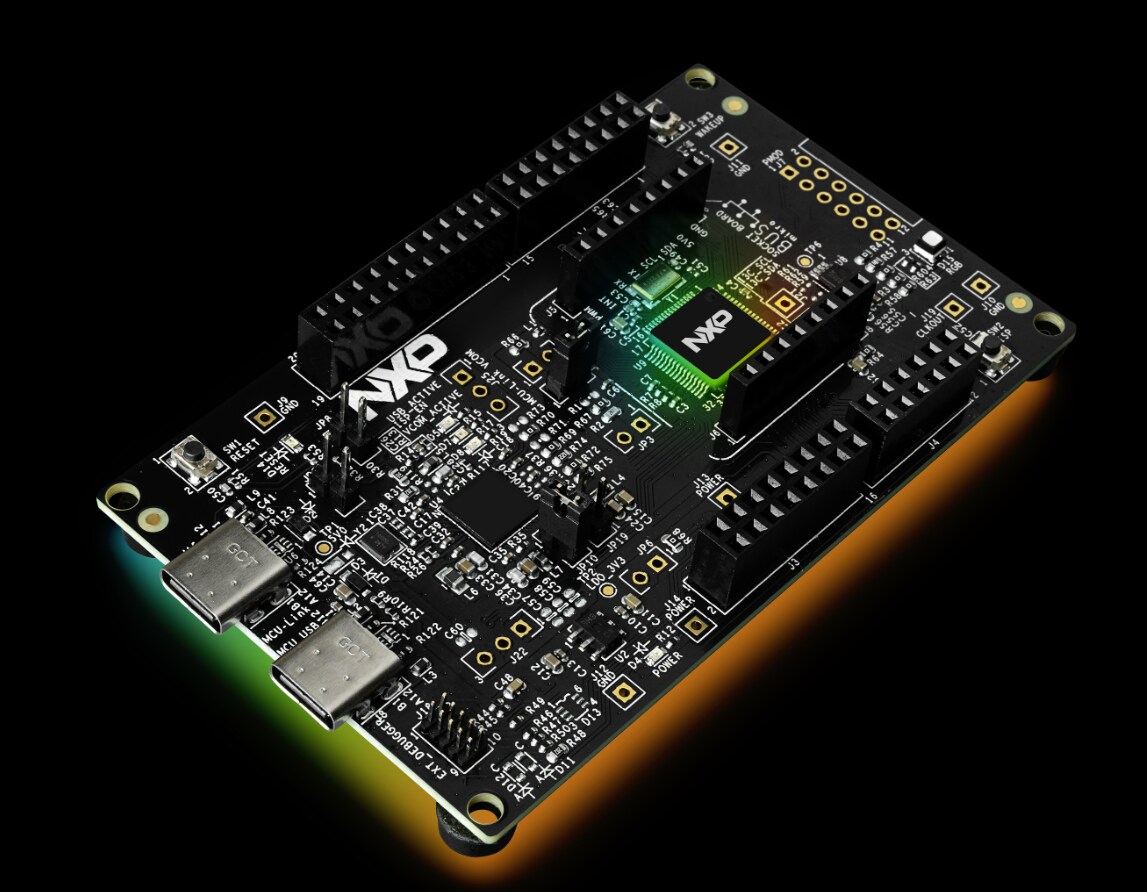
FRDM Training Hub

キャンセル
次の結果を表示 
表示  限定  | 次の代わりに検索 
もしかして: 

FRDM Training Hub

FRDM Training Hub


Restricted Beta Program

  • Comprehensive software and tools for seamless prototyping and rapid development
  • Scale your project with modular, quick-start FRDM and expansion boards
  • Leverage our application code hub or GoPoint to access 180+ code snippets and demos

  • Leverage FRDM Training Hub to learn from the experts
  • Not sure where to start ?

ディスカッション

ソート順:
FRDM Training and Resources This article provide a guide of available resources for FRDM Development boards to help you to find and use available resources (Boards, Guides, Hands-On Trainings and more)
記事全体を表示
Whether you're a student, hobbyist, or professional developer, the FRDM Development Platform by NXP is your gateway to building powerful embedded applications—quickly and affordably. In this beginner-friendly guide, you’ll learn: What FRDM boards are and how they compare to other NXP evaluation kits Who the platform is designed for How to buy and get started with your first board What’s new in the latest FRDM series featuring MCX microcontrollers and i.MX processors How the FRDM ecosystem supports your development with modular hardware, software tools, and ready-to-use code examples
記事全体を表示
  The FRDM i.MX 8M Plus development board is a low-cost and compact development board with NXP i.MX 8M Plus applications processor. On-board NXP IW612 Tri-Radio module supports Wi-Fi 6 + Bluetooth Low Energy 5.4 + 802.15.4. NXP releases Debian every six months and releases Yocto every year for this board. The FRDM i.MX 8M Plus development board is ideal for developing modern Industrial and IoT applications.   Get to know FRDM-IMX8MPLUS Development Boaard     Specifications 4× Arm® Cortex®A53 + 1× Arm Cortex-M7 LPDDR4 32-bit 4GB eMMC 5.1, 32GB QSPI NOR flash, 32 MB Power Management IC (PMIC) MicroSD 3.0 card slot One USB 3.0 Type-C connector One USB 2.0 Type-C for debug One USB 3.0 Type-A connector One USB Type-C PD only Onboard Wi-Fi® 6 + Bluetooth® LE 5.4/802.15.4 module Optional M.2 Key-E for Wi-Fi/ BT/802.15.4 M.2 Key-M for SSD Multiple display interface:     MIPI-DSI connector 2x4 data lane LVDS w/ Backlight HDMI connector Two MIPI-CSI connectors One 2x5 Pin NXP custom interface with: One CAN port I2C expansion Two 1 Gbps Ethernet Port0 supports POE Port1 supports TSN External RTC with coin cell connector 40 pin (2 x 20) expansion I/O     Feature FRDM-IMX8MPLUS eMMC 32GB DRAM Micron 4GB PMIC PCA9450C WiFi Module u-blox MAYA-W276 on-board USB Type-C+Type-A ENET 2xGbE M.2 (Key E) SDIO WiFi / BT Y (rework needed) M.2 (Key M) PCIE Y HDMI Y MIPI DSI Panel 22 Pins FPC HDR LVDS Panel 40 Pins 2mm HDR MIPI CSI camera 22 Pins FPC HDR 2x20 Expansion Interface Y CAN BUS Y MicroSD Y UART Y Audio WM8962B Remote Debug N NXP Connector (CAN, I2C) Y Power Connector Type-C PCB layers 6 Board DIM 12x13cm       NXP Devices On-Board PMIC PCA9450C USB PD TCPC PHY IC PTN5110 High-Voltage USB PD Power Switch NX20P5090UK I2C  Extends  GPIO PCAL6416A USB3.0 Switch CBTL02043A I2C Repeater PCA9509PDP Bi-directional Level Shifter NTS0104 CAN Transceiver TJA1051T/3 USB Sink & Source combo power switch NX20P3483UK USB Type-C CC and SBU Protection IC NX20P0407 Real-time clock/calendar PCF2131 Wi-Fi, BT, 802.15.4 Tri-Radio IW612 (in u-blox Module)     Expansion Boards RPI-CAM-MIPI: IAS camera to 22 Pins FPC camera adapter Waveshare 7'' DSI LCD: 7inch Capacitive Touch, 1024×600 DY1212W-4856 TFT LCD panel with LVDS interface: 12.1" (WXGA) TFT LCD panel with LVDS interface ​8MIC-RPI-MX8: 8-microphone array proto board for voice enablement   Trainings   Generic FRDM-IMX8MPLUS Software Release Deploy Android14 on FRDM-iMX8MP Lf6.6.36   Useful Links −i.MX Yocto Project User’s Guide​ −i.MX Linux User’s Guide ​−i.MX Linux Reference Manual​ −i.MX Porting Guide -i.MX Debian Linux SDK User Guide
記事全体を表示
Customer may want to deploy Android 14 on FRDM-iMX8MP. This doc gives an introduction about how to deploy Android OS14 on FRDM-iMX8MP   Hardware: FRDM-iMX8MP, Power supply cable, usb cable x2,  Ubuntu PC Outline: Follow the below steps: Setup the Android 14 source environment based on LF6.6.36. Apply FRDM-iMX8MP patches in kernel, uboot, mkimage, and device directory. Build the image for FRDM-iMX8MP Flash the image   1. Setup the environment On the Linux PC, set up the Android Source environment according to Section 2- Section 3 from the Android User’s Guide Rev. android-14.0.0_2.1.0 and do not build the image yet. $ cd ~ (or any other directory you like) $ tar xzvf imx-android-14.0.0_2.1.0.tar.gz To generate the i.MX Android release source code build environment, execute the following commands: $ source ~/imx-android-14.0.0_2.1.0/imx_android_setup.sh Prepare the build environment for U-Boot and Linux kernel. This step is mandatory because there is no GCC cross-compile tool chain in the one in AOSP codebase. An approach is provided to use the self-installed GCC cross-compile tool chain for both AArch32 and AArch64. Change to the top-level build directory and set up the environment for building. This only configures the current terminal $ cd ${MY_ANDROID} $ source build/envsetup.sh 2. Apply FRDM-iMX8MP patches into AOSP   Apply the patch in device/nxp, copy all the patches into android_build/device/nxp, and then running the command: $ git apply --check 0001-device-nxp-add-FRDM-i.MX8MP-Android14-basic-support.patch $ git apply 0001-device-nxp-add-FRDM-i.MX8MP-Android14-basic-support.patch Apply the patches in uboot, copy all the patches into android_build/vendor/nxp-opensource/uboot-imx, and then running the command: $ git am *.patch Apply the patches in kernel, copy all the patches into android_build/vendor/nxp-opensource/kernel-imx, and then running the command: $ git am *.patch Apply the patch in mkimage, copy all the patches into android_build/vendor/nxp-opensource/ imx-mkimage, and then running the command: $ git am *.patch     3. Build the image for FRDM-iMX8MP Execute the Android lunch command: $ lunch frdm_8mp-trunk_staging-userdebug Execute the imx-make.sh script to generate the image. $ ./imx-make.sh -j4 2>&1 | tee build-log.txt NOTE: The following outputs are generated by default in ${MY_ANDROID}/out/target/product/frdm_8mp:   4. Flash the image The board image files can be flashed into the target board using Universal Update Utility (UUU). For the UUU binary file, download it from GitHub: uuu release page on GitHub.  To achieve more flexibility, two script files are provided to invoke UUU to automatically flash all Android images. uuu_imx_android_flash.sh for Linux OS uuu_imx_android_flash.bat for Windows OS For this release, these two scripts are validated on UUU 1.5.179 version. Download the corresponding version from GitHub: For Linux OS, download the file named uuu. For Windows OS, download the file named uuu.exe. Perform the following steps to download the board images: Download the UUU binary file from GitHub as described before. Install UUU into a directory contained by the system environment variable of "PATH". Make the board enter serial download mode. Change the board's SW5 (boot mode) to 0001 (from 1-4 bit) to enter serial download mode. Power on the board. Use the USB cable to connect the USB 3.0 dual-role port (with silkprint "PORT1") on the board to your host PC. On the Linux system, open the shell terminal. For example, you can execute a command as follows: $ sudo ./uuu_imx_android_flash.sh -f imx8mp -p frdm -a -e On the Windows system, open the command-line interface in administrator mode. The corresponding command is as follows: $ uuu_imx_android_flash.bat -f imx8mp -p frdm -a -e NOTE: If you want to change the dtb, you can add -d dtb_feature. Also, you can check all the info by using the command: uuu_imx_android_flash.bat Power off the board and Change the board's SW5 (boot mode) to 0010 (from 1-4 bit) to enter emmc boot mode
記事全体を表示
This article will give a brief introduction of FRDM-IMX8MPLUS software release, including Yocto BSP release and Debian release. FRDM-IMX Yocto BSP Release i.MX FRDM Development software release contains prebuilt images, documentation, and i.MX FRDM Yocto layer for FRDM-IMX boards. It also includes support for Matter.  Based on i.MX SW 2024 Q3 BSP release Linux kernel: 6.6.36_2.1.0 u-boot: 2024.04 i.MX FRDM Yocto layer source: https://github.com/nxp-imx-support/meta-imx-frdm For more details, please check i.MX FRDM Software User Guide. FRDM-IMX8MPLUS accessories and corresponding dtb: 7-inch Waveshare LCD: imx8mp-frdm-waveshare.dtb DY1212W-4856 LVDS: imx8mp-frdm-boe-wxga-lvds0-panel.dtb imx8mp-frdm-boe-wxga-lvds1-panel.dtb RPI-CAM-MIPI MIPI CSI: imx8mp-frdm-ap1302.dtb imx8mp-frdm-dual-ap1302.dtb IMX-OS08A20 MIPI CSI: imx8mp-frdm-os08a20.dtb imx8mp-frdm-dual-os08a20.dtb 8MIC-RPI-MX8: imx8mp-frdm-8mic.dtb 2EL M.2 Module: imx8mp-frdm-iw612-otbr.dtb Build FRDM-IMX8MPLUS Yocto image: Download i.MX SW 2024 Q3 release: $ repo init -u https://github.com/nxp-imx/imx-manifest -b imx-linux-scarthgap -m imx-6.6.36-2.1.0.xml $ repo sync Integrate meta-imx-frdm layer into Yocto code base: $ cd ${MY_YOCTO}/sources $ git clone https://github.com/nxp-imx-support/meta-imx-frdm.git Yocto project setup: $ cd ${MY_YOCTO} $ MACHINE=imx8mpfrdm DISTRO=fsl-imx-xwayland source sources/meta-imx-frdm/tools/imx-frdm-setup.sh -b frdm-imx8mp Build images: $ bitbake imx-image-full Flash SD card image using dd: $ zstdcat imx-image-full-imx8mpfrdm.rootfs.wic.zst | sudo dd of=/dev/sdx bs=1M && sync Or use uuu to burn image to SD card: $ uuu -b sd_all imx-image-full-imx8mpfrdm.rootfs.wic.zst FRDM-IMX8MPLUS Matter Support Based on i.MX Matter 2024 Q3 To include Matter support, please follow below steps to include Matter layer into Yocto build. Download i.MX SW 2024 Q3 BSP Release: $ repo init -u https://github.com/nxp-imx/imx-manifest -b imx-linux-scarthgap -m imx-6.6.36-2.1.0.xml $ repo sync Download i.MX Matter Yocto layer: $ cd ${MY_YOCTO}/sources/meta-nxp-connectivity $ git remote update $ git checkout imx_matter_2024_q3 Integrate meta-imx-frdm layer into Yocto code base: $ cd ${MY_YOCTO}/sources $ git clone https://github.com/nxp-imx-support/meta-imx-frdm.git Yocto Project Setup: $ cd ${MY_YOCTO} $ MACHINE=imx8mpfrdm-matter DISTRO=fsl-imx-xwayland source sources/meta-imx-frdm/tools/imx-frdm-matter-setup.sh bld-xwayland-imx8mpfrdm Build images: $ bitbake imx-image-multimedia FRDM-IMX8MPLUS Debian Release FRDM-IMX8MPLUS has support on Debian 12 OS. i.MX Debian Linux SDK distribution is a combination of NXP-provided kernel and boot loaders with a Debian distro user-space image, which includes: Debian-based rootfs Debian Base (basic packages) Debian Server (more packages without GUI Desktop) Debian Desktop (with GNOME GUI Desktop) Linux kernel BSP components various applications (graphics, multimedia, networking, connectivity, security, and AI/ML) For more details of NXP Debian Linux SDK Distribution, please check NXP Debian Linux SDK User Guide. Quick Start with Debian: To create an SD card with Debian for FRDM-IMX8MPLUS, please follow below steps. Download flex-installer on the Linux host $ wget http://www.nxp.com/lgfiles/sdk/lsdk2412/flex-installer $ chmod +x flex-installer $ sudo mv flex-installer /usr/bin Plug the SD card into the Linux host and install the images as below # format SD card $ flex-installer -i pf -d /dev/sdx # automatically download and install images into SD card $ flex-installer -i auto -d /dev/mmcblk1 -m imx8mpfrdm Plug the SD card into FRDM-IMX8MPLUS board and install the extra packages as below  1. Setup Ethernet network interface by DHCP or setting it manually $ dhclient -i end0 2. Set correct system time, for example $ date -s "22 Nov 2024 09:00:00" 3. Install extra packages for GNOME GUI Desktop version $ debian-post-install-pkg desktop 4. Or install extra packages for Server version without GUI Desktop $ debian-post-install-pkg server 5. After finishing the installation, run the reboot command to boot up the Debian Desktop/Server system Building Debian Images with Flexbuild: To build Debian image with Flexbuild for FRDM-IMX8MPLUS, please follow below steps. Set up the build environment $ git clone https://github.com/nxp/flexbuild $ cd flexbuild && source setup.env #Continue to run commands below in case you need to build in Docker due to lack of Ubuntu 22.04 or Debian 12 host $ bld docker $ source setup.env Build image with Flexbuild $ bld -m imx8mpfrdm Flexbuild usage: To build individual part of the image, please check below command list for Flexbuild usage. $ bld uboot -m imx8mpfrdm (compile u-boot image for imx8mpfrdm) $ bld linux (compile linux kernel for all arm64 i.MX machines) $ bld bsp -m imx8mpfrdm (generate BSP firmware) $ bld boot (generate boot partition tarball including kernel, dtb, modules, distro bootscript for iMX machines) $ bld multimedia (build multimedia components for i.MX platforms) $ bld rfs -r debian:server (generate Debian server rootfs) $ bld apps -r debian:server (compile apps against runtime dependencies of Debian server RootFS) $ bld merge-apps -r debian:server (merge iMX-specific apps into target Debian server RootFS) $ bld packrfs -r debian:server (pack and compress target debian server rootfs) Related Documentation i.MX FRDM Software User Guide i.MX Debian Linux SDK User Guide More information about i.MX productions can be found at(http://www.nxp.com/imxlinux) i.MX Yocto Project User’s Guide​ i.MX Linux User’s Guide​ i.MX Linux Reference Manual​ i.MX Porting Guide Debian documents at http://www.nxp.com/nxpdebian
記事全体を表示