
- Forums
- Product Forums
- General Purpose MicrocontrollersGeneral Purpose Microcontrollers
- i.MX Forumsi.MX Forums
- QorIQ Processing PlatformsQorIQ Processing Platforms
- Identification and SecurityIdentification and Security
- Power ManagementPower Management
- Wireless ConnectivityWireless Connectivity
- RFID / NFCRFID / NFC
- Advanced AnalogAdvanced Analog
- Neural Processing UnitsNeural Processing Units
- MCX Microcontrollers
- S32G
- S32K
- S32V
- MPC5xxx
- Other NXP Products
- S12 / MagniV Microcontrollers
- Powertrain and Electrification Analog Drivers
- Sensors
- Vybrid Processors
- Digital Signal Controllers
- 8-bit Microcontrollers
- ColdFire/68K Microcontrollers and Processors
- PowerQUICC Processors
- OSBDM and TBDML
- S32M
- S32Z/E
-
- Solution Forums
- Software Forums
- MCUXpresso Software and ToolsMCUXpresso Software and Tools
- CodeWarriorCodeWarrior
- MQX Software SolutionsMQX Software Solutions
- Model-Based Design Toolbox (MBDT)Model-Based Design Toolbox (MBDT)
- FreeMASTER
- eIQ Machine Learning Software
- Embedded Software and Tools Clinic
- S32 SDK
- S32 Design Studio
- GUI Guider
- Zephyr Project
- Voice Technology
- Application Software Packs
- Secure Provisioning SDK (SPSDK)
- Processor Expert Software
- Generative AI & LLMs
-
- Topics
- Mobile Robotics - Drones and RoversMobile Robotics - Drones and Rovers
- NXP Training ContentNXP Training Content
- University ProgramsUniversity Programs
- Rapid IoT
- NXP Designs
- SafeAssure-Community
- OSS Security & Maintenance
- Using Our Community
-
- Cloud Lab Forums
-
- Knowledge Bases
- ARM Microcontrollers
- i.MX Processors
- Identification and Security
- Model-Based Design Toolbox (MBDT)
- QorIQ Processing Platforms
- S32 Automotive Processing Platform
- Wireless Connectivity
- CodeWarrior
- MCUXpresso Suite of Software and Tools
- MQX Software Solutions
- RFID / NFC
- Advanced Analog
- Neural Processing Units
-
- NXP Tech Blogs
オプション
- 購読
- ブックマーク
- RSS フィードを購読する
FRDM Training Hub
FRDM Training Hub
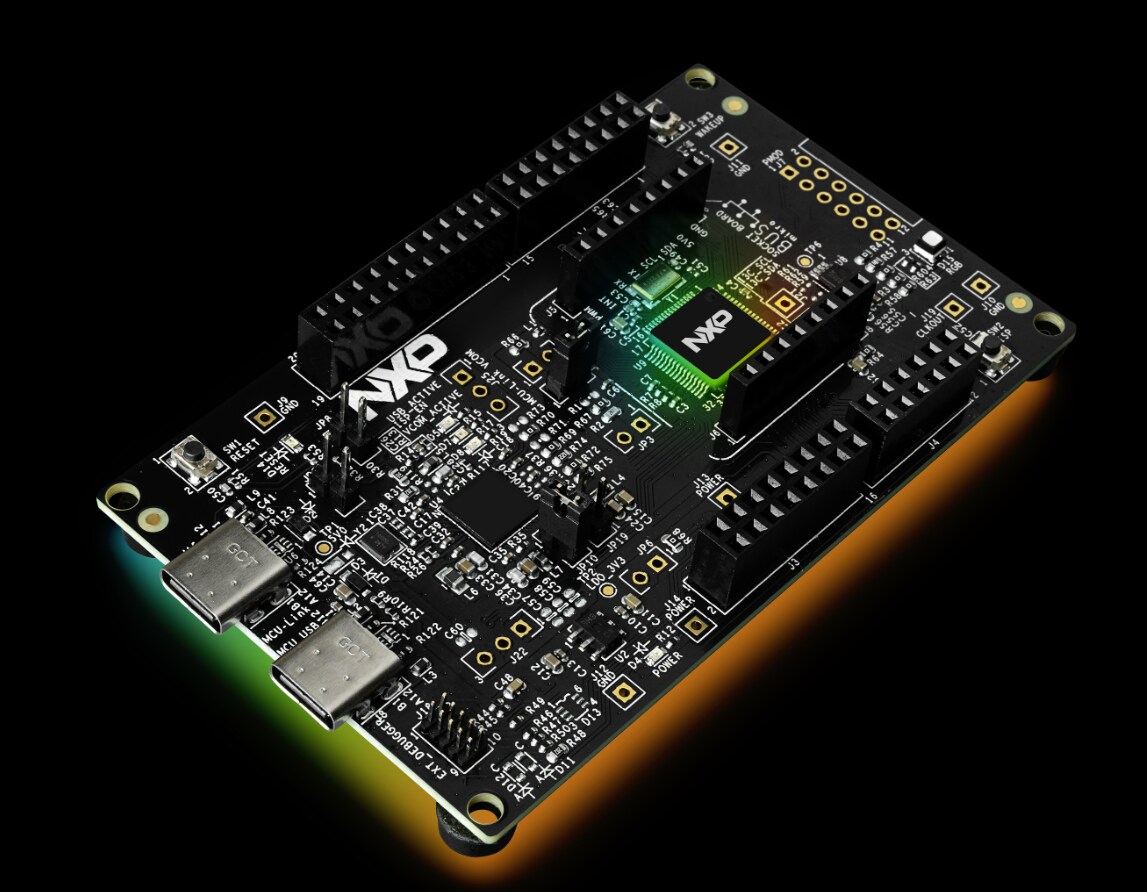
|
- Comprehensive software and tools for seamless prototyping and rapid development
- Scale your project with modular, quick-start FRDM and expansion boards
- Leverage our application code hub or GoPoint to access 180+ code snippets and demos
- Leverage FRDM Training Hub to learn from the experts
- Not sure where to start ?
ラベル
-
FRDM-IMX8
3 -
FRDM-IMX8MP
6 -
FRDM-IMX9
5 -
FRDM-IMX91
10 -
FRDM-IMX93
13 -
FRDM-MCXA
6 -
FRDM-MCXC
2 -
FRDM-MCXE
2 -
FRDM-MCXE24
3 -
FRDM-MCXE31
3 -
FRDM-MCXL
2 -
FRDM-MCXN
5 -
FRDM-MCXW23
5 -
FRDM-MCXW71
1 -
FRDM-RW612
9 -
FRDM-Training
56 -
Hands-On Training
46 -
i.MX Application Processors
18 -
MCU
34 -
MCX E24
2 -
MCX E31
2 -
MCX W23
5 -
MCX W71
1 -
Wireless
41
- « 前へ
- 次へ »
ディスカッション
ラベルWirelessを持つトピックを表示
すべてのトピックを表示する
特集記事
100%が役に立ったと言っています
(2/2)
10-28-2025
10:33 AM
特集記事
特集記事