
- Forums
- Product Forums
- General Purpose MicrocontrollersGeneral Purpose Microcontrollers
- i.MX Forumsi.MX Forums
- QorIQ Processing PlatformsQorIQ Processing Platforms
- Identification and SecurityIdentification and Security
- Power ManagementPower Management
- Wireless ConnectivityWireless Connectivity
- RFID / NFCRFID / NFC
- Advanced AnalogAdvanced Analog
- Neural Processing UnitsNeural Processing Units
- MCX Microcontrollers
- S32G
- S32K
- S32V
- MPC5xxx
- Other NXP Products
- S12 / MagniV Microcontrollers
- Powertrain and Electrification Analog Drivers
- Sensors
- Vybrid Processors
- Digital Signal Controllers
- 8-bit Microcontrollers
- ColdFire/68K Microcontrollers and Processors
- PowerQUICC Processors
- OSBDM and TBDML
- S32M
- S32Z/E
-
- Solution Forums
- Software Forums
- MCUXpresso Software and ToolsMCUXpresso Software and Tools
- CodeWarriorCodeWarrior
- MQX Software SolutionsMQX Software Solutions
- Model-Based Design Toolbox (MBDT)Model-Based Design Toolbox (MBDT)
- FreeMASTER
- eIQ Machine Learning Software
- Embedded Software and Tools Clinic
- S32 SDK
- S32 Design Studio
- GUI Guider
- Zephyr Project
- Voice Technology
- Application Software Packs
- Secure Provisioning SDK (SPSDK)
- Processor Expert Software
- Generative AI & LLMs
-
- Topics
- Mobile Robotics - Drones and RoversMobile Robotics - Drones and Rovers
- NXP Training ContentNXP Training Content
- University ProgramsUniversity Programs
- Rapid IoT
- NXP Designs
- SafeAssure-Community
- OSS Security & Maintenance
- Using Our Community
-
- Cloud Lab Forums
-
- Knowledge Bases
- ARM Microcontrollers
- i.MX Processors
- Identification and Security
- Model-Based Design Toolbox (MBDT)
- QorIQ Processing Platforms
- S32 Automotive Processing Platform
- Wireless Connectivity
- CodeWarrior
- MCUXpresso Suite of Software and Tools
- MQX Software Solutions
- RFID / NFC
- Advanced Analog
- Neural Processing Units
-
- NXP Tech Blogs
- Home
- :
- ARM Microcontrollers
- :
- Kinetisマイクロコントローラ・ナレッジ・ベース
- :
- FREEMASTER: Remote Server Tutorial
FREEMASTER: Remote Server Tutorial
- RSS フィードを購読する
- 新着としてマーク
- 既読としてマーク
- ブックマーク
- 購読
- 印刷用ページ
- 不適切なコンテンツを報告
FREEMASTER: Remote Server Tutorial
FREEMASTER: Remote Server Tutorial
For Remote Control means, that is needed two computers - Server Computer and User Computer, which will be in connection.
There are two types of connection, which can be used - HTTP or DCOM. There are two different ways how to set up the remote control in Windows.
I made the tutorial, which describes both types of Remote Control.
Ok - so, let´s start!
HTTP Settings
On the Server Computer side:
1. Plug the board to the Server Computer
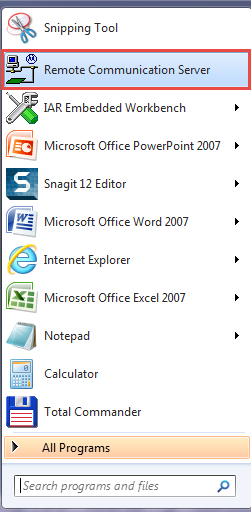
2. Go to Remote Communication Server
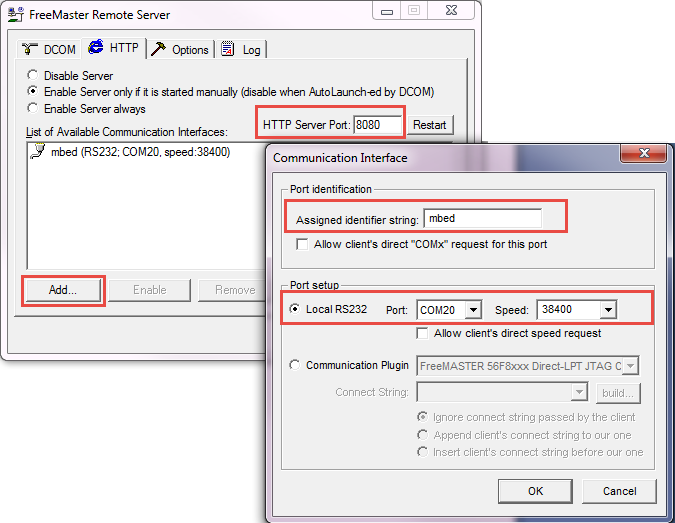
3. Set HTTP connection and choose the right COM Port according the plugged board
If the plugged board is on e.g. COM23, it is possible to edit number of Port in Device Manager

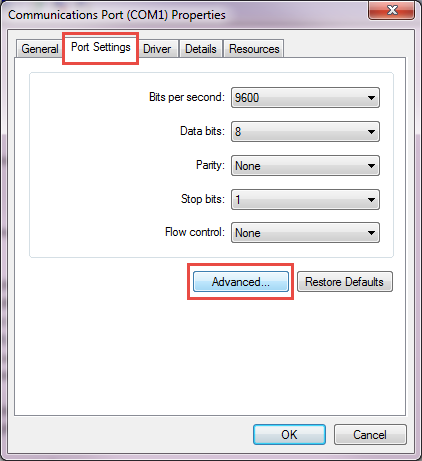
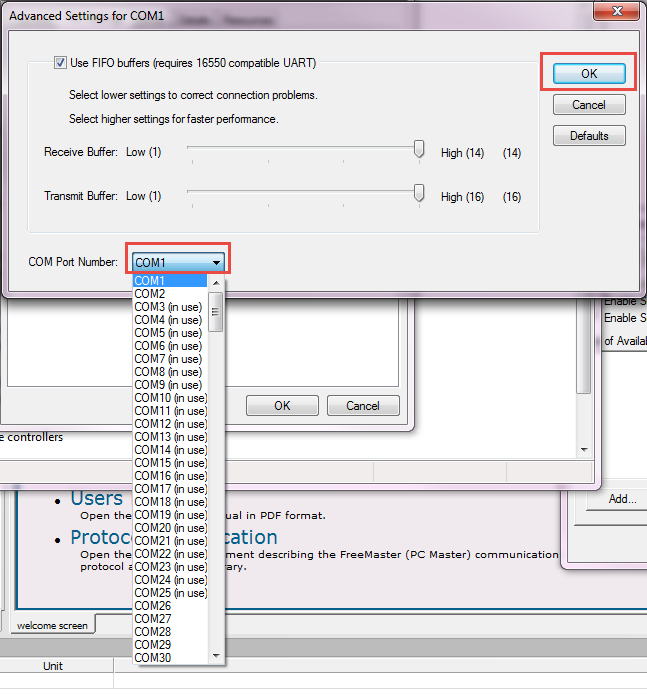
On the User PC side:
1. Open FreeMASTER, go to Project -> Options
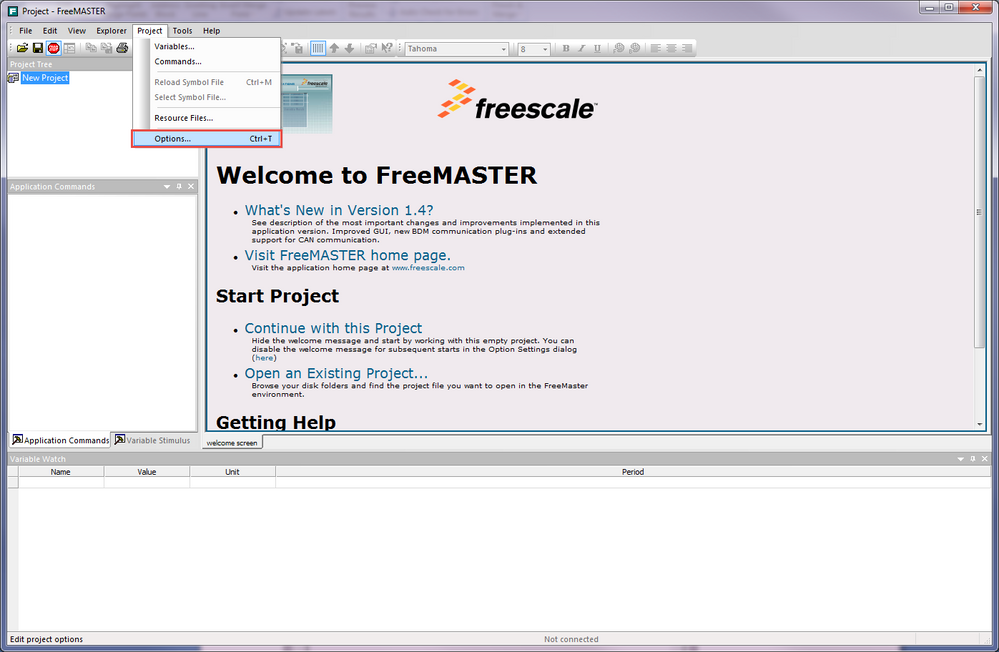
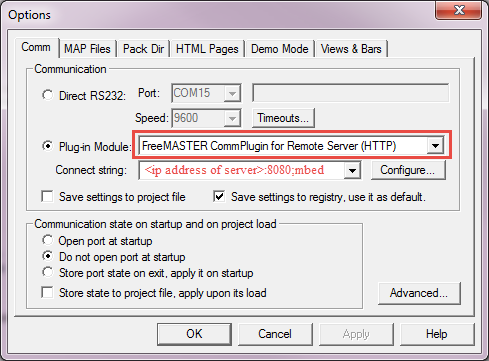
2. Choose Plug-in Module: FreeMASTER CommPlugin for Remote Server (HTTP) and type the IP address of the server,
do not forget join to IP address :8080
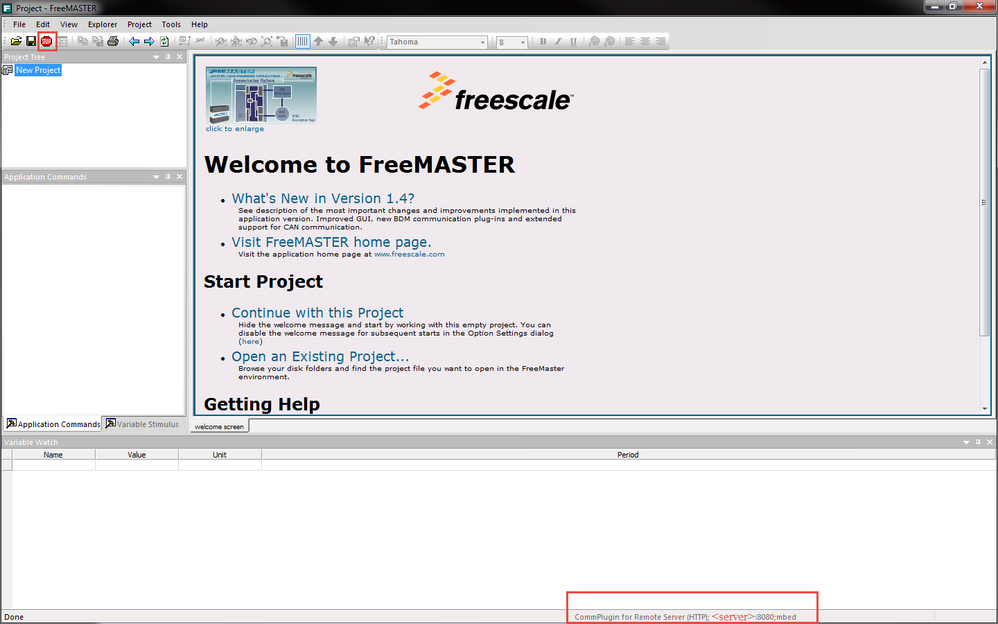
3. And start communication by STOP button to successful connection
DCOM Settings
On the Server Computer side:
1. Plug board to the Server Computer
2. Launch DCOM in FreeMASTER Remote Server
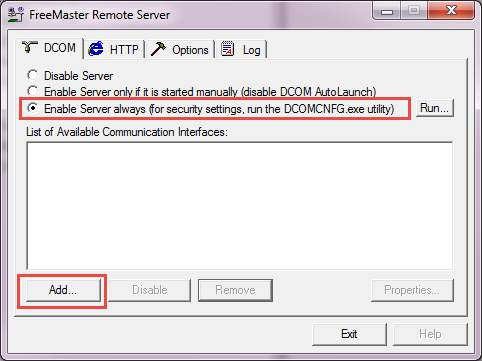
Choose COM according plugged board or edit COM according to step 2 - Server Computer in HTTP Connection (up).
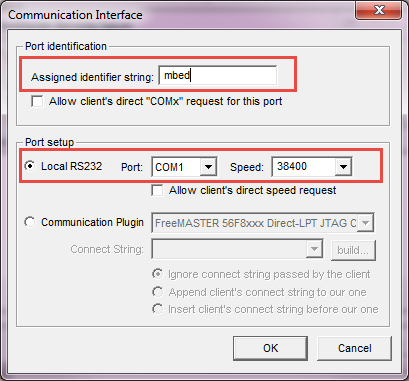
3. Setting permissions for the user, User PC.
Right click on Computer -> Manage.
In Computer Management click to Distributed COM Users.
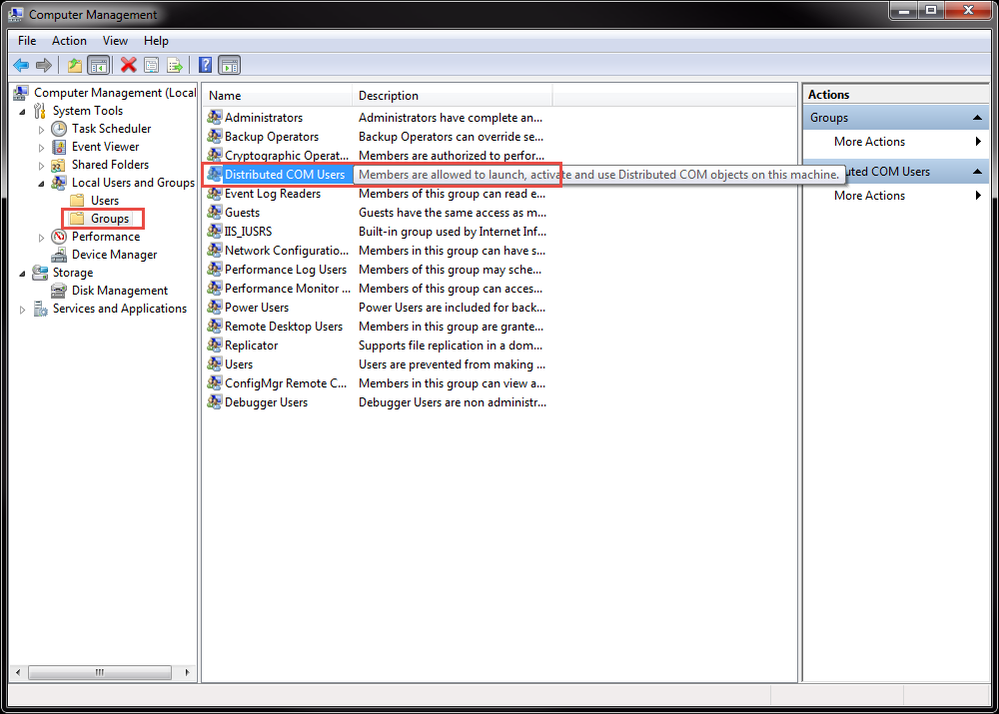
In Distributed COM Users Properties add the user, User Computer.
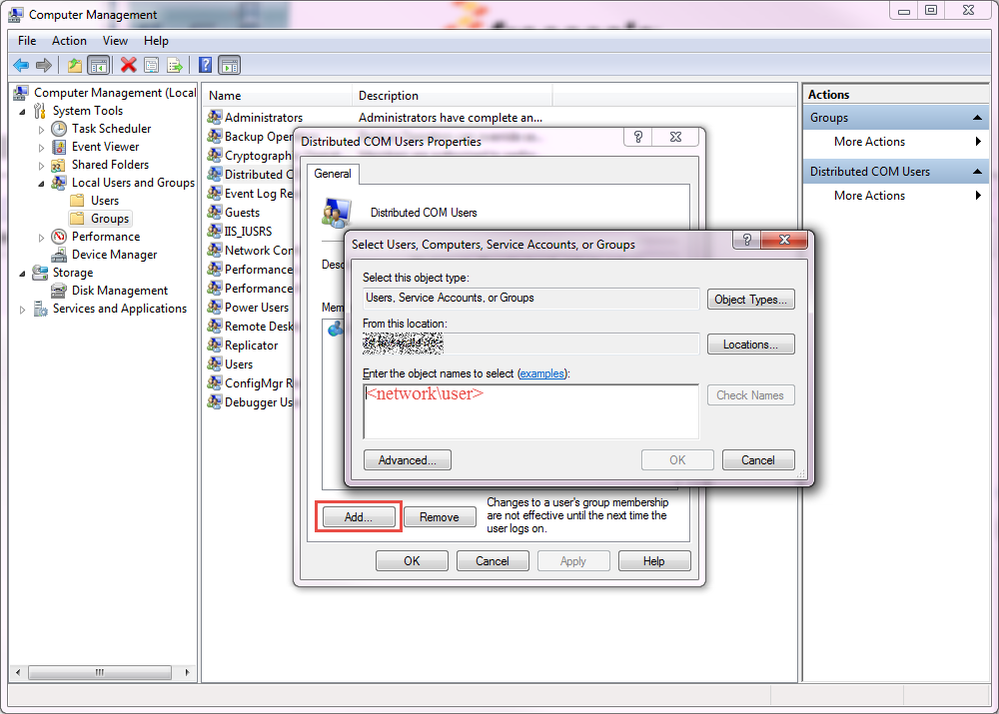
After that, set the permissions in Component Services. In cmd type dcomcnfg.exe
In Component Services go to Computers -> My Computer -> DCOM Config -> MCB FreeMASTER Remote Server Application
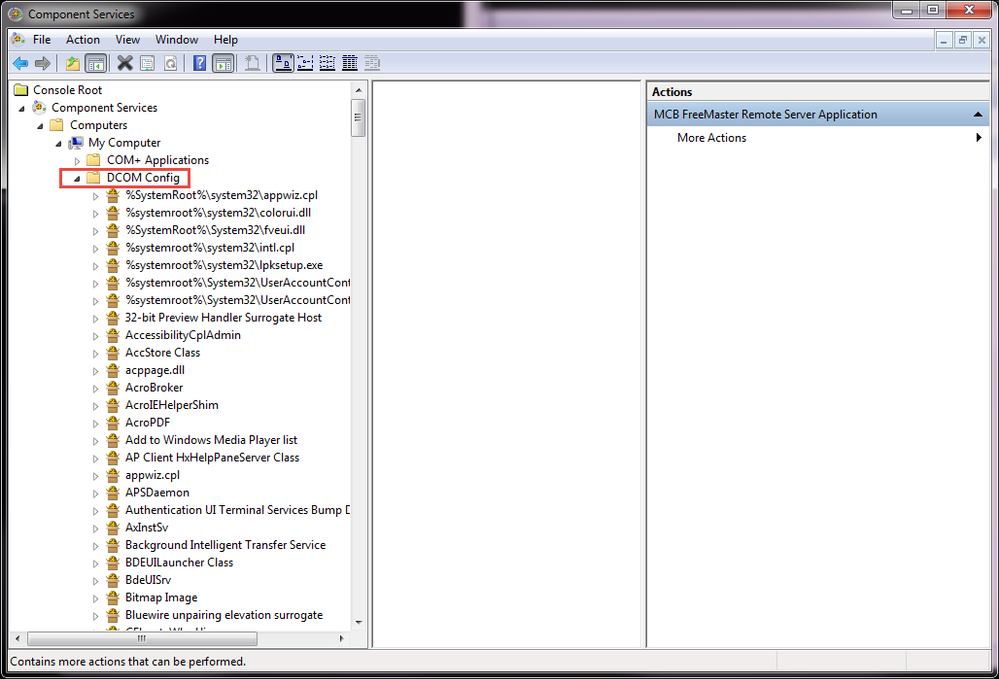
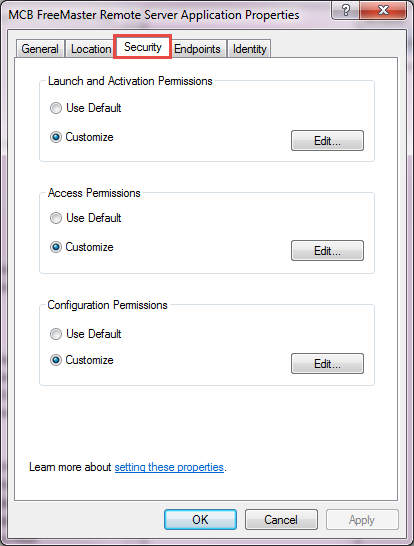
Right click on MCB FreeMASTER Remote Server Application and go to Properties.

In Security Tab is possible to add the permissions.
There are 3 types of permissions.
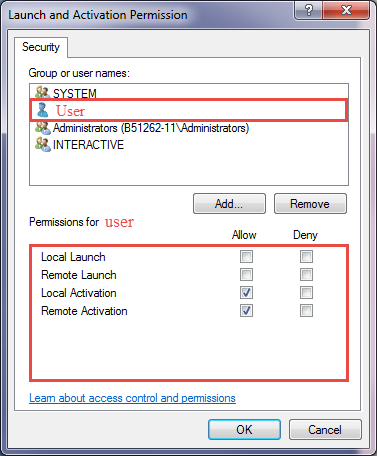
First permission - Launch and Activation Permissions.
There are 4 permission options. Local Launch and Remote Launch means, that user, User Computer can launch e.g. FM Remote Server Application.
But for success communication is needed allowing Local Activation and Remote Activation.
Second permission - Access Permissions.
Click to Edit and Allow Local Access and Remote Access for the user.
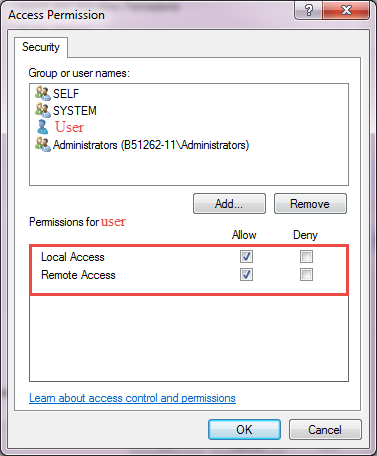
Do not forget that if there is a change of permissions, specifically allowing, it is necessary for User to log out and log in.
On the User Computer side:
1. Open Freemaster, go to Project -> Options
2. Choose Plug-in Module: FreeMASTER CommPlugin for Remote Server (DCOM) and for filling Connect string is possible to use Configure.
Definitely, type the IP address of the server and ;Port Name.

3. And start communication by STOP button in FreeMASTER to successful connection
And now.. you can do anything :-)

- 既読としてマーク
- 新着としてマーク
- ブックマーク
- ハイライト
- 印刷
- 不適切なコンテンツを報告
Hello
I am trying to run FreeMaster Remote Server [HTTP mode] on a Windows 7 PC with the UART set to COM1 (COM1 exist and can be used by other programs - no other programs are using it when this is attempted).
The error message at the FreeMaster client is
"Could not open the communication port (Error 0x848a1001: Specified communication port not found on the server.)!"
I interpret this to mean that the client couldn't open COM1 (at 9600Baud)
What could the reason be for this - as noted above, COM1 is otherwise working for other programs?
I have tried running mcbsrv as user and as administrator, with the same results.
Regards
Mark

- 既読としてマーク
- 新着としてマーク
- ブックマーク
- ハイライト
- 印刷
- 不適切なコンテンツを報告
Hi Mark!
It is strange. I done it on different computers and it works! If you change the name of the Port and it is "is use" > Yes, you want to continue.
And remember, you must have computers in the same network.
Iva
