
- Forums
- Product Forums
- General Purpose MicrocontrollersGeneral Purpose Microcontrollers
- i.MX Forumsi.MX Forums
- QorIQ Processing PlatformsQorIQ Processing Platforms
- Identification and SecurityIdentification and Security
- Power ManagementPower Management
- Wireless ConnectivityWireless Connectivity
- RFID / NFCRFID / NFC
- Advanced AnalogAdvanced Analog
- MCX Microcontrollers
- S32G
- S32K
- S32V
- MPC5xxx
- Other NXP Products
- S12 / MagniV Microcontrollers
- Powertrain and Electrification Analog Drivers
- Sensors
- Vybrid Processors
- Digital Signal Controllers
- 8-bit Microcontrollers
- ColdFire/68K Microcontrollers and Processors
- PowerQUICC Processors
- OSBDM and TBDML
- S32M
- S32Z/E
-
- Solution Forums
- Software Forums
- MCUXpresso Software and ToolsMCUXpresso Software and Tools
- CodeWarriorCodeWarrior
- MQX Software SolutionsMQX Software Solutions
- Model-Based Design Toolbox (MBDT)Model-Based Design Toolbox (MBDT)
- FreeMASTER
- eIQ Machine Learning Software
- Embedded Software and Tools Clinic
- S32 SDK
- S32 Design Studio
- GUI Guider
- Zephyr Project
- Voice Technology
- Application Software Packs
- Secure Provisioning SDK (SPSDK)
- Processor Expert Software
- Generative AI & LLMs
-
- Topics
- Mobile Robotics - Drones and RoversMobile Robotics - Drones and Rovers
- NXP Training ContentNXP Training Content
- University ProgramsUniversity Programs
- Rapid IoT
- NXP Designs
- SafeAssure-Community
- OSS Security & Maintenance
- Using Our Community
-
- Cloud Lab Forums
-
- Knowledge Bases
- ARM Microcontrollers
- i.MX Processors
- Identification and Security
- Model-Based Design Toolbox (MBDT)
- QorIQ Processing Platforms
- S32 Automotive Processing Platform
- Wireless Connectivity
- CodeWarrior
- MCUXpresso Suite of Software and Tools
- MQX Software Solutions
- RFID / NFC
- Advanced Analog
-
- NXP Tech Blogs
- Home
- :
- Software Forums
- :
- FreeMASTER
- :
- unable to get property style of undefined or null reference
unable to get property style of undefined or null reference
- Subscribe to RSS Feed
- Mark Topic as New
- Mark Topic as Read
- Float this Topic for Current User
- Bookmark
- Subscribe
- Mute
- Printer Friendly Page
unable to get property style of undefined or null reference

- Mark as New
- Bookmark
- Subscribe
- Mute
- Subscribe to RSS Feed
- Permalink
- Report Inappropriate Content
I am using MCSPTE1AK116_PMSM_FOC_2Sh board
while i am tring to open a freemaster to execute the test i got a message that:
Line: 87
Char:6
Error: unable to get property style of undefined or null reference
Code: 0
do you want to continue running scripts on this page ?
then nothing is running, what shall i do ?

 MichalH
- Mark as New
- Bookmark
- Subscribe
- Mute
- Subscribe to RSS Feed
- Permalink
- Report Inappropriate Content
Hello,
both me and my colleague Marek who was posting his answers above have tested the project and confirmed correct functionality on our side. Most likely this the issue you are facing is also not related to hardware setup.
I suspect there is some security issue preventing the FreeMASTER from opening local HTML files or running scripts. In this Motor Control application, the FreeMASTER project uses legacy "IE Mode" to display HTML content, and there might be some restrictions in the Windows settings.
Please follow the steps below. The procedure may help to reveal the root cause or at least give us more information. I have performed the steps on my side and I'm sharing how it looks on my side. Please do the steps yourself and take screenshot of errors or of a different behavior:
1. Run FreeMASTER with the S32K_PMSM_Sensorless.pmp project. On my side this opens fine without any error. You will get your errors pop-up. Try to press OK/Cancel buttons until you get no more messages, you will probably get many of them, just be patient.
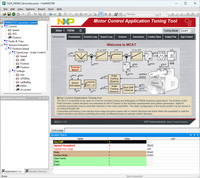
2. Leave the FreeMASTER running (this is important). Run Microsoft Edge browser and press Ctrl+Shift+N to open an InPrivate anonymous window.
3. Press the ... button to open Edge settings menu, and select More tools / Internet Options

4. Go to Advanced tab and make sure the two "Allow active content ..." checkboxes are checked. Actually, they were unchecked on my side, so this is definitely not the root cause of the issue, but let's check them both anyway. Press OK to accept.

5. Go back to Edge ... settings menu and go the "Settings"

6. There is a search bar in the Settings page, enter "IE mode" there. Then make sure to enable "IE Mode switch", and also enable the IE toolbar button in "Appearance->Toolbar" section:

7. Press the back arrow back two times so you get out of the Edge settings pages.
8. Locate the FreeMASTER_control\MCAT\src\MainPage.html file and drag-drop it into the Microsoft Edge window.
9. You will get some error messages (I got some about xmlDoc.load), just ignore them all. After skipping the errors, you should see the page graphics loaded. Note that there is the IE Mode button ready to be pressed.

10. Finally the important step which will be different in my and your case. Press the IE Mode button and see the errors you will get. In my case it is the confirmation prompt - press Done

11. Press F5 to refresh the page. I'm getting the "yellow bar" popup with warning about blocked scripts/ActiveX controls. You will probably get a different one.

12. After pressing "Allow blocked content" the page becomes operational. In my case, I get no more errors and can change tabs and edit motor parameters. Note that the page is now internally connected to FreeMASTER running in background.

I expect you will get some other behavior and errors in steps 10 and 11 which will hopefully indicate why is the page blocked on your side.
Please share the screenshots here.
Thank you for your cooperation,
Michal
marekmusak
- Mark as New
- Bookmark
- Subscribe
- Mute
- Subscribe to RSS Feed
- Permalink
- Report Inappropriate Content
Hello,
Thanks for reporting the issue. I’ve tried to reproduce the problem but couldn’t replicate it on my side. Could you please confirm if you're using the latest version of the MCSPTE1AK116 Software and FreeMASTER?
If not, updating might help. If you are already on the latest version, feel free to share more details so I can look into it further.
Also, just in case—have there been any modifications to your setup or configuration that might influence the behavior?
Best regards,
Marek
- Mark as New
- Bookmark
- Subscribe
- Mute
- Subscribe to RSS Feed
- Permalink
- Report Inappropriate Content
sorry for the delay in the reply.
indeed the setup was not touch at all, i only installed the software and run as mentioned in your website for PMSM
i changed the jumper to run BLDC and it is working fine without any issue.
please have a look at the connection, might something is not correct, which info shall i provide more ?
- Mark as New
- Bookmark
- Subscribe
- Mute
- Subscribe to RSS Feed
- Permalink
- Report Inappropriate Content
any support from NXP ?
MichalH
- Mark as New
- Bookmark
- Subscribe
- Mute
- Subscribe to RSS Feed
- Permalink
- Report Inappropriate Content
Hello,
actually, this issue relates to motor control toolbox (MCAT), not to FreeMASTER. The MCAT UI runs inside the FreeMASTER and uses it to access the board hardware, but the error you show is generated by the HTML/JScript code of the MCAT UI.
I would recommend to seek for answers in a community focused to motor control or for the target MCU platform.
Regards,
Michal
- Mark as New
- Bookmark
- Subscribe
- Mute
- Subscribe to RSS Feed
- Permalink
- Report Inappropriate Content
Thank you for your swift reply.
please can you send to me the link of the community focused to motor control or for the target MCU platform
then i can ask this question
Best regards
Fadi
MichalH
- Mark as New
- Bookmark
- Subscribe
- Mute
- Subscribe to RSS Feed
- Permalink
- Report Inappropriate Content
The home of MCAT is https://www.nxp.com/mcat - perhaps you could find the latest version of your software package there. Or maybe at the S32K1 motor control demo kit home page: https://www.nxp.com/design/design-center/development-boards-and-designs/MCSPTE1AK116
The S32K product forum is here: https://community.nxp.com/t5/S32K/bd-p/S32K
Regards,
Michal
- Mark as New
- Bookmark
- Subscribe
- Mute
- Subscribe to RSS Feed
- Permalink
- Report Inappropriate Content
I was looking for similar issue but i could not find any
who can support me here?
can we make a teams call ?
- Mark as New
- Bookmark
- Subscribe
- Mute
- Subscribe to RSS Feed
- Permalink
- Report Inappropriate Content


