
- Forums
- Product Forums
- General Purpose MicrocontrollersGeneral Purpose Microcontrollers
- i.MX Forumsi.MX Forums
- QorIQ Processing PlatformsQorIQ Processing Platforms
- Identification and SecurityIdentification and Security
- Power ManagementPower Management
- Wireless ConnectivityWireless Connectivity
- RFID / NFCRFID / NFC
- Advanced AnalogAdvanced Analog
- Neural Processing UnitsNeural Processing Units
- MCX Microcontrollers
- S32G
- S32K
- S32V
- MPC5xxx
- Other NXP Products
- S12 / MagniV Microcontrollers
- Powertrain and Electrification Analog Drivers
- Sensors
- Vybrid Processors
- Digital Signal Controllers
- 8-bit Microcontrollers
- ColdFire/68K Microcontrollers and Processors
- PowerQUICC Processors
- OSBDM and TBDML
- S32M
- S32Z/E
-
- Solution Forums
- Software Forums
- MCUXpresso Software and ToolsMCUXpresso Software and Tools
- CodeWarriorCodeWarrior
- MQX Software SolutionsMQX Software Solutions
- Model-Based Design Toolbox (MBDT)Model-Based Design Toolbox (MBDT)
- FreeMASTER
- eIQ Machine Learning Software
- Embedded Software and Tools Clinic
- S32 SDK
- S32 Design Studio
- GUI Guider
- Zephyr Project
- Voice Technology
- Application Software Packs
- Secure Provisioning SDK (SPSDK)
- Processor Expert Software
- Generative AI & LLMs
-
- Topics
- Mobile Robotics - Drones and RoversMobile Robotics - Drones and Rovers
- NXP Training ContentNXP Training Content
- University ProgramsUniversity Programs
- Rapid IoT
- NXP Designs
- SafeAssure-Community
- OSS Security & Maintenance
- Using Our Community
-
- Cloud Lab Forums
-
- Knowledge Bases
- ARM Microcontrollers
- i.MX Processors
- Identification and Security
- Model-Based Design Toolbox (MBDT)
- QorIQ Processing Platforms
- S32 Automotive Processing Platform
- Wireless Connectivity
- CodeWarrior
- MCUXpresso Suite of Software and Tools
- MQX Software Solutions
- RFID / NFC
- Advanced Analog
- Neural Processing Units
-
- NXP Tech Blogs
- Home
- :
- MCUXpresso Software and Tools
- :
- LPCXpresso IDE FAQs
- :
- Can I move my LPCXpresso IDE (Pro Edition) installation to another machine?
Can I move my LPCXpresso IDE (Pro Edition) installation to another machine?
- Subscribe to RSS Feed
- Mark Topic as New
- Mark Topic as Read
- Float this Topic for Current User
- Bookmark
- Subscribe
- Mute
- Printer Friendly Page
Can I move my LPCXpresso IDE (Pro Edition) installation to another machine?

- Mark as New
- Bookmark
- Subscribe
- Mute
- Subscribe to RSS Feed
- Permalink
- Report Inappropriate Content
Note: This FAQ applies to LPCXpresso IDE (Pro Edition) only. If you are using LPCXpresso IDE (Free Edition), the please see:
An LPCXpresso IDE (Pro Edition) installation may be transferred (rehosted) from one machine to another (with the proviso for single seat Activations that this does not occur more than twice per 30 days).
It is recommended that the original Installation is first deactivated (when possible).
From the original installation select:
Help -> Activate LPCXpresso (Pro Edition) -> Deactivate
The password used during installation will be required to complete the Deactivation.
If successful, a dialogue will be displayed showing the reduced capabilities of the Deactivated Product.
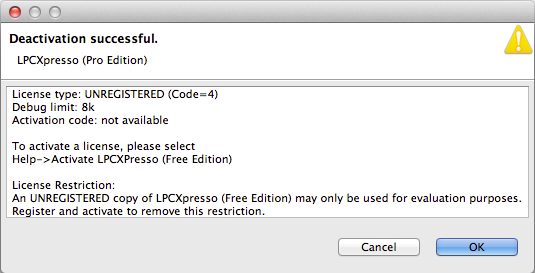
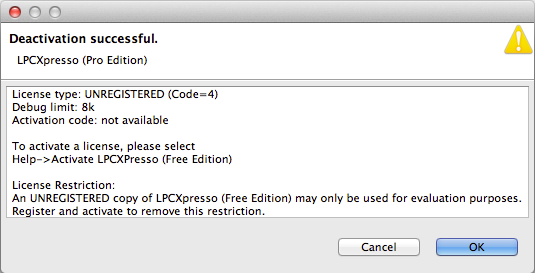
If the deactivation cannot be performed on the local machine (for example due to a hardware failure) deactivation may be performed from the 'mySoftwareLicense' web portal. LPCXpresso IDE can now be installed and activated on another computer.
Please note that for Multi-Seat versions of LPCXpresso IDE:
- if this deactivation is not performed, the seat will not be released
Finally, if your Activation code is for a single seat and you do not deactivate your existing installation then a new installation and activation will effectively deactivate the previous installation but this may restrict your ability to move again within a 30 day period.
For further information please see the FAQ:
- Mark as New
- Bookmark
- Subscribe
- Mute
- Subscribe to RSS Feed
- Permalink
- Report Inappropriate Content
Transferring your LPCXpresso IDE (Pro Edition) installation from one machine to another involves a few steps to ensure a smooth transition and compliance with licensing rules. Here’s a detailed guide on how to perform this rehosting process:
Step-by-Step Guide to Transfer LPCXpresso IDE Installation
Deactivate the Original Installation:
- Open LPCXpresso IDE on the original machine.
- Navigate to Help > Activate LPCXpresso (Pro Edition) > Deactivate.
- Enter the password used during the initial installation when prompted.
- If the deactivation is successful, you will see a dialog indicating the reduced capabilities of the deactivated product.
Handling Hardware Failures:
- If the original machine is not accessible (e.g., due to hardware failure), you can perform the deactivation via the mySoftwareLicense web portal.
- Log in to the portal with your credentials and follow the instructions to deactivate the license remotely.
Install LPCXpresso IDE on the New Machine:
- Download the LPCXpresso IDE installer from the official website if you don't have it already.
- Run the installer and follow the on-screen instructions to complete the installation.
Activate LPCXpresso IDE on the New Machine:
After installation, open LPCXpresso IDE.
Navigate to Help > Activate LPCXpresso (Pro Edition).
Enter the activation code provided with your license and follow the instructions to complete the activation process.
Considerations for Multi-Seat Licenses:
Ensure you deactivate the previous installation to release the seat.
If not deactivated, the seat will remain occupied, potentially causing issues with license availability.
Restrictions and Notes:
For single-seat activations, if you do not deactivate the previous installation, a new activation on another machine will effectively deactivate the previous one. However, this might restrict further movements within a 30-day period.
You are allowed to rehost (transfer) the license up to twice within a 30-day period.
Additional Resources:
For more detailed information, refer to the LPCXpresso IDE FAQ. GMSocrates
By following these steps, you should be able to successfully transfer your LPCXpresso IDE (Pro Edition) installation to a new machine while ensuring compliance with the licensing terms. If you encounter any issues during the process, consult the FAQ or contact support for assistance.
