
- Forums
- Product Forums
- General Purpose MicrocontrollersGeneral Purpose Microcontrollers
- i.MX Forumsi.MX Forums
- QorIQ Processing PlatformsQorIQ Processing Platforms
- Identification and SecurityIdentification and Security
- Power ManagementPower Management
- Wireless ConnectivityWireless Connectivity
- RFID / NFCRFID / NFC
- Advanced AnalogAdvanced Analog
- MCX Microcontrollers
- S32G
- S32K
- S32V
- MPC5xxx
- Other NXP Products
- S12 / MagniV Microcontrollers
- Powertrain and Electrification Analog Drivers
- Sensors
- Vybrid Processors
- Digital Signal Controllers
- 8-bit Microcontrollers
- ColdFire/68K Microcontrollers and Processors
- PowerQUICC Processors
- OSBDM and TBDML
- S32M
- S32Z/E
-
- Solution Forums
- Software Forums
- MCUXpresso Software and ToolsMCUXpresso Software and Tools
- CodeWarriorCodeWarrior
- MQX Software SolutionsMQX Software Solutions
- Model-Based Design Toolbox (MBDT)Model-Based Design Toolbox (MBDT)
- FreeMASTER
- eIQ Machine Learning Software
- Embedded Software and Tools Clinic
- S32 SDK
- S32 Design Studio
- GUI Guider
- Zephyr Project
- Voice Technology
- Application Software Packs
- Secure Provisioning SDK (SPSDK)
- Processor Expert Software
- Generative AI & LLMs
-
- Topics
- Mobile Robotics - Drones and RoversMobile Robotics - Drones and Rovers
- NXP Training ContentNXP Training Content
- University ProgramsUniversity Programs
- Rapid IoT
- NXP Designs
- SafeAssure-Community
- OSS Security & Maintenance
- Using Our Community
-
- Cloud Lab Forums
-
- Knowledge Bases
- ARM Microcontrollers
- i.MX Processors
- Identification and Security
- Model-Based Design Toolbox (MBDT)
- QorIQ Processing Platforms
- S32 Automotive Processing Platform
- Wireless Connectivity
- CodeWarrior
- MCUXpresso Suite of Software and Tools
- MQX Software Solutions
- RFID / NFC
- Advanced Analog
-
- NXP Tech Blogs
- Home
- :
- i.MX Forums
- :
- i.MX Processors
- :
- Use SDIO Murata module with i.MX8MQ
Use SDIO Murata module with i.MX8MQ
- Subscribe to RSS Feed
- Mark Topic as New
- Mark Topic as Read
- Float this Topic for Current User
- Bookmark
- Subscribe
- Mute
- Printer Friendly Page

- Mark as New
- Bookmark
- Subscribe
- Mute
- Subscribe to RSS Feed
- Permalink
- Report Inappropriate Content
Hi,
I'm trying to get a Murata 1MW EVK module to work with a i.MX8MQ EVK.
So far, I've compiled a Yocto using the scripts provided by Murata at https://github.com/murata-wireless/meta-murata-wireless ; I've configured it as follow :
Release Type: Developer (When using "Stable", the generated tag does not exists on the github repository...)
Processor: i.MX
fmac version: manda (recommended)
i.MX Yocto Release: imx-rocko-mini-manda
Target: imx8mqevk
I then proceeded to flash a SD card with the generated "*.sdcard" file and successfully booted my i.MX8MQ evaluation kit. At this point, I would expect to see a wireless interface associated to the on-board 1CQ module.
Now this is where it gets tricky :
- I don't have any wireless interface showing when using "ifconfig", "ip addr" or "iw list";
- I cannot see anything related to fmac module being loaded by the kernel during boot;
- I can manually load these modules using "modprobe brcmutil" and "modprobe brcmfmac", but still no wireless interface shows up;
- I've tried to load different FDT from the u-boot command line ("fsl-imx8mq-evk.dtb", "fsl-imx8mq-evk-root.dtb" and "fsl-imx8mq-evk-pcie1-m2.dtb") with no luck.
Even if I actually saw a wireless interface, it is not my final objective. I would still need to :
- Flash the content of the SD card to the eMMC (to free up the microSD connector);
- Connect my 1MW module to the microSD using the "Murata i.MX InterConnect V1" and a SD-to-MicroSD adapter;
- Connect the remaining WL_HOST_WAKE, BT_REG_ON and WL_REG_ON cable somewhere on the board (where?!);
- Probably rework/patch the FDT used by the i.MX8 family;
- Something else?
Could you help me sort my problem out?
Regards,
Solved! Go to Solution.
- Mark as New
- Bookmark
- Subscribe
- Mute
- Subscribe to RSS Feed
- Permalink
- Report Inappropriate Content
After a lot of trial and error, I managed to get it to work. Hopefully this will help someone with the same problem.
Step 0: Free up the micro-SD port
Flash a Linux image to eMMC using uuu tools provided by NXP.
Step 1: Hardware requirements
Use 'Murata i.MX InterConnect V1'; connect 'BT_REG_ON' & 'WL_HOST_WAKE' to 'GND' and 'WL_REG_ON' to 'VIO_IN'. Leave jumper on 3.3V mode.
Use micro-SD to SD adapter and connect the whole thing together :
i.MX8MQ EVK micro-SD port <== micro-SD to SD adapter <== Interconnect V1 <== Murata 1MW EVK
Step 2: Recompile Linux/FDT/fmac
I used the following command to clone the linux kernel :
git clone https://source.codeaurora.org/external/imx/linux-imx/ -b rel_imx_4.9.51_8mq_ga --depth 1
I used the following command to clone Murata's fmac :
git clone https://github.com/murata-wireless/cyw-fmac.git -b cyw-fmac-imx-morty-manda_r1.0 --depth 1
Link point to a gist containing :
- diff between Linux 4.9.51 config as provided by NXP and mine;
- diff between fsl-imx8mq-evk.dts as provided by NXP and mine;
- config used to compile the fmac driver provided my Murata.
Step 3: Install the changes
The newly installed files should be :
- /boot/fsl-imx8mq-evk.dtb
- /boot/Image
- /lib/modules/<kernel name>/<list of modules-related files>
- /lib/modules/<kernel name>/kernel/<list of modules>
- /lib/modules/<kernel name>/updates/<list of backports modules>
- /lib/firmware/brcm/brcmfmac43455-sdio.txt
- /lib/firmware/brcm/brcmfmac43455-sdio.bin
- /lib/firmware/brcm/brcmfmac43455-sdio.clmblob
The firmware files should be changed to match the module that is connected. They are available on the Murata Github. Don't forget to read the README files!
Step 4 (optional): Change u-boot environment
I called my new FDT file 'fsl-imx8mq-evk-btwifi.dtb' to match naming convention used by NXP.
It can also be useful in case of kernel panic with the new FDT : switching to the old one is easy.
During the boot process, press <enter> to change u-Boot environment variable 'fdt_file' value if needed : 'setenv fdt_file fsl-imx8mq-evk-btwifi.dtb'.
Using the 'saveenv' command can be desired in order to avoid this step at every reboot.
To go back to the default config, use 'setenv fdt_file fsl-imx8mq-evk.dtb; saveenv'.
Step 5: Boot the beast!
Link to a dmesg from a successful boot. mmc1 initialization, fmac driver automatic loading and firmware information should be displayed in it.
After login in, the command 'ip addr' should display a new wireless interface called 'wlan0'. I've managed to connect it in STA mode and to create an AP (a bit more work, since the binaries are not available by default).
If you have a question, feel free to ask, I'll try to help if I can.
- Mark as New
- Bookmark
- Subscribe
- Mute
- Subscribe to RSS Feed
- Permalink
- Report Inappropriate Content
Hi I am using an NXP iMX8M Mini (8MMINILPD4-CPU2) 8MMINI-BB EVK board.
I intend to connect the Murata uSD to M.2 connector Rev A board to microSD card slot (J701) of the iMX8MM mini EVK board and connect CYW54591 on M.2 connector of murata.
I have made the connections for this board based on Section 6.3 of this link.
Does MicroSD card slot of iMX8MM support reconfiguration of SDIO or SDMMC on microSD card slot?
I am getting the following issues from when make the setup as described above.
[ 257.866450] mmc1: sdhci-esdhc-imx: ========= ESDHC IMX DEBUG STATUS DUMP =========
[ 257.874020] mmc1: sdhci-esdhc-imx: cmd debug status: 0x2180
[ 257.879679] mmc1: sdhci-esdhc-imx: data debug status: 0x2200
[ 257.885425] mmc1: sdhci-esdhc-imx: trans debug status: 0x2300
[ 257.891258] mmc1: sdhci-esdhc-imx: dma debug status: 0x2400
[ 257.896918] mmc1: sdhci-esdhc-imx: adma debug status: 0x2500
[ 257.902664] mmc1: sdhci-esdhc-imx: fifo debug status: 0x2680
[ 257.908410] mmc1: sdhci-esdhc-imx: async fifo debug status: 0x2750
[ 257.914676] mmc1: sdhci: ============================================
[ 267.999635] mmc1: Timeout waiting for hardware cmd interrupt.
[ 268.005392] mmc1: sdhci: ============ SDHCI REGISTER DUMP ===========
[ 268.011835] mmc1: sdhci: Sys addr: 0x00000000 | Version: 0x00000002
[ 268.018275] mmc1: sdhci: Blk size: 0x00000000 | Blk cnt: 0x00000001
[ 268.024717] mmc1: sdhci: Argument: 0x000001aa | Trn mode: 0x00000000
[ 268.031158] mmc1: sdhci: Present: 0x00688009 | Host ctl: 0x00000001
[ 268.037597] mmc1: sdhci: Power: 0x00000000 | Blk gap: 0x00000080
[ 268.044037] mmc1: sdhci: Wake-up: 0x00000008 | Clock: 0x000010ff
[ 268.050477] mmc1: sdhci: Timeout: 0x0000008e | Int stat: 0x00000000
[ 268.056917] mmc1: sdhci: Int enab: 0x007f1003 | Sig enab: 0x007f1003
[ 268.063358] mmc1: sdhci: ACmd stat: 0x00000000 | Slot int: 0x00000502
[ 268.069799] mmc1: sdhci: Caps: 0x07eb0000 | Caps_1: 0x8000b407
[ 268.076240] mmc1: sdhci: Cmd: 0x0000081a | Max curr: 0x00ffffff
[ 268.082680] mmc1: sdhci: Resp[0]: 0xffffffff | Resp[1]: 0x00000000
[ 268.089120] mmc1: sdhci: Resp[2]: 0x00000000 | Resp[3]: 0x00000000
[ 268.095561] mmc1: sdhci: Host ctl2: 0x00000000
[ 268.100005] mmc1: sdhci: ADMA Err: 0x00000000 | ADMA Ptr: 0x00000000
[ 268.106446] mmc1: sdhci-esdhc-imx: ========= ESDHC IMX DEBUG STATUS DUMP =========
[ 268.114015] mmc1: sdhci-esdhc-imx: cmd debug status: 0x2180
[ 268.119677] mmc1: sdhci-esdhc-imx: data debug status: 0x2200
[ 268.125423] mmc1: sdhci-esdhc-imx: trans debug status: 0x2300
[ 268.131256] mmc1: sdhci-esdhc-imx: dma debug status: 0x2400
[ 268.136915] mmc1: sdhci-esdhc-imx: adma debug status: 0x2500
[ 268.142661] mmc1: sdhci-esdhc-imx: fifo debug status: 0x2680
[ 268.148407] mmc1: sdhci-esdhc-imx: async fifo debug status: 0x2750
[ 268.154673] mmc1: sdhci: ============================================
Request you to share any inputs in this regard.
- Mark as New
- Bookmark
- Subscribe
- Mute
- Subscribe to RSS Feed
- Permalink
- Report Inappropriate Content
Hi I am using an NXP iMX8M Mini (8MMINILPD4-CPU2) 8MMINI-BB EVK board.
I intend to connect the Murata uSD to M.2 connector Rev A board to microSD card slot of the iMX8MM mini EVK board and connect CYW54591 on M.2 connector of murata.
I have made the connections for this board based on Section 6.3 of this link.
Does MicroSD card slot of iMX8MM support reconfiguration of SDIO or SDMMC on microSD card slot?
I am getting the following issues from when make the setup as described above.
[ 257.866450] mmc1: sdhci-esdhc-imx: ========= ESDHC IMX DEBUG STATUS DUMP =========
[ 257.874020] mmc1: sdhci-esdhc-imx: cmd debug status: 0x2180
[ 257.879679] mmc1: sdhci-esdhc-imx: data debug status: 0x2200
[ 257.885425] mmc1: sdhci-esdhc-imx: trans debug status: 0x2300
[ 257.891258] mmc1: sdhci-esdhc-imx: dma debug status: 0x2400
[ 257.896918] mmc1: sdhci-esdhc-imx: adma debug status: 0x2500
[ 257.902664] mmc1: sdhci-esdhc-imx: fifo debug status: 0x2680
[ 257.908410] mmc1: sdhci-esdhc-imx: async fifo debug status: 0x2750
[ 257.914676] mmc1: sdhci: ============================================
[ 267.999635] mmc1: Timeout waiting for hardware cmd interrupt.
[ 268.005392] mmc1: sdhci: ============ SDHCI REGISTER DUMP ===========
[ 268.011835] mmc1: sdhci: Sys addr: 0x00000000 | Version: 0x00000002
[ 268.018275] mmc1: sdhci: Blk size: 0x00000000 | Blk cnt: 0x00000001
[ 268.024717] mmc1: sdhci: Argument: 0x000001aa | Trn mode: 0x00000000
[ 268.031158] mmc1: sdhci: Present: 0x00688009 | Host ctl: 0x00000001
[ 268.037597] mmc1: sdhci: Power: 0x00000000 | Blk gap: 0x00000080
[ 268.044037] mmc1: sdhci: Wake-up: 0x00000008 | Clock: 0x000010ff
[ 268.050477] mmc1: sdhci: Timeout: 0x0000008e | Int stat: 0x00000000
[ 268.056917] mmc1: sdhci: Int enab: 0x007f1003 | Sig enab: 0x007f1003
[ 268.063358] mmc1: sdhci: ACmd stat: 0x00000000 | Slot int: 0x00000502
[ 268.069799] mmc1: sdhci: Caps: 0x07eb0000 | Caps_1: 0x8000b407
[ 268.076240] mmc1: sdhci: Cmd: 0x0000081a | Max curr: 0x00ffffff
[ 268.082680] mmc1: sdhci: Resp[0]: 0xffffffff | Resp[1]: 0x00000000
[ 268.089120] mmc1: sdhci: Resp[2]: 0x00000000 | Resp[3]: 0x00000000
[ 268.095561] mmc1: sdhci: Host ctl2: 0x00000000
[ 268.100005] mmc1: sdhci: ADMA Err: 0x00000000 | ADMA Ptr: 0x00000000
[ 268.106446] mmc1: sdhci-esdhc-imx: ========= ESDHC IMX DEBUG STATUS DUMP =========
[ 268.114015] mmc1: sdhci-esdhc-imx: cmd debug status: 0x2180
[ 268.119677] mmc1: sdhci-esdhc-imx: data debug status: 0x2200
[ 268.125423] mmc1: sdhci-esdhc-imx: trans debug status: 0x2300
[ 268.131256] mmc1: sdhci-esdhc-imx: dma debug status: 0x2400
[ 268.136915] mmc1: sdhci-esdhc-imx: adma debug status: 0x2500
[ 268.142661] mmc1: sdhci-esdhc-imx: fifo debug status: 0x2680
[ 268.148407] mmc1: sdhci-esdhc-imx: async fifo debug status: 0x2750
[ 268.154673] mmc1: sdhci: ============================================
Request you to share any inputs in this regard.
- Mark as New
- Bookmark
- Subscribe
- Mute
- Subscribe to RSS Feed
- Permalink
- Report Inappropriate Content
After a lot of trial and error, I managed to get it to work. Hopefully this will help someone with the same problem.
Step 0: Free up the micro-SD port
Flash a Linux image to eMMC using uuu tools provided by NXP.
Step 1: Hardware requirements
Use 'Murata i.MX InterConnect V1'; connect 'BT_REG_ON' & 'WL_HOST_WAKE' to 'GND' and 'WL_REG_ON' to 'VIO_IN'. Leave jumper on 3.3V mode.
Use micro-SD to SD adapter and connect the whole thing together :
i.MX8MQ EVK micro-SD port <== micro-SD to SD adapter <== Interconnect V1 <== Murata 1MW EVK
Step 2: Recompile Linux/FDT/fmac
I used the following command to clone the linux kernel :
git clone https://source.codeaurora.org/external/imx/linux-imx/ -b rel_imx_4.9.51_8mq_ga --depth 1
I used the following command to clone Murata's fmac :
git clone https://github.com/murata-wireless/cyw-fmac.git -b cyw-fmac-imx-morty-manda_r1.0 --depth 1
Link point to a gist containing :
- diff between Linux 4.9.51 config as provided by NXP and mine;
- diff between fsl-imx8mq-evk.dts as provided by NXP and mine;
- config used to compile the fmac driver provided my Murata.
Step 3: Install the changes
The newly installed files should be :
- /boot/fsl-imx8mq-evk.dtb
- /boot/Image
- /lib/modules/<kernel name>/<list of modules-related files>
- /lib/modules/<kernel name>/kernel/<list of modules>
- /lib/modules/<kernel name>/updates/<list of backports modules>
- /lib/firmware/brcm/brcmfmac43455-sdio.txt
- /lib/firmware/brcm/brcmfmac43455-sdio.bin
- /lib/firmware/brcm/brcmfmac43455-sdio.clmblob
The firmware files should be changed to match the module that is connected. They are available on the Murata Github. Don't forget to read the README files!
Step 4 (optional): Change u-boot environment
I called my new FDT file 'fsl-imx8mq-evk-btwifi.dtb' to match naming convention used by NXP.
It can also be useful in case of kernel panic with the new FDT : switching to the old one is easy.
During the boot process, press <enter> to change u-Boot environment variable 'fdt_file' value if needed : 'setenv fdt_file fsl-imx8mq-evk-btwifi.dtb'.
Using the 'saveenv' command can be desired in order to avoid this step at every reboot.
To go back to the default config, use 'setenv fdt_file fsl-imx8mq-evk.dtb; saveenv'.
Step 5: Boot the beast!
Link to a dmesg from a successful boot. mmc1 initialization, fmac driver automatic loading and firmware information should be displayed in it.
After login in, the command 'ip addr' should display a new wireless interface called 'wlan0'. I've managed to connect it in STA mode and to create an AP (a bit more work, since the binaries are not available by default).
If you have a question, feel free to ask, I'll try to help if I can.
- Mark as New
- Bookmark
- Subscribe
- Mute
- Subscribe to RSS Feed
- Permalink
- Report Inappropriate Content
Hi Theo, thanks for sharing the steps for making 1MW work on NXP's imx8mqevk. I noted that you are using Murata's old adapter. Murata has a new uSD-M.2 adapter now. This adapter works with Embedded Artists'(EA) M.2 interfaced EVBs. So for your application, you just need to get an uSD-M.2 adapter, put one EA's type 1MW EVB there, plug in the uSD-M.2 adapter on your imx8mqevk, then your hardware part is done. The picture for this setting is as follows:
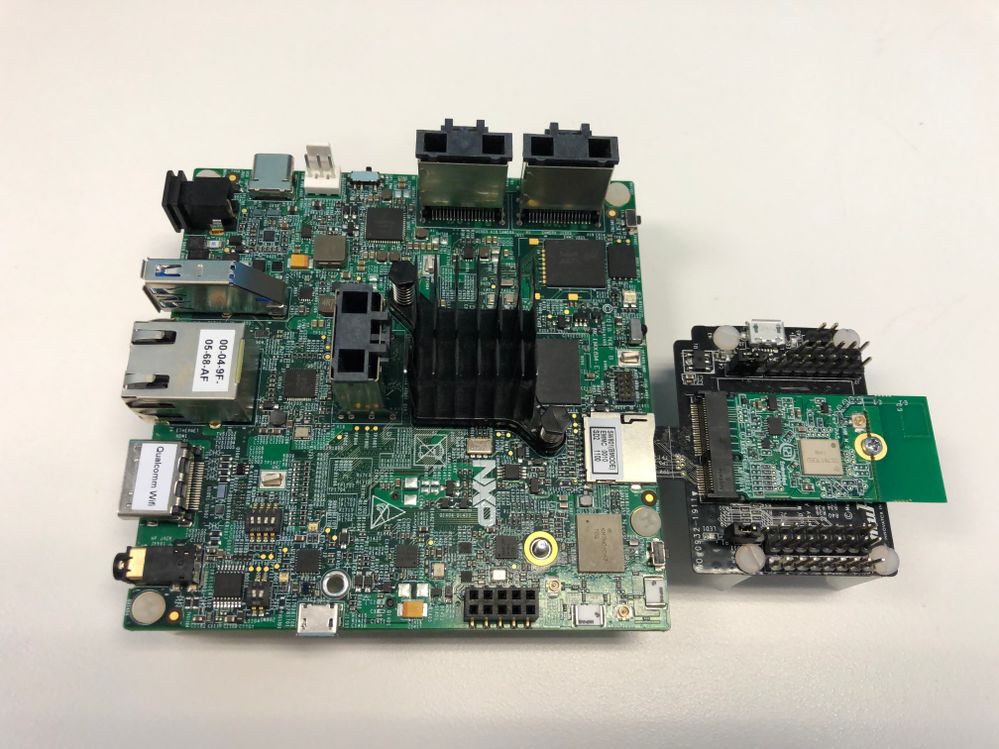
Here is the link to the uSD-M.2 Adapter.
Here is the link to EA's M.2 EVB.
There is an even easier solution out there, which is EA's evaluation kits. With EA's kit, no adapter is needed to evaluate those M.2 EVBs mentioned above. You can also try different processors with this platform. The following picture shows the setup of EA's EVK. For more detail, please refer to the link here.
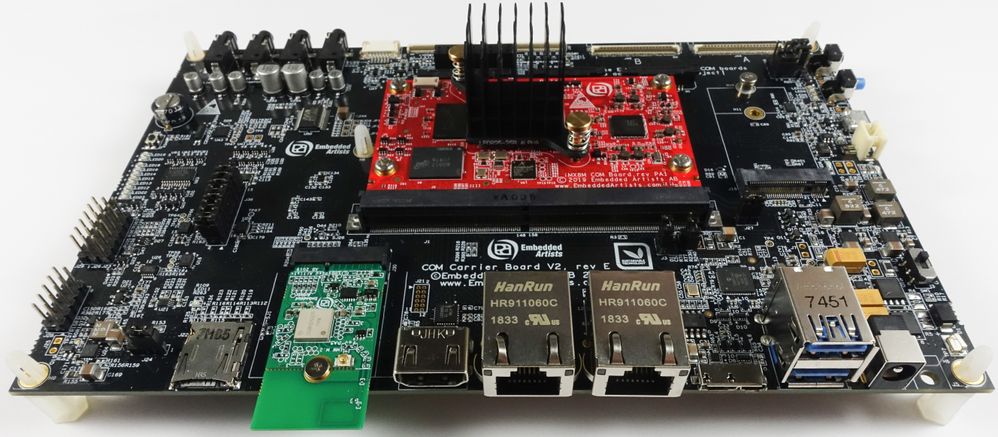

 igorpadykov
- Mark as New
- Bookmark
- Subscribe
- Mute
- Subscribe to RSS Feed
- Permalink
- Report Inappropriate Content
Hi Théo
one can look at murata documents on below link and ask for additional support:
wireless.murata.com/eng/products/rf-modules-1/wi-fi-bluetooth-for-freescale-i-mx.html
For i.MX8M EVK supported only QCA6174 as mentioned in nxp linux documenation:
Best regards
igor
-----------------------------------------------------------------------------------------------------------------------
Note: If this post answers your question, please click the Correct Answer button. Thank you!
-----------------------------------------------------------------------------------------------------------------------
