
- Forums
- Product Forums
- General Purpose MicrocontrollersGeneral Purpose Microcontrollers
- i.MX Forumsi.MX Forums
- QorIQ Processing PlatformsQorIQ Processing Platforms
- Identification and SecurityIdentification and Security
- Power ManagementPower Management
- Wireless ConnectivityWireless Connectivity
- RFID / NFCRFID / NFC
- Advanced AnalogAdvanced Analog
- Neural Processing UnitsNeural Processing Units
- MCX Microcontrollers
- S32G
- S32K
- S32V
- MPC5xxx
- Other NXP Products
- S12 / MagniV Microcontrollers
- Powertrain and Electrification Analog Drivers
- Sensors
- Vybrid Processors
- Digital Signal Controllers
- 8-bit Microcontrollers
- ColdFire/68K Microcontrollers and Processors
- PowerQUICC Processors
- OSBDM and TBDML
- S32M
- S32Z/E
-
- Solution Forums
- Software Forums
- MCUXpresso Software and ToolsMCUXpresso Software and Tools
- CodeWarriorCodeWarrior
- MQX Software SolutionsMQX Software Solutions
- Model-Based Design Toolbox (MBDT)Model-Based Design Toolbox (MBDT)
- FreeMASTER
- eIQ Machine Learning Software
- Embedded Software and Tools Clinic
- S32 SDK
- S32 Design Studio
- GUI Guider
- Zephyr Project
- Voice Technology
- Application Software Packs
- Secure Provisioning SDK (SPSDK)
- Processor Expert Software
- Generative AI & LLMs
-
- Topics
- Mobile Robotics - Drones and RoversMobile Robotics - Drones and Rovers
- NXP Training ContentNXP Training Content
- University ProgramsUniversity Programs
- Rapid IoT
- NXP Designs
- SafeAssure-Community
- OSS Security & Maintenance
- Using Our Community
-
- Cloud Lab Forums
-
- Knowledge Bases
- ARM Microcontrollers
- i.MX Processors
- Identification and Security
- Model-Based Design Toolbox (MBDT)
- QorIQ Processing Platforms
- S32 Automotive Processing Platform
- Wireless Connectivity
- CodeWarrior
- MCUXpresso Suite of Software and Tools
- MQX Software Solutions
- RFID / NFC
- Advanced Analog
- Neural Processing Units
-
- NXP Tech Blogs
- Home
- :
- MCUXpresso Software and Tools
- :
- LPCXpresso IDE FAQs
- :
- Booting LPC-Link
Booting LPC-Link
- Subscribe to RSS Feed
- Mark Topic as New
- Mark Topic as Read
- Float this Topic for Current User
- Bookmark
- Subscribe
- Mute
- Printer Friendly Page
Booting LPC-Link

- Mark as New
- Bookmark
- Subscribe
- Mute
- Subscribe to RSS Feed
- Permalink
- Report Inappropriate Content
Normally, LPC-Link is booted automatically when starting a debug session via the LPCXpresso IDE.
However, under certain circumstances - such as when using the command line flash utility, you may need to boot it manually.
Background
When powered on, LPC-Link hardware makes use of the DFU mechanism (Device Firmware Update) to allow the host to download driver code into on-board RAM. This scheme offers great flexibility and ensures that the latest compatible firmware will be used for a given version of LPCXpresso IDE.
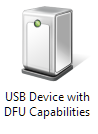
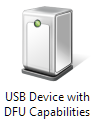
Before boot, LPC-Link appears as a USB device with details:
VendorID/ProductID: 0x0471/0xDF55 (Philips Consumer Lifestyle BV)
and will appear in Windows -> Devices and Printers, as below:
After boot, LPC-Link will appear as a USB device with details:
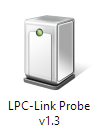
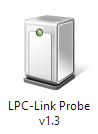
VendorID/ProductID: 0x1FC9/0x0009 (NXP Semiconductors)
Note: LPC-Link may be booted as a winusb device having a ProductID of 0x9 (as above) or a HID device having a ProductID of 0x7.
and will appear in Windows -> Devices and Printers as below:
Note: the standard utilities to explore USB devices on our supported host platforms are:
- Windows - Device Manager
- LPCXpressoIDE also provides a listusb utility in:
- <install_dir>\lpcxpresso\bin\Scripts
- LPCXpressoIDE also provides a listusb utility in:
- Linux - terminal command: lsusb
- Mac OSX - terminal command: system_profiler SPUSBDataType
The procedure to manually boot the probes for our supported host operating systems shown below.
Using the Command Line
From LPCXpresso IDE version 7.3x and later, a boot script is supplied for all supported platforms. To make use of this script:
- cd <install_dir>\lpcxpresso\bin and run
- boot_link1
For versions of LPCXpresso IDE prior to 7.3
Windows
On Windows, we provide a script to perform this operation.
- cd <install_dir>\lpcxpresso\bin\Scripts, and run
- bootLPCXpresso.cmd type
- where
- type = winusb for Windows 8.x / XP, or
- type = hid for Windows Vista / 7
- where
Note: if you don't specify a type, the script will try to load to appropriate code for your host OS.
Linux/Mac OS X
Here we need to locate the dfu-util utility and pass the parameters for the device and code etc.
- cd <install_dir>/lpcxpresso/bin, and run
- dfu-util -d 0x471:0xdf55 -c 0 -t 2048 -R -D LPCXpressoWIN.enc
Using the GUI
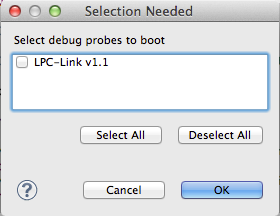
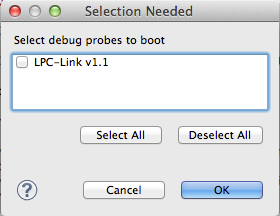
It is also possible to manually boot LPC-Link from the GUI, on occasion this may be a more convenient solution than using the command line.
To do this, locate the red Boot icon on the Toolbar:


Select the probe and click 'OK'.
Troubleshooting
If you have been able to use LPC-Link in a debug session but now see issues such as "No compatible emulator available" or "Priority 0 connection to this core already taken" when trying to perform a debug operation ...
- ensure you have shut down any previous debug session
- You must close a debug session (press the Red 'terminate' button) before starting another debug session
- It is possible that the debug driver is still running in the background. Use the task manager or equivalent to kill any tasks called:
- crt_emu_*
- arm-none-eabi_gdb*
If your host has never worked with LPC-Link, first perform some basic checks with reference to the background information at the beginning of this FAQ.
- Try a different USB cable!
- Try a different USB port. If your host has USB3 and USB2, then try a USB2 port
- there are know issues with motherboard USB3 firmware, ensure your host is using the latest driver from the manufacturer
- Note: this is not referencing the host OS driver but the motherboard firmware of the USB port
- there are know issues with motherboard USB3 firmware, ensure your host is using the latest driver from the manufacturer
- If using a USB hub, first try a direct connection to the host computer
- If using a USB hub, try using one with a separate power supply - rather than relying on the supply over USB from your PC.
- Try completely removing and re-installing the host device driver
- If using Windows 8.1, then sometimes the Windows USB power settings can cause problems. For more details use your favourite search engine to search for "windows 8 usb power settings" or similar. For example:
