
- Forums
- Product Forums
- General Purpose MicrocontrollersGeneral Purpose Microcontrollers
- i.MX Forumsi.MX Forums
- QorIQ Processing PlatformsQorIQ Processing Platforms
- Identification and SecurityIdentification and Security
- Power ManagementPower Management
- Wireless ConnectivityWireless Connectivity
- RFID / NFCRFID / NFC
- Advanced AnalogAdvanced Analog
- MCX Microcontrollers
- S32G
- S32K
- S32V
- MPC5xxx
- Other NXP Products
- S12 / MagniV Microcontrollers
- Powertrain and Electrification Analog Drivers
- Sensors
- Vybrid Processors
- Digital Signal Controllers
- 8-bit Microcontrollers
- ColdFire/68K Microcontrollers and Processors
- PowerQUICC Processors
- OSBDM and TBDML
- S32M
- S32Z/E
-
- Solution Forums
- Software Forums
- MCUXpresso Software and ToolsMCUXpresso Software and Tools
- CodeWarriorCodeWarrior
- MQX Software SolutionsMQX Software Solutions
- Model-Based Design Toolbox (MBDT)Model-Based Design Toolbox (MBDT)
- FreeMASTER
- eIQ Machine Learning Software
- Embedded Software and Tools Clinic
- S32 SDK
- S32 Design Studio
- GUI Guider
- Zephyr Project
- Voice Technology
- Application Software Packs
- Secure Provisioning SDK (SPSDK)
- Processor Expert Software
- Generative AI & LLMs
-
- Topics
- Mobile Robotics - Drones and RoversMobile Robotics - Drones and Rovers
- NXP Training ContentNXP Training Content
- University ProgramsUniversity Programs
- Rapid IoT
- NXP Designs
- SafeAssure-Community
- OSS Security & Maintenance
- Using Our Community
-
- Cloud Lab Forums
-
- Knowledge Bases
- ARM Microcontrollers
- i.MX Processors
- Identification and Security
- Model-Based Design Toolbox (MBDT)
- QorIQ Processing Platforms
- S32 Automotive Processing Platform
- Wireless Connectivity
- CodeWarrior
- MCUXpresso Suite of Software and Tools
- MQX Software Solutions
- RFID / NFC
- Advanced Analog
-
- NXP Tech Blogs
- Home
- :
- i.MX Processors
- :
- i.MX Processors Knowledge Base
- :
- Create an Ubuntu VM environment to build Yocto BSP
Create an Ubuntu VM environment to build Yocto BSP
- Subscribe to RSS Feed
- Mark as New
- Mark as Read
- Bookmark
- Subscribe
- Printer Friendly Page
- Report Inappropriate Content
Create an Ubuntu VM environment to build Yocto BSP
Create an Ubuntu VM environment to build Yocto BSP
Tool: VMware Workstation Player
Linux Distribution : Ubuntu 16.04
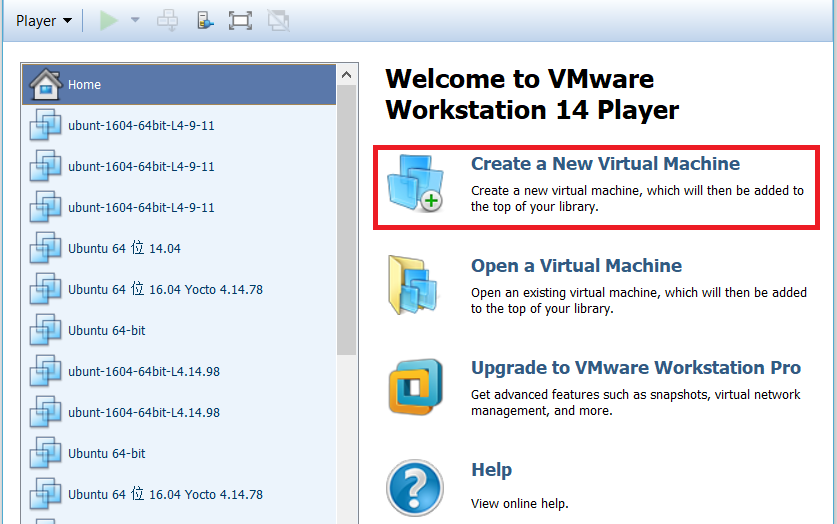
1. Create the VM in VMware Workstation.
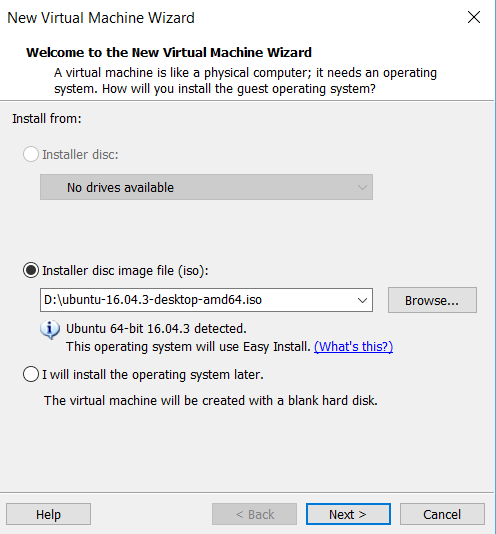
2. Select the .iso file to install the Ubuntu 16.04 in the VM.
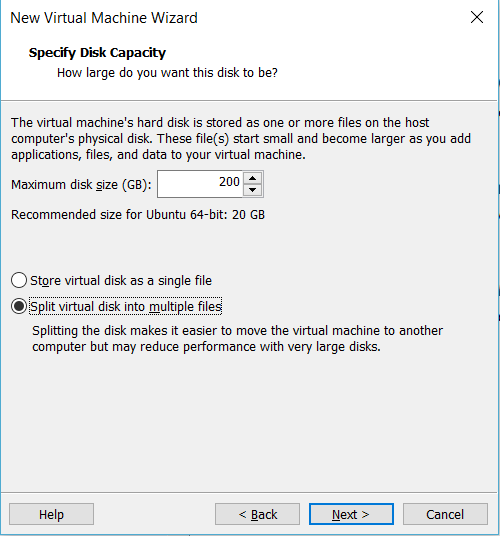
3. In "Specify Disk Capacity", I recommend the disk size is 200GB.
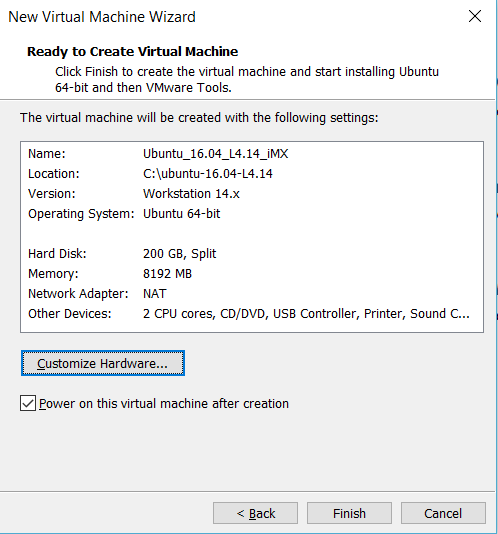
4. Then click "Finish" to create the VM.
5. If you have local mirror sources, change the source in /etc/apt/source.list. This will speed up a lot when you download the Linux packages and software.
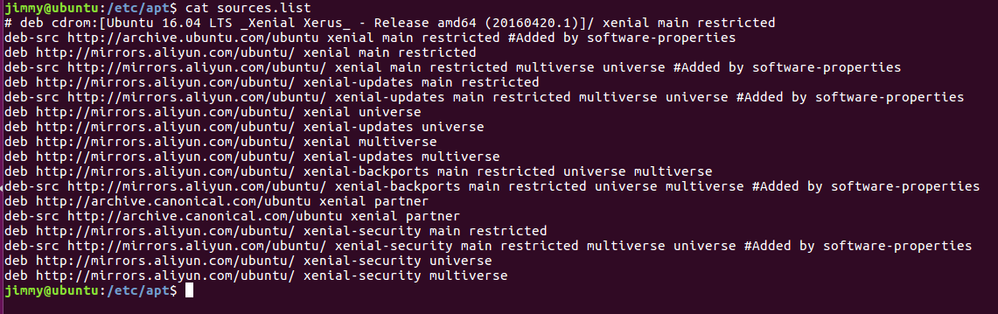
6. Type these two commands to update the Ubuntu system.
- sudo apt-get update
- sudo apt-get upgrade
7. Install Yocto Project host packages
$ sudo apt-get install gawk wget git-core diffstat unzip texinfo gcc-multilib build-essential chrpath socat libsdl1.2-dev
$ sudo apt-get install libsdl1.2-dev xterm sed cvs subversion coreutils texi2html docbook-utils python-pysqlite2 help2man make gcc g++ desktop-file-utils libgl1-mesa-dev libglu1-mesa-dev mercurial autoconf automake groff curl lzop asciidoc u-boot-tools
8.Install the repo
a. Create a bin folder in the home directory.
$ mkdir ~/bin (this step may not be needed if the bin folder already exists)
$ curl https://storage.googleapis.com/git-repo-downloads/repo > ~/bin/repo
$ chmod a+x ~/bin/repo
b. Add the following line to the .bashrc file to ensure that the ~/bin folder is in your PATH variable.
export PATH=~/bin:$PATH
If you cannot download the repo from google, please try this one:
Git Repo | 镜像站使用帮助 | 清华大学开源软件镜像站 | Tsinghua Open Source Mirror
9. Yocto project setup
$ mkdir imx-yocto-bsp
$ cd imx-yocto-bsp
$ repo init -u https://source.codeaurora.org/external/imx/imx-manifest -b imx-linux-sumo -m imx-4.14.98-2.0.0_ga.xml
$ repo sync
10. Building an image
The syntax for the fsl-setup-release.sh script is shown below.
$ DISTRO=<distro name> MACHINE=<machine name> source fsl-setup-release.sh -b <build dir>
$ DISTRO=fsl-imx-xwayland MACHINE=imx8qxpmek source fsl-setup-release.sh -b build-xwayland
$ bitbake fsl-image-qt5-validation-imx
or
$ bitbake core-image-full-cmdline (smaller size of rootfs)
(for more examples, please refer to the i.MX_Yocto_Project_User's_Guide.pdf)
11. U-boot and Kernel Source code in Yocto
u-boot : imx-yocto-bsp/build-xwayland/tmp/work/<board_name>/u-boot-imx
kernel : imx-yocto-bsp/build-xwayland/tmp/work/<board_name>/linux-imx
12. Deploy folder of the images
imx-yocto-bsp/build-xwayland/tmp/deploy/images/<board_name>
Some useful commands for your information:
1. Kernel Menuconfig
$ bitbake linux-imx -c menuconfig
2. Rebuild the u-boot and kernel source code
$ bitbake u-boot-imx -c compile -f
$ bitbake linux-imx -c compile -f
3. Rebuild the whole project to generate the images to deploy folder again
for example, if you build the fsl-image-qt5-validation-imx before , then type this:
$ bitbake fsl-image-qt5-validation-imx -f
Reference:
(1) Download the BSP and the Documentation : i.MX Software | NXP

- Mark as Read
- Mark as New
- Bookmark
- Permalink
- Report Inappropriate Content
If I did the same as above,
When I ran the bitbake fsl-image-qt5-validation-imx command,
Only when BB_NUMBER_THREADS = "1" in conf / local.conf,
The build could be completed.
I've tried OS ubuntu 16.04, ubuntu 14.04, ubuntu 18.04
Etc. are all the same result.
If BB_NUMBER_THREADS is greater than 1,
You will be logged out automatically.
I used up to 32GB of memory and used up to 16 cores.
The build will complete successfully only if BB_NUMBER_THREADS is 1.
The build takes about 9 hours.
It takes too long to use this.
Is there any way to solve this?

- Mark as Read
- Mark as New
- Bookmark
- Permalink
- Report Inappropriate Content
Is the number of vCPU setting too high? have you try to lower the value?
- Mark as Read
- Mark as New
- Bookmark
- Permalink
- Report Inappropriate Content
Thank you for your reply.
I tried using 2, 3, 4, 8, 16 cores.
After building everything, ubuntu linux will automatically log out.
