
- Forums
- Product Forums
- General Purpose MicrocontrollersGeneral Purpose Microcontrollers
- i.MX Forumsi.MX Forums
- QorIQ Processing PlatformsQorIQ Processing Platforms
- Identification and SecurityIdentification and Security
- Power ManagementPower Management
- Wireless ConnectivityWireless Connectivity
- RFID / NFCRFID / NFC
- Advanced AnalogAdvanced Analog
- Neural Processing UnitsNeural Processing Units
- MCX Microcontrollers
- S32G
- S32K
- S32V
- MPC5xxx
- Other NXP Products
- S12 / MagniV Microcontrollers
- Powertrain and Electrification Analog Drivers
- Sensors
- Vybrid Processors
- Digital Signal Controllers
- 8-bit Microcontrollers
- ColdFire/68K Microcontrollers and Processors
- PowerQUICC Processors
- OSBDM and TBDML
- S32M
- S32Z/E
-
- Solution Forums
- Software Forums
- MCUXpresso Software and ToolsMCUXpresso Software and Tools
- CodeWarriorCodeWarrior
- MQX Software SolutionsMQX Software Solutions
- Model-Based Design Toolbox (MBDT)Model-Based Design Toolbox (MBDT)
- FreeMASTER
- eIQ Machine Learning Software
- Embedded Software and Tools Clinic
- S32 SDK
- S32 Design Studio
- GUI Guider
- Zephyr Project
- Voice Technology
- Application Software Packs
- Secure Provisioning SDK (SPSDK)
- Processor Expert Software
- Generative AI & LLMs
-
- Topics
- Mobile Robotics - Drones and RoversMobile Robotics - Drones and Rovers
- NXP Training ContentNXP Training Content
- University ProgramsUniversity Programs
- Rapid IoT
- NXP Designs
- SafeAssure-Community
- OSS Security & Maintenance
- Using Our Community
-
- Cloud Lab Forums
-
- Knowledge Bases
- ARM Microcontrollers
- i.MX Processors
- Identification and Security
- Model-Based Design Toolbox (MBDT)
- QorIQ Processing Platforms
- S32 Automotive Processing Platform
- Wireless Connectivity
- CodeWarrior
- MCUXpresso Suite of Software and Tools
- MQX Software Solutions
- RFID / NFC
- Advanced Analog
- Neural Processing Units
-
- NXP Tech Blogs
- Home
- :
- MCUXpresso Software and Tools
- :
- MCUXpresso for VSCode Knowledge Base
- :
- Installation steps for MCUXpresso for VS Code
Installation steps for MCUXpresso for VS Code
- Subscribe to RSS Feed
- Mark as New
- Mark as Read
- Bookmark
- Subscribe
- Printer Friendly Page
- Report Inappropriate Content
Installation steps for MCUXpresso for VS Code
Installation steps for MCUXpresso for VS Code
This article has been updated 6/29/2023 for 6th Beta Release:
Latest Release Versions:
- MCUXpresso extension for VS Code v2023.07 (1.0.68)
- MCUXpresso Installer v2023.07 (v1.0.85)
- LinkServer v2023.07 (v1.2.45)
- Release information provided in Extension Overview in Visual Studio Code
Visual Studio Code Installation
- Windows install Visual Studio Code
- Ubuntu install Visual Studio Code
- macOS install Visual Studio Code
Extension Installation Steps
- Launch Visual Studio Code
- Click the Marketplace icon found in the main left navigation pane
- Search "NXP" in Marketplace search bar. Click "MCUXpresso for VS Code"
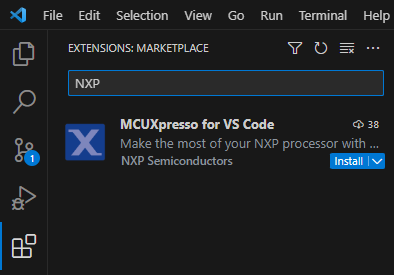
- Click Install in the MCUXpresso for VS Code extension. Installation includes other required extensions (i.e. C/C++ by Microsoft)
Dependency Installation Steps
- Links for the MCUXpresso Installer are in Quickstart Panel added by Visual Studio Code extension.
- Click Open MCUXpresso Installer

- The Installer UI launches to assist in adding required software tools/settings.
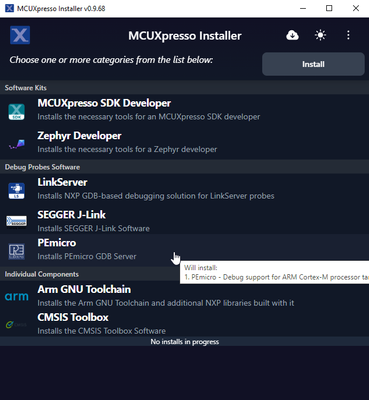
- Select from "Software Kits", "Debug Probes", and "Individual Components" appropriate for your development.
- Click Install
- NOTE: Installer can Check that you have the latest installer by clicking Cloud icon
Your system should now be ready to begin developing with NXP. Please review included Walkthrough OR "Online Documentation" for further assistance.
Please provide feedback on these instructions below.

- Mark as Read
- Mark as New
- Bookmark
- Permalink
- Report Inappropriate Content
HI,
I have just installed the Toolchain and try to run a the provided Hello World Programm on a IMXRT1050-EVKB Board. I can compile the programm but when connecting to the Board to Debug the result, I get an GDB Error Message saying that the connection can not be established. Is there anything that I still need to set up in order for the debug process to run ?

- Mark as Read
- Mark as New
- Bookmark
- Permalink
- Report Inappropriate Content
If the i.MX RT1050-EVKB board shows up in your Windows (assumed) explorer as a USB device, then the debug settings require a latency setting. This is being added to the extension release next week.
YOu can manually see if this fixes the issue where debug data is not reliable due to GDB server latency/timeouts.
Open the launch.json file for the project.
Paste the following command as shown in the image below:
"setupCommands": [{"text":"set remotetimeout 60000"}],

Note 1: you should also verify that you installed the LInkserver Debug Probe software in the installer. The Linkserver software is used with the probe on the board. HOwever, not having this software installed usually reports an error of missing software.
Note 2: you should also verify that the board has core power. Without the board showing up as a USB storage device indicates it is using J-Link or LPCLink debug firmware. This can require 2 usb cables to provide power to the board if an external power supply is not connected to the barrel connector. The USB cables should connect to the Debug USB port and the USB Device port. Refer to the RT1050-EVK getting started page to verify you have power.
Note 3: You may also verify that it connects with MCUXpresso IDE to eliminate VS Code as the issue.
Please let us know if this helped with your issue.
- Mark as Read
- Mark as New
- Bookmark
- Permalink
- Report Inappropriate Content
Hi and thank you for your response. I was able to get the i.MX RT1050-EVKB Board running and am also now able to compile and Debug SW for the Board. I had to select one of the following confiugrations : flexspi_nor_sdram_debug / flexspi_nor_sdram_release
This takes care of the hello world application. May next challenge is to get a EcosPro OS compiled and running on the board. This would require me to include the OS into the build system and also encorperate the ecc file, that configured the ecos itself.
Is this something that you guys have done before or can help me with ?
- Mark as Read
- Mark as New
- Bookmark
- Permalink
- Report Inappropriate Content
Regarding my question of using the eCos OS in combination with MCUXPresso. Is there any help that you can offer ? I think I am running into an issue with trying to use a board specific ecos with the board specific configuration in MCUXpresso provided in the hello world examples. For instance when trying to import the compiled ecos librarys I am running into an memory allocation error.
If anyone has some experience in this topic, help would be greatly appreciated. Otherwise I need to contact the ecos guys.
Thank you
- Mark as Read
- Mark as New
- Bookmark
- Permalink
- Report Inappropriate Content
Hi @ThBer,
Could you please post this question on MCUXpresso SDK community: https://community.nxp.com/t5/MCUXpresso-SDK/bd-p/mcuxpresso-sdk? Maybe they will be able to help you with the eCos OS issue.
Best regards,
Dragos.
- Mark as Read
- Mark as New
- Bookmark
- Permalink
- Report Inappropriate Content
MCUXpresso Installer cannot download correct AArch64(Arm64) packages on MacOS. It will download amd64 or x86_64 package. Maybe it's because that there was no arm64 version before.
- Mark as Read
- Mark as New
- Bookmark
- Permalink
- Report Inappropriate Content
Hello @FengChendian,
You are right, MCUXpresso Installer doesn't yet support arm64 packages on macOS. We plan to add arm64 support in a future release, we estimate that it will be available in the last quarter of the year.
Best regards,
Lorena
- Mark as Read
- Mark as New
- Bookmark
- Permalink
- Report Inappropriate Content
Is there a vscode development path using WSL ?
- Mark as Read
- Mark as New
- Bookmark
- Permalink
- Report Inappropriate Content

- Mark as Read
- Mark as New
- Bookmark
- Permalink
- Report Inappropriate Content
Hello @vae,
Could you please help us with more information?
You can send us the log file -> in the top right corner of the menu, please select "open log folder" and send us the files to better understand what is happening on your setup.
Regards,
Lorena Lazar ([email protected])
