
- Forums
- Product Forums
- General Purpose MicrocontrollersGeneral Purpose Microcontrollers
- i.MX Forumsi.MX Forums
- QorIQ Processing PlatformsQorIQ Processing Platforms
- Identification and SecurityIdentification and Security
- Power ManagementPower Management
- Wireless ConnectivityWireless Connectivity
- RFID / NFCRFID / NFC
- Advanced AnalogAdvanced Analog
- Neural Processing UnitsNeural Processing Units
- MCX Microcontrollers
- S32G
- S32K
- S32V
- MPC5xxx
- Other NXP Products
- S12 / MagniV Microcontrollers
- Powertrain and Electrification Analog Drivers
- Sensors
- Vybrid Processors
- Digital Signal Controllers
- 8-bit Microcontrollers
- ColdFire/68K Microcontrollers and Processors
- PowerQUICC Processors
- OSBDM and TBDML
- S32M
- S32Z/E
-
- Solution Forums
- Software Forums
- MCUXpresso Software and ToolsMCUXpresso Software and Tools
- CodeWarriorCodeWarrior
- MQX Software SolutionsMQX Software Solutions
- Model-Based Design Toolbox (MBDT)Model-Based Design Toolbox (MBDT)
- FreeMASTER
- eIQ Machine Learning Software
- Embedded Software and Tools Clinic
- S32 SDK
- S32 Design Studio
- GUI Guider
- Zephyr Project
- Voice Technology
- Application Software Packs
- Secure Provisioning SDK (SPSDK)
- Processor Expert Software
- Generative AI & LLMs
-
- Topics
- Mobile Robotics - Drones and RoversMobile Robotics - Drones and Rovers
- NXP Training ContentNXP Training Content
- University ProgramsUniversity Programs
- Rapid IoT
- NXP Designs
- SafeAssure-Community
- OSS Security & Maintenance
- Using Our Community
-
- Cloud Lab Forums
-
- Knowledge Bases
- ARM Microcontrollers
- i.MX Processors
- Identification and Security
- Model-Based Design Toolbox (MBDT)
- QorIQ Processing Platforms
- S32 Automotive Processing Platform
- Wireless Connectivity
- CodeWarrior
- MCUXpresso Suite of Software and Tools
- MQX Software Solutions
- RFID / NFC
- Advanced Analog
- Neural Processing Units
-
- NXP Tech Blogs
- Home
- :
- ARM Microcontrollers
- :
- Kinetis Microcontrollers Knowledge Base
- :
- U-disk Bootloader
U-disk Bootloader
- Subscribe to RSS Feed
- Mark as New
- Mark as Read
- Bookmark
- Subscribe
- Printer Friendly Page
- Report Inappropriate Content
U-disk Bootloader
U-disk Bootloader
1 Introduction
Previously we used sd card to upgrade the program. We have to insert the sd card into the computer every time, copy the program to the sd card, and then insert it into the sd card slot of mcu to update the program. This method seems to be a bit troublesome, so we implemented a more convenient method. It no longer needs to insert or remove the SD card from PC and MCU. Use the usb function of mcu to recognize mcu as a storage U disk. When we need to update the program, connect the MCU’s usb interface to PC. After the computer recognizes it, copy the program that needs to be burned in. Then the bootloader will recognize the file and then upgrade the application. Bootloader detects changes of the file, not the existence of the file. In other words, if the a000.bin file has already existed in the sd card, the application will not be updated. When this a000.bin is overwritten with another a000.bin, the operation of updating the application will be performed.
2 Bootloader’s implementation
The schematic for SD card is shown below. The board uses SDHC module to communicate with SD card.
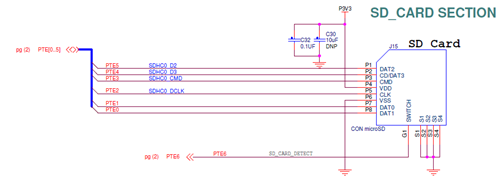
Figure 1. Figure 1.Schematic for SD card
We use the 2.6.0 version of FRDM-K64F’s SDK. You can download the SDK in our website.
The link is “mcuxpresso.nxp.com”.
The schematic for USB is shown below.
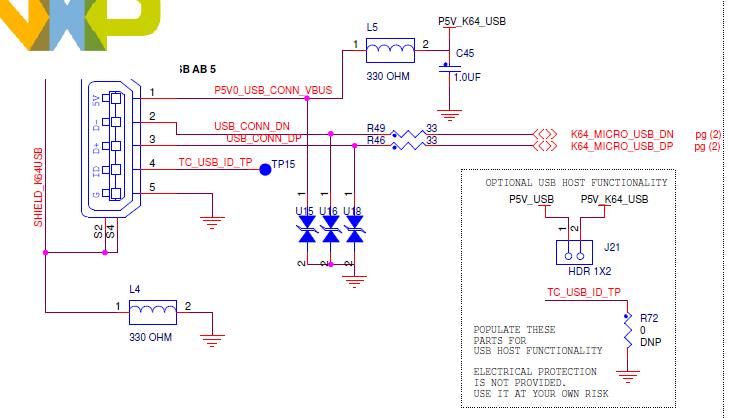
Figure 2. Schematic of USB
Bootloader uses SDHC, fatfs, usb, flash, So we should add files to support them. Our code is based on the example “usb_device_msc_sdcard_lite” that belongs to usb example.
In main code, the program will initialize the usb, sd and fatfs. Then the computer will communicate will MCU. Finally, PC will recognize the mcu as a u-disk.
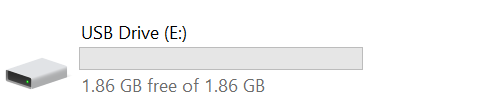
Figure 3.u-disk
The method of how to update the program and prepare the application has written in this document. You can refer it. https://community.nxp.com/docs/DOC-344903
Use a variable “wrFlag” to check the modification of the file. When we put file into the u-disk, this variable will be set.
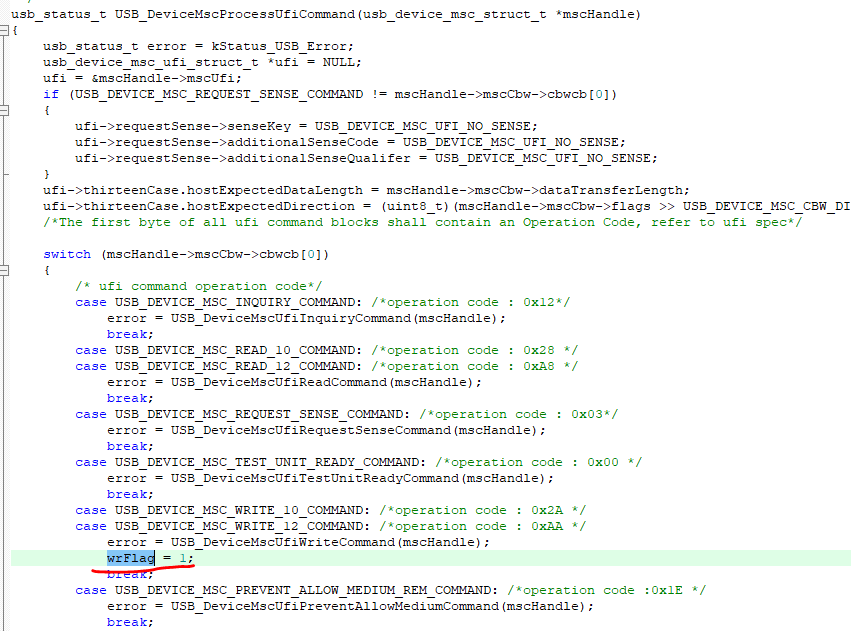
Figure 4. Modification of flag
When this variable is set, the program will open the “a000.bin”. Then update the application. Finally, go to the application.
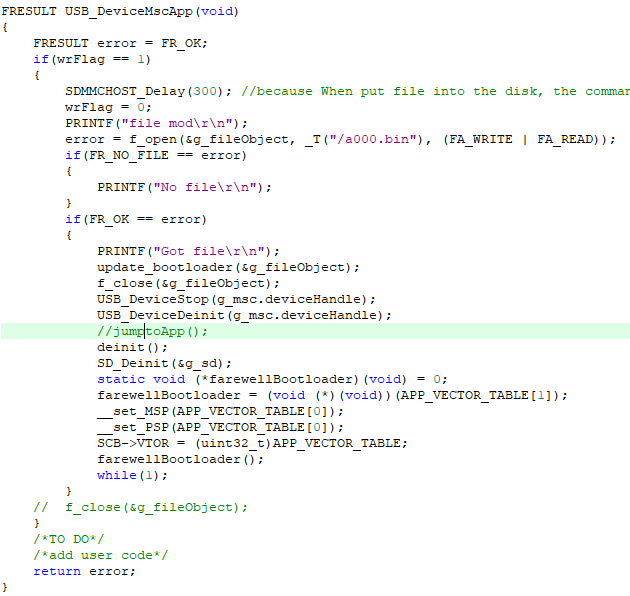
Figure 5. Update the application
3 Run the demo
- Download this bootloader
- Prepare a user application program. We use the “led blinky” as an example. Use it to generate the binary file. Name it as “a000.bin”. Put it into the u-disk. You will see some log in the uart.

- The application will execute automatically

- Mark as Read
- Mark as New
- Bookmark
- Permalink
- Report Inappropriate Content
Hi
The uTasker project has the same method integrated in its framework for any Kinetis or i.MX RT part: https://www.utasker.com/docs/uTasker/uTaskerSerialLoader.pdf (see chapter 12 for flow diagram)
however the USB-MSD to SD card step is usually performed by the application since it doesn't make much sense for the boot loader to copy to the SD card and then to update the code to flash, when the USB-MSD copy can already directly save it to the flash (USB-MSD loaders will tend to be about 15k in size, which is a lot smaller and more efficient than when FAt is also needed).
The uTasker methods also support the same operation with AES256 encryption, allowing firmware to be distributed in a safe form (I.P. protection) rather then as plain code that could be reverse engineered.
Regards
Mark
[uTasker project developer for Kinetis and i.MX RT]
