
- Forums
- Product Forums
- General Purpose MicrocontrollersGeneral Purpose Microcontrollers
- i.MX Forumsi.MX Forums
- QorIQ Processing PlatformsQorIQ Processing Platforms
- Identification and SecurityIdentification and Security
- Power ManagementPower Management
- Wireless ConnectivityWireless Connectivity
- RFID / NFCRFID / NFC
- Advanced AnalogAdvanced Analog
- Neural Processing UnitsNeural Processing Units
- MCX Microcontrollers
- S32G
- S32K
- S32V
- MPC5xxx
- Other NXP Products
- S12 / MagniV Microcontrollers
- Powertrain and Electrification Analog Drivers
- Sensors
- Vybrid Processors
- Digital Signal Controllers
- 8-bit Microcontrollers
- ColdFire/68K Microcontrollers and Processors
- PowerQUICC Processors
- OSBDM and TBDML
- S32M
- S32Z/E
-
- Solution Forums
- Software Forums
- MCUXpresso Software and ToolsMCUXpresso Software and Tools
- CodeWarriorCodeWarrior
- MQX Software SolutionsMQX Software Solutions
- Model-Based Design Toolbox (MBDT)Model-Based Design Toolbox (MBDT)
- FreeMASTER
- eIQ Machine Learning Software
- Embedded Software and Tools Clinic
- S32 SDK
- S32 Design Studio
- GUI Guider
- Zephyr Project
- Voice Technology
- Application Software Packs
- Secure Provisioning SDK (SPSDK)
- Processor Expert Software
- Generative AI & LLMs
-
- Topics
- Mobile Robotics - Drones and RoversMobile Robotics - Drones and Rovers
- NXP Training ContentNXP Training Content
- University ProgramsUniversity Programs
- Rapid IoT
- NXP Designs
- SafeAssure-Community
- OSS Security & Maintenance
- Using Our Community
-
- Cloud Lab Forums
-
- Knowledge Bases
- ARM Microcontrollers
- i.MX Processors
- Identification and Security
- Model-Based Design Toolbox (MBDT)
- QorIQ Processing Platforms
- S32 Automotive Processing Platform
- Wireless Connectivity
- CodeWarrior
- MCUXpresso Suite of Software and Tools
- MQX Software Solutions
- RFID / NFC
- Advanced Analog
- Neural Processing Units
-
- NXP Tech Blogs
- RSS フィードを購読する
- トピックを新着としてマーク
- トピックを既読としてマーク
- このトピックを現在のユーザーにフロートします
- ブックマーク
- 購読
- ミュート
- 印刷用ページ
S32G399A-RDB3- Guide to configure FreeRTOS

- 新着としてマーク
- ブックマーク
- 購読
- ミュート
- RSS フィードを購読する
- ハイライト
- 印刷
- 不適切なコンテンツを報告
Hello all,
I am working on S32G399A-RDB3 board on M7 core, and I ask if there is any example guide explain how to configure Free rtos.
- 新着としてマーク
- ブックマーク
- 購読
- ミュート
- RSS フィードを購読する
- ハイライト
- 印刷
- 不適切なコンテンツを報告
Thanks for your reply
But I have done this, and I was asking about another guide other than that example to cpnfigure free rtos .. For example I want to configure CPU clock in free rtos but i can't as it disables


 alejandro_e
- 新着としてマーク
- ブックマーク
- 購読
- ミュート
- RSS フィードを購読する
- ハイライト
- 印刷
- 不適切なコンテンツを報告
Hello @MohamedAbdelslam,
Thanks for the clarification. Unfortunately we don't have any guide on how to configure FreeRTOS from the S32G Design Studio. For the clock configuration you have to change Default Clock to User Clock by clicking the gray area on the right of the dropbox:

I can recommend checking the documentation about the FreeRTOS customization https://freertos.org/Documentation/02-Kernel/03-Supported-devices/02-Customization.
Let me know if this information was useful.
alejandro_e
- 新着としてマーク
- ブックマーク
- 購読
- ミュート
- RSS フィードを購読する
- ハイライト
- 印刷
- 不適切なコンテンツを報告
Hello @MohamedAbdelslam,
To be able to add FreeRTOS to your project you will need the FreeRTOS releases provided by NXP, you can find them following these steps:
- Sign in to your NXP account (NXP Semiconductors)
- Click on My NXP Account (top-right) and click on Software Licensing and Support under the Licensing section within the window it opens.
- This will redirect you to another page. In this new page, select the option View Accounts under the Software accounts section.
- This will again redirect you to another page. On this page, you should see an Automotive SW – S32G Reference Software option, click on it, then click on Automotive SW - S32G - FreeRTOS (Cortex-M7)
- Now you should be able to see all the FreeRTOS versions available, click on the newest version, for me it is S32G FreeRTOS 10.4.6 version 4.0.2
- accept the Software Terms and Conditions, now you should be able to see all the files related to that specific FreeRTOS release for S32G. Select and download the file with the word updatesite on it, it should be a zip file.
- Once the file is downloaded, open the S32 Design Studio, open the Help menu on the top of the window, and then select install new software

- In the new window select Add…, a new window will appear, select Archive…, and select the file you just downloaded, and then click add.

Then select all components and clock on Next >

- Follow all installation steps and then click con finish, you will see the installation progress on the right bottom corner of the program, once it finishes you will be ask to restart the program, once the program is restarted, you can start a project from one of the FreeRTOS examples available. Select File -> New -> S32FS Project from Example

- Search for FreeRTOS in the empty textbox and select FreeRTOS_Toggle_Led_Example_S32G399A_M7 then click on finish.

- now double click on the .mex file on the project explorer
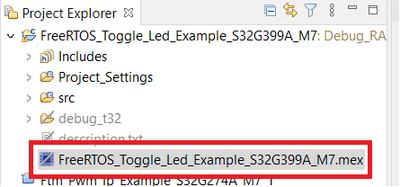
- in the new view select Update Code

- Now you can return to the code by clicking the C/C++ view on the right side of the screen

Now you should be able to compile the program without problems.
Let me know if this information was useful.
