
- Forums
- Product Forums
- General Purpose MicrocontrollersGeneral Purpose Microcontrollers
- i.MX Forumsi.MX Forums
- QorIQ Processing PlatformsQorIQ Processing Platforms
- Identification and SecurityIdentification and Security
- Power ManagementPower Management
- Wireless ConnectivityWireless Connectivity
- RFID / NFCRFID / NFC
- Advanced AnalogAdvanced Analog
- Neural Processing UnitsNeural Processing Units
- MCX Microcontrollers
- S32G
- S32K
- S32V
- MPC5xxx
- Other NXP Products
- S12 / MagniV Microcontrollers
- Powertrain and Electrification Analog Drivers
- Sensors
- Vybrid Processors
- Digital Signal Controllers
- 8-bit Microcontrollers
- ColdFire/68K Microcontrollers and Processors
- PowerQUICC Processors
- OSBDM and TBDML
- S32M
- S32Z/E
-
- Solution Forums
- Software Forums
- MCUXpresso Software and ToolsMCUXpresso Software and Tools
- CodeWarriorCodeWarrior
- MQX Software SolutionsMQX Software Solutions
- Model-Based Design Toolbox (MBDT)Model-Based Design Toolbox (MBDT)
- FreeMASTER
- eIQ Machine Learning Software
- Embedded Software and Tools Clinic
- S32 SDK
- S32 Design Studio
- GUI Guider
- Zephyr Project
- Voice Technology
- Application Software Packs
- Secure Provisioning SDK (SPSDK)
- Processor Expert Software
- Generative AI & LLMs
-
- Topics
- Mobile Robotics - Drones and RoversMobile Robotics - Drones and Rovers
- NXP Training ContentNXP Training Content
- University ProgramsUniversity Programs
- Rapid IoT
- NXP Designs
- SafeAssure-Community
- OSS Security & Maintenance
- Using Our Community
-
- Cloud Lab Forums
-
- Knowledge Bases
- ARM Microcontrollers
- i.MX Processors
- Identification and Security
- Model-Based Design Toolbox (MBDT)
- QorIQ Processing Platforms
- S32 Automotive Processing Platform
- Wireless Connectivity
- CodeWarrior
- MCUXpresso Suite of Software and Tools
- MQX Software Solutions
- RFID / NFC
- Advanced Analog
- Neural Processing Units
-
- NXP Tech Blogs
- Home
- :
- Software Forums
- :
- FreeMASTER Knowledge Base
- :
- MCAT 1.1.0 gauge issue
MCAT 1.1.0 gauge issue
- Subscribe to RSS Feed
- Mark as New
- Mark as Read
- Bookmark
- Subscribe
- Printer Friendly Page
- Report Inappropriate Content
MCAT 1.1.0 gauge issue
MCAT 1.1.0 gauge issue
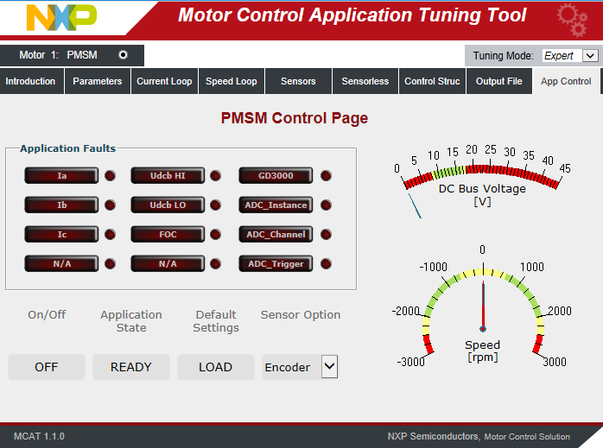
If MCAT “App Control” tab is not displayed correctly like in the picture below, where gauges and fault indicators are missing, it is because a gauge component was not registered automatically in the windows system.
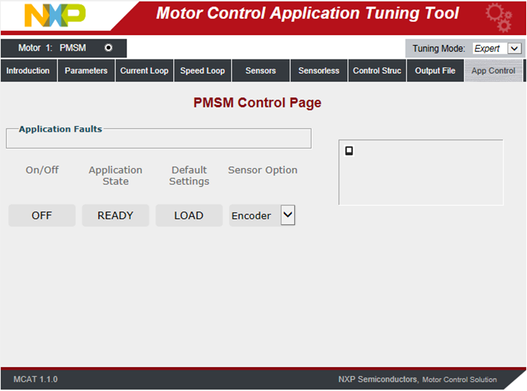
In order to fix this this issue apply following step to register gauge component:
1. Close the FreeMASTER project.
2. Extract agauge.CAB file located in C:\NXP\MC_DevKits\MCSPTE1AK344\sw\MCSPTE1AK344_PMSM_FOC_2Sh_ll\FreeMASTER_control\MCAT\control_page
NOTE: You may use any archive software with CAB archive support includes WinZip, WinRAR or 7-Zip.
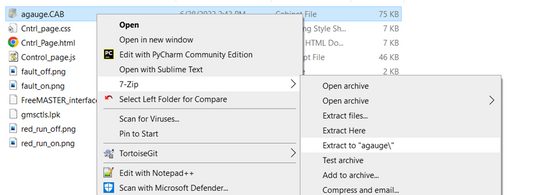
3. Run command prompt as an administrator.
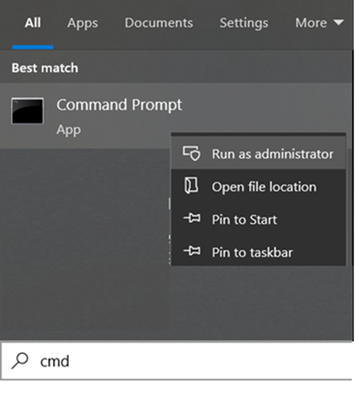
4. Change active directory to extracted folder cd C:\NXP\MC_DevKits\MCSPTE1AK344\sw\MCSPTE1AK344_PMSM_FOC_2Sh_ll\FreeMASTER_control\MCAT\control_page\agauge

5. Run command regsvr32 agauge.ocx.

Message box will inform you about gauge successful registration.
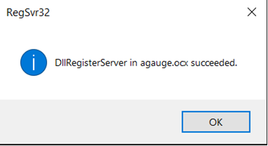
After gauge has been successfully installed you can open the FreeMASTER project and MCAT “App Control" tab will display correctly.

- Mark as Read
- Mark as New
- Bookmark
- Permalink
- Report Inappropriate Content
If this guide doesn't work on your side, the problem might be in disabled VBScript in browser engine.
To fix that, you may edit this settings in Local Group Policy Editor.
for open click on Start and start writing "Group...". Search engine will offer you "Edit group policy". Or you may press "Win+R" and in the "Run" window type gpedit.msc

Now navigate to Computer Configuration> Administrative Templates> Windows Components> Internet Explorer> Internet Control Panel> Security Page> Internet Zone


Double-click and edit the Allow VBScript to run in Internet Explorer setting.


Close Local Group Policy Editor, restart PC and open FreeMASTER project again.
I hope it helps you.
BR
RadekS
