
- Forums
- Product Forums
- General Purpose MicrocontrollersGeneral Purpose Microcontrollers
- i.MX Forumsi.MX Forums
- QorIQ Processing PlatformsQorIQ Processing Platforms
- Identification and SecurityIdentification and Security
- Power ManagementPower Management
- Wireless ConnectivityWireless Connectivity
- RFID / NFCRFID / NFC
- Advanced AnalogAdvanced Analog
- Neural Processing UnitsNeural Processing Units
- MCX Microcontrollers
- S32G
- S32K
- S32V
- MPC5xxx
- Other NXP Products
- S12 / MagniV Microcontrollers
- Powertrain and Electrification Analog Drivers
- Sensors
- Vybrid Processors
- Digital Signal Controllers
- 8-bit Microcontrollers
- ColdFire/68K Microcontrollers and Processors
- PowerQUICC Processors
- OSBDM and TBDML
- S32M
- S32Z/E
-
- Solution Forums
- Software Forums
- MCUXpresso Software and ToolsMCUXpresso Software and Tools
- CodeWarriorCodeWarrior
- MQX Software SolutionsMQX Software Solutions
- Model-Based Design Toolbox (MBDT)Model-Based Design Toolbox (MBDT)
- FreeMASTER
- eIQ Machine Learning Software
- Embedded Software and Tools Clinic
- S32 SDK
- S32 Design Studio
- GUI Guider
- Zephyr Project
- Voice Technology
- Application Software Packs
- Secure Provisioning SDK (SPSDK)
- Processor Expert Software
- Generative AI & LLMs
-
- Topics
- Mobile Robotics - Drones and RoversMobile Robotics - Drones and Rovers
- NXP Training ContentNXP Training Content
- University ProgramsUniversity Programs
- Rapid IoT
- NXP Designs
- SafeAssure-Community
- OSS Security & Maintenance
- Using Our Community
-
- Cloud Lab Forums
-
- Knowledge Bases
- ARM Microcontrollers
- i.MX Processors
- Identification and Security
- Model-Based Design Toolbox (MBDT)
- QorIQ Processing Platforms
- S32 Automotive Processing Platform
- Wireless Connectivity
- CodeWarrior
- MCUXpresso Suite of Software and Tools
- MQX Software Solutions
- RFID / NFC
- Advanced Analog
- Neural Processing Units
-
- NXP Tech Blogs
- Home
- :
- CodeWarrior
- :
- Classic/Legacy CodeWarrior Knowledge Base
- :
- Classic - Is it possible (How) to use HCS12 on Eclipse?
Classic - Is it possible (How) to use HCS12 on Eclipse?
- Subscribe to RSS Feed
- Mark as New
- Mark as Read
- Bookmark
- Subscribe
- Printer Friendly Page
- Report Inappropriate Content
Classic - Is it possible (How) to use HCS12 on Eclipse?
Classic - Is it possible (How) to use HCS12 on Eclipse?
Classic - How to use HCS12 on Eclipse?
-build and debug a CodeWarrior project-
Valid for some Classic versions - CW for MCU V6.x, CW for HC12 V5.1, etc ...
Configuration used:
Software
Native installation Win 7 Enterprise 64 bit
CodeWarrior HC12 v5.1
CodeWarrior for MCU V10.6.4 (Updates 5&6)
Hardware
S12XDT512
Multilink Universal rev B
Introduction
Since 2010 we started to move our development tool chains from Classic IDE to Eclipse.
However we continue to use classic tools for some products as CW for HC12 V5.x for HCs12 devices.
The advantage of HC12 is that all features are used in command line in the IDE.
So we can use another IDE than CodeWarrior IDE as Eclipse for instance.
This doc will show you how to:
- - Create a new project using CW HC12 build tools chain,
- - Define the external debugger to debug the HC12 application.
Attached you will find:
- - a zip file including the projects. Recommend to unzip it to c:\temp,
- - 2 videos explaining Build and Debug processes.
More references/information can be found at:
https://community.freescale.com/message/364157#364157
http://mcuoneclipse.com/2012/02/13/make-my-make-with-eclipse-and-mcu10/
NOTE:
For Classic versions using integrated debugger, only the build operation can be done under Eclipse.
When the debugger is not available as standalone version there is no way to define an External Tools in Eclipse.
Phase 1: Create a Project under Eclipse based on a HC12 project
- 1- Create a project for the device you need under HC12 v5.1.
- 2- Launch Eclipse and create a new empty project
File ¦ New ¦ Other …
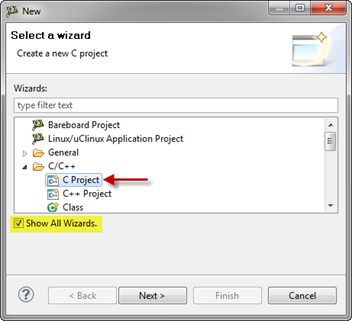
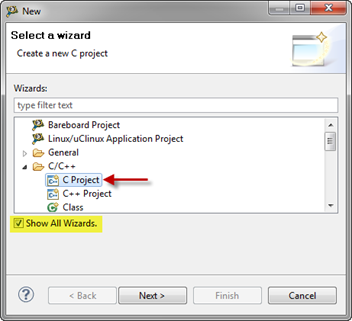
Enable Show All Wizards and select the C Project (which is otherwise hidden), pressing Next.
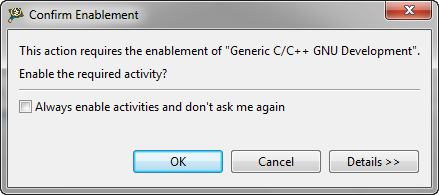
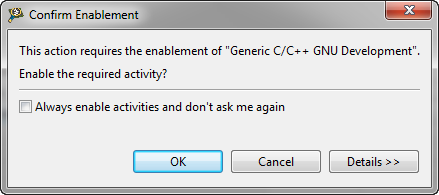
Click OK
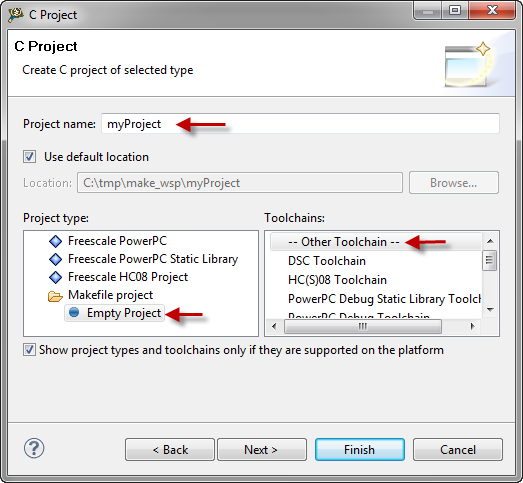
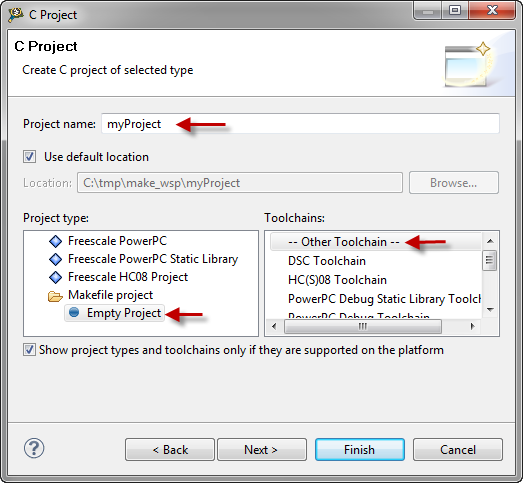
Specify the project name, select an Empty Project under Makefile project with — Other Toolchain — and press Finish:
Now I have an empty project
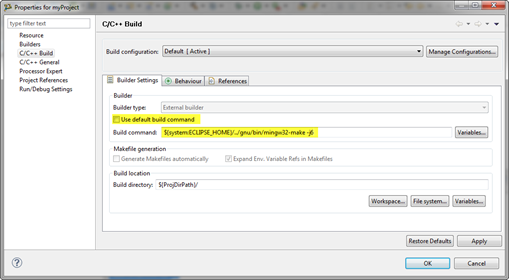
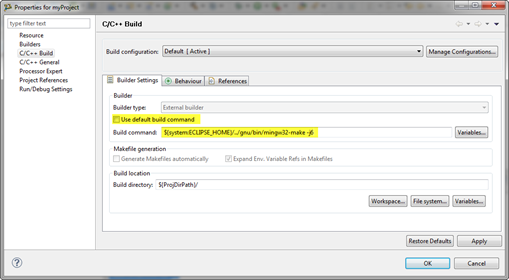
Using Project ¦ Properties specify my Build Command:
${system:ECLIPSE_HOME}/../gnu/bin/mingw32-make -j6
- 3- Copy all HC12 V5.1 Sources and config files to Eclipse project
- 4- Create a makefile with the menu File ¦ New ¦ Other... ¦ General ¦ File
Phase 2: Build the project using HC12 build tools chain with makefile
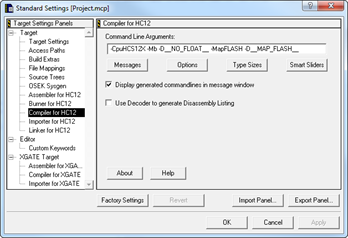
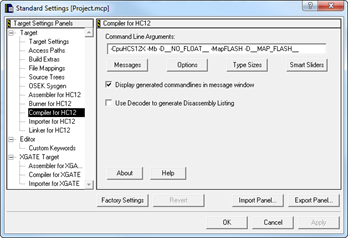
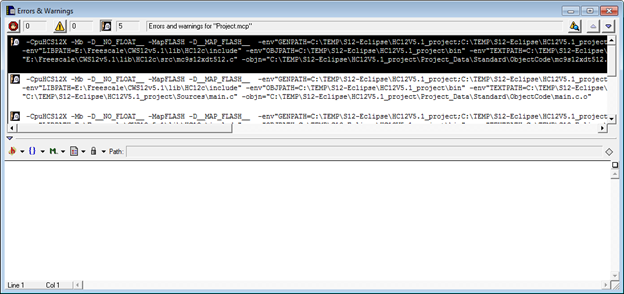
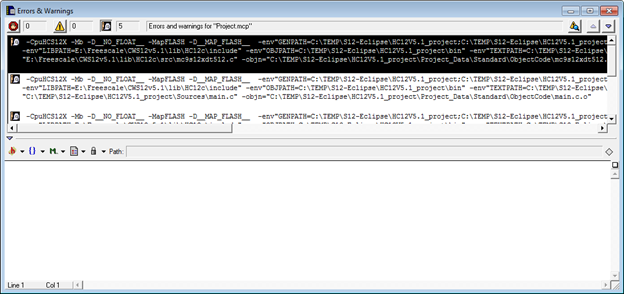
- 1- Generate the Commandlines used by HC12 v5.1 to build the project.
By this way you will have the options and other paths used for compiler and linker to build the project.
We can use these information to create the makefile.
- 2- Create the makefile with the menu menu File ¦ New ¦ Other... ¦ General ¦ File
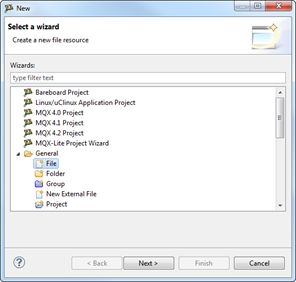
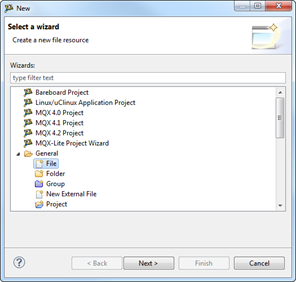
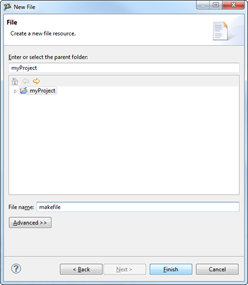
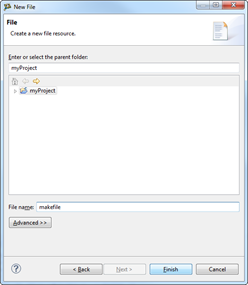
An empty makefile is created.
You need to create your makefile according to your project.
For more details we recommend to refer to the link:
http://mcuoneclipse.com/2012/02/13/make-my-make-with-eclipse-and-mcu10/
This is the makefile created for this example.
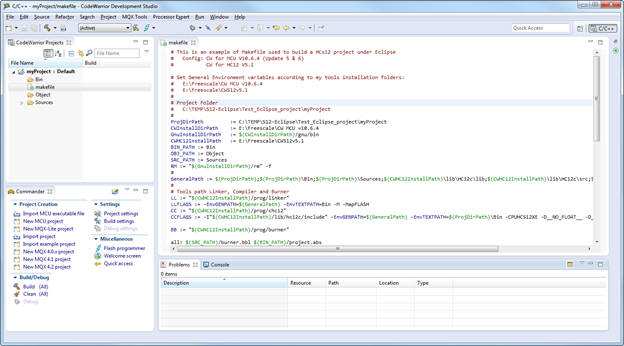
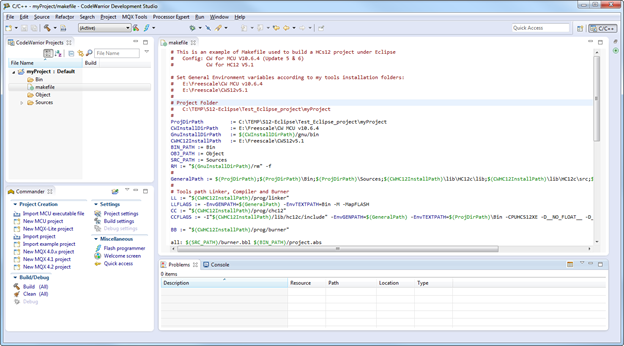
The makefile created contains 2 operations:
all -> build the project and generate Srecord files
clean -> remove all generated files
- 3- Create 2 make targets
for all and clean operations with the "Make Target" under Window ¦ show View
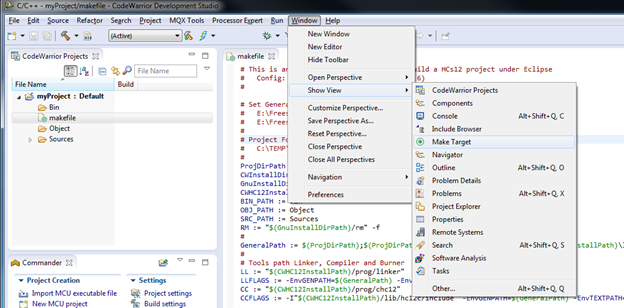
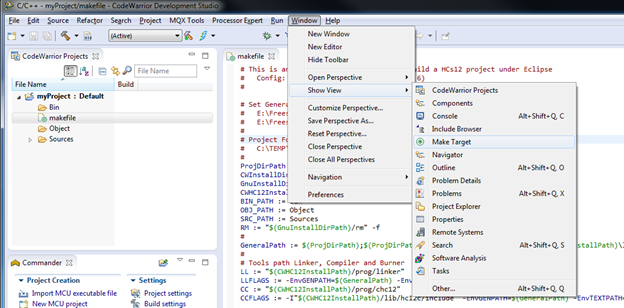
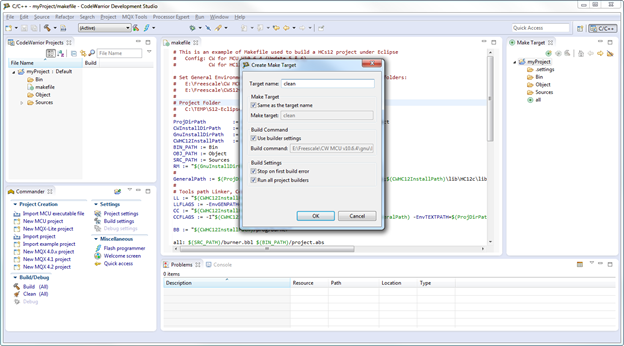
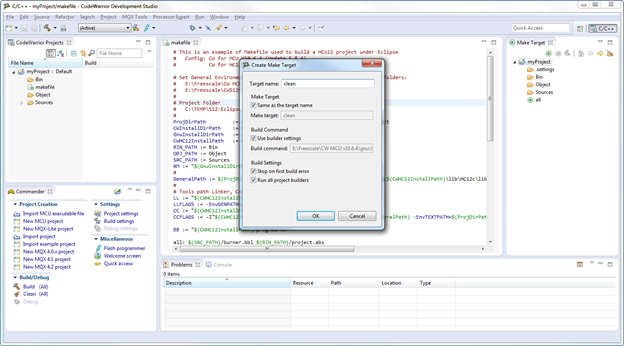
Now I can build the project using HC12 v5.1 tools (compiler/Linker) under Eclipse project
Phase 3: Add External debugger to debug hc12 application
HC12 V5.1 is using an external debugger named Hiwave.
This tool is using a config file named .ini.
To use HiWave under Eclipse project, we need to define it as external Debugger.
By the Run menu click on External Tools ¦ External Tools Configuration…
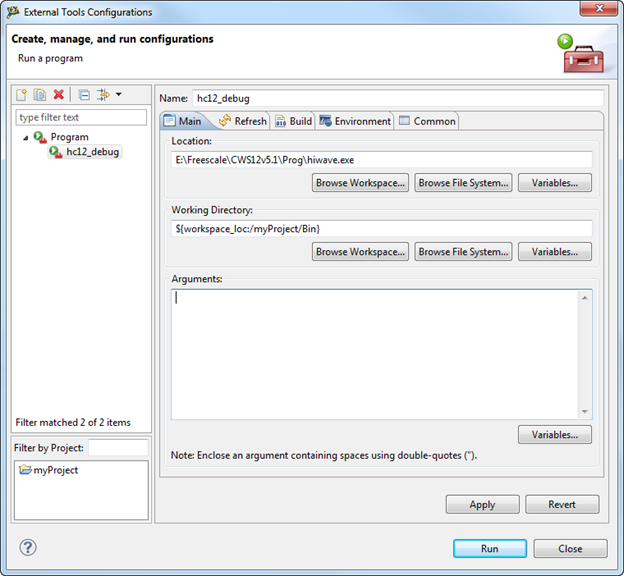
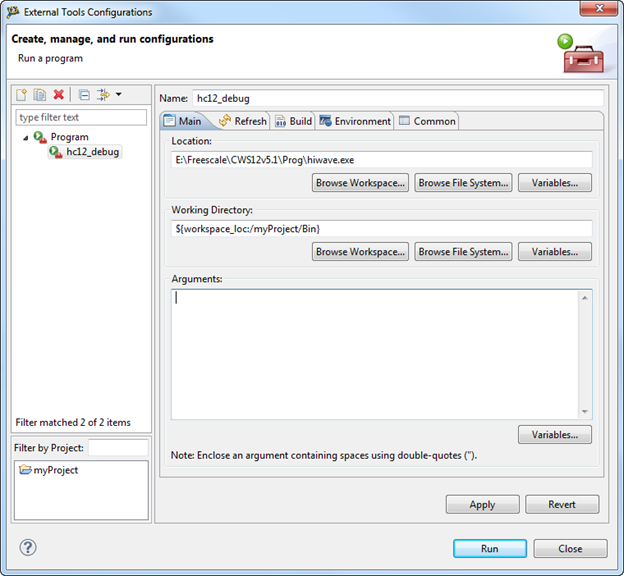
Run will launch the Debugger and the project.ini file will be generated in the \Bin folder
You can edit the ini file and use the info provided in the .ini file of HC12 V5.1 project
To use these settings, add the Arguments:
project.abs -w -Target=icd12 -Prod=project.ini
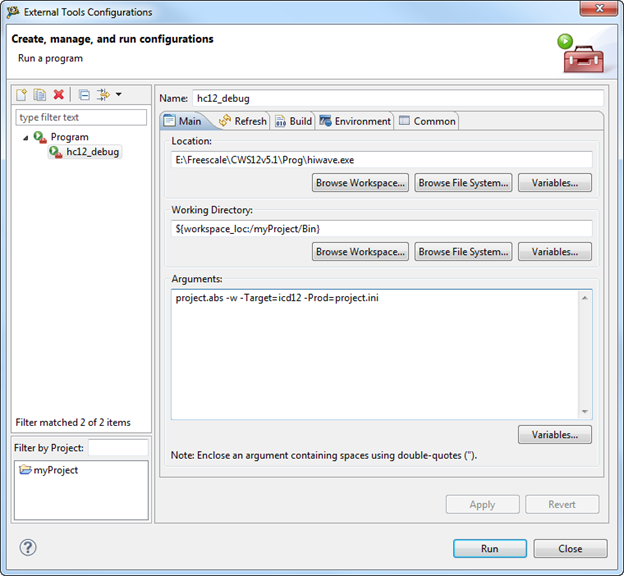
Now the debugger is launched and application loaded on board with Multilink Interface.

- Mark as Read
- Mark as New
- Bookmark
- Permalink
- Report Inappropriate Content
I try to follow the tutorial, but the attached files are not available.
Could you please send me the makefile?
Thanks!
