
- Forums
- Product Forums
- General Purpose MicrocontrollersGeneral Purpose Microcontrollers
- i.MX Forumsi.MX Forums
- QorIQ Processing PlatformsQorIQ Processing Platforms
- Identification and SecurityIdentification and Security
- Power ManagementPower Management
- Wireless ConnectivityWireless Connectivity
- RFID / NFCRFID / NFC
- Advanced AnalogAdvanced Analog
- MCX Microcontrollers
- S32G
- S32K
- S32V
- MPC5xxx
- Other NXP Products
- S12 / MagniV Microcontrollers
- Powertrain and Electrification Analog Drivers
- Sensors
- Vybrid Processors
- Digital Signal Controllers
- 8-bit Microcontrollers
- ColdFire/68K Microcontrollers and Processors
- PowerQUICC Processors
- OSBDM and TBDML
- S32M
- S32Z/E
-
- Solution Forums
- Software Forums
- MCUXpresso Software and ToolsMCUXpresso Software and Tools
- CodeWarriorCodeWarrior
- MQX Software SolutionsMQX Software Solutions
- Model-Based Design Toolbox (MBDT)Model-Based Design Toolbox (MBDT)
- FreeMASTER
- eIQ Machine Learning Software
- Embedded Software and Tools Clinic
- S32 SDK
- S32 Design Studio
- GUI Guider
- Zephyr Project
- Voice Technology
- Application Software Packs
- Secure Provisioning SDK (SPSDK)
- Processor Expert Software
- Generative AI & LLMs
-
- Topics
- Mobile Robotics - Drones and RoversMobile Robotics - Drones and Rovers
- NXP Training ContentNXP Training Content
- University ProgramsUniversity Programs
- Rapid IoT
- NXP Designs
- SafeAssure-Community
- OSS Security & Maintenance
- Using Our Community
-
- Cloud Lab Forums
-
- Knowledge Bases
- ARM Microcontrollers
- i.MX Processors
- Identification and Security
- Model-Based Design Toolbox (MBDT)
- QorIQ Processing Platforms
- S32 Automotive Processing Platform
- Wireless Connectivity
- CodeWarrior
- MCUXpresso Suite of Software and Tools
- MQX Software Solutions
- RFID / NFC
- Advanced Analog
-
- NXP Tech Blogs
- Home
- :
- Product Forums
- :
- S32K Knowledge Base
- :
- [S32K3 Tools Part] How to use VScode to compile EB MCAL project
[S32K3 Tools Part] How to use VScode to compile EB MCAL project
- Subscribe to RSS Feed
- Mark as New
- Mark as Read
- Bookmark
- Subscribe
- Printer Friendly Page
- Report Inappropriate Content
[S32K3 Tools Part] How to use VScode to compile EB MCAL project
[S32K3 Tools Part] How to use VScode to compile EB MCAL project
[S32K3 Tools Part] How to use VScode to compile EB MCAL project
For EB configured MCAL code, it is usually based on RTD and then compiled using the command line. When I first started learning, I always opened the relevant files directly to modify them, and then used the window cmd method to type commands. This method is very clumsy. Therefore, this article will show how to use VScode to open and compile a RTD4.0.0 S32K344 MCAL project. Of course, for MCAL EB projects, before compiling, you need to use the EB tool to open the configuration file of the corresponding project, and then close it after the project is generated.
1 VScode tool and configuration
VScode download link:
https://code.visualstudio.com/Download
After downloading, install it.
Here are some installation plug-ins I often use:

Fig 1

Fig 2
You can search in extensions and install it directly.
2. Use VScode to compile the RTD MCAL project
This article takes RTD4.0.0, SW32K3_S32M27x_RTD_R21-11_4.0.0 as an example, and the platform is the official S32K344-EVB board. The code takes Dio_TS_T40D34M40I0R0 project as an example. In order not to affect the original routine, Dio_TS_T40D34M40I0R0 is copied and saved as Dio_TS_T40D34M40I0R0_vscode
2.1 Use EB tresos generate the configuration
Open EB tools, import the project in path:
C:\NXP\SW32K3_S32M27x_RTD_R21-11_4.0.0\eclipse\plugins\Dio_TS_T40D34M40I0R0_vscode\examples\EBT\S32K3XX\Dio_Example_S32K344\TresosProject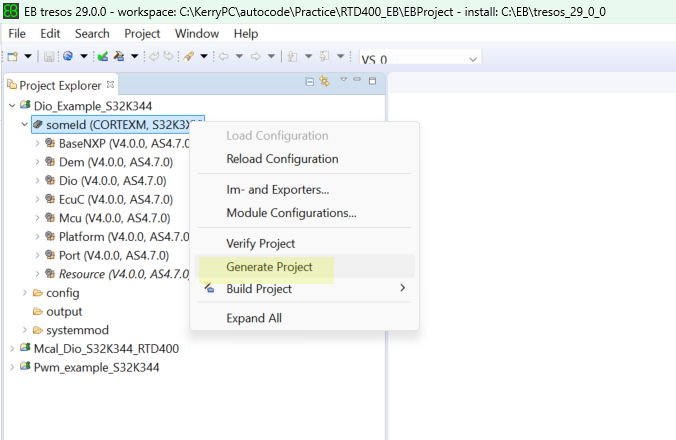
Fig 3
Double-click someId, then right-click. If you do not need to make custom configurations, just click generate project. Wait for the generation to complete without errors and close the EB IDE.
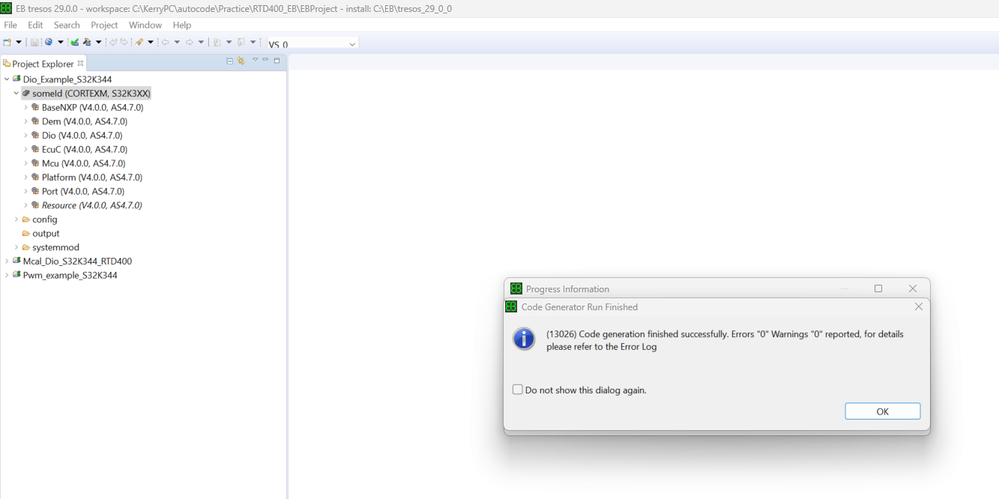
Fig 4
2.2 VScode open project
First open VScode and select the project path in open Folder:
C:\NXP\SW32K3_S32M27x_RTD_R21-11_4.0.0\eclipse\plugins\Dio_TS_T40D34M40I0R0_vscode\examples\EBT\S32K3XX\Dio_Example_S32K344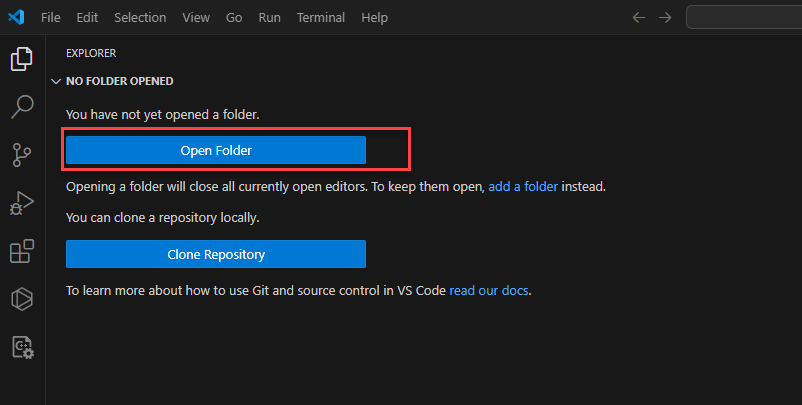
Fig 5
After opening, you can see that all the files in the path have been put in:
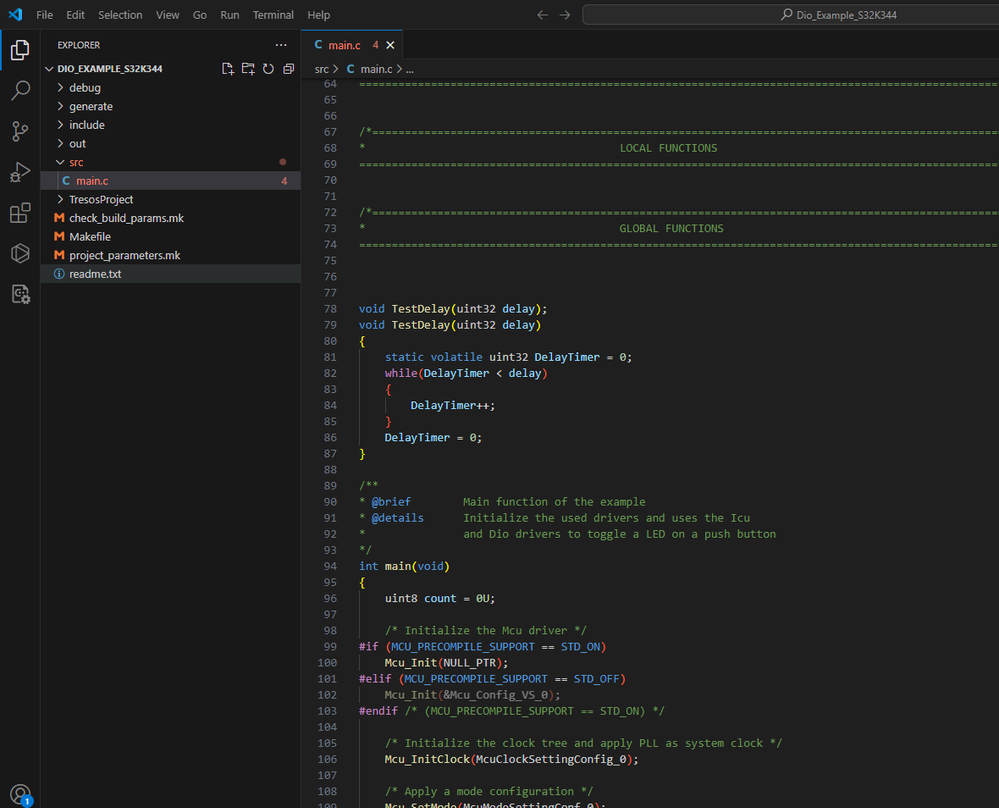
Fig 6
You can save the workspace so you don't need to open the folder every time.
File->Save workspace as, save to the path:
C:\NXP\SW32K3_S32M27x_RTD_R21-11_4.0.0\eclipse\plugins\Dio_TS_T40D34M40I0R0_vscode\examples\EBT\S32K3XX\Dio_Example_S32K344
2.3 Modify mk file
The project mk file needs to be modified to specify gcc, tresos paths, etc.
Modify points:project_parameters.mk
GCC_DIR = C:/NXP/S32DS.3.5_RTD400/S32DS/build_tools/gcc_v10.2/gcc-10.2-arm32-eabi
TRESOS_DIR = C:/EB/tresos_29_0_0
PLUGINS_DIR = C:/NXP/SW32K3_S32M27x_RTD_R21-11_4.0.0/eclipse/plugins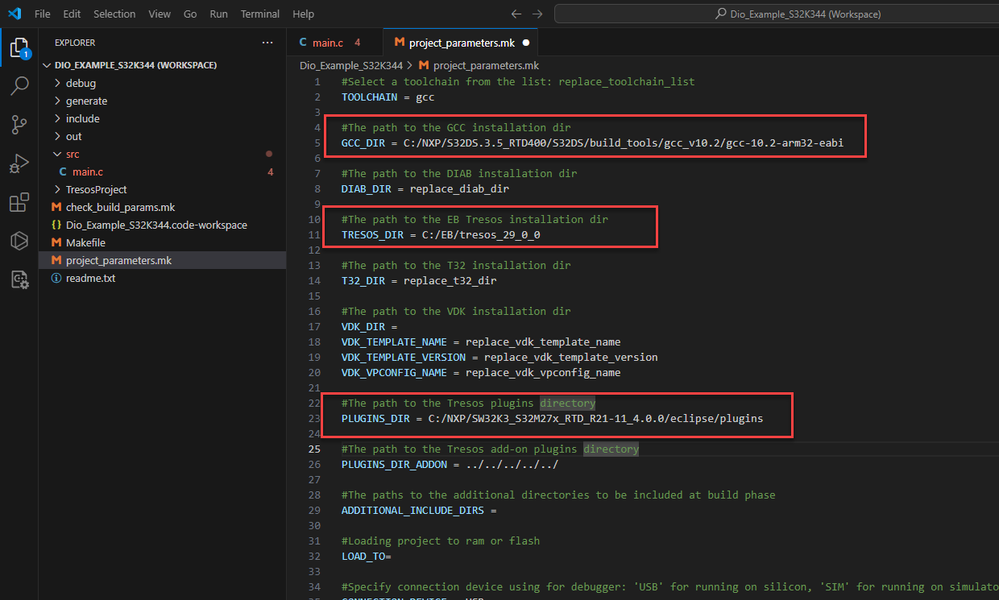
Fig 7
Modify points: check_build_params.mk
Delete
ifeq ("$(wildcard $(T32_DIR)/bin/windows/t32marm.exe)","")
    $(error Invalid path set to Trace32. \
    The provided path: from project_parameters.mk T32_DIR=$(T32_DIR) is invalid!)
Endif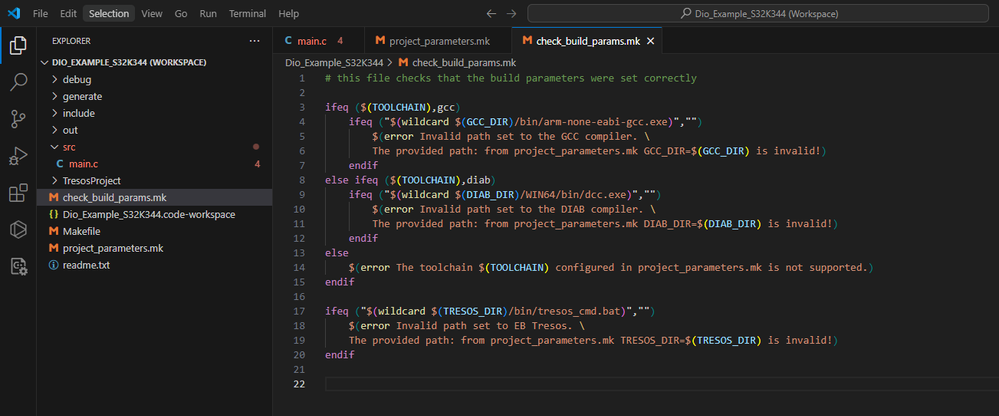
Fig 8
Then save all files:File->save all
2.4 Compile the file
Terminal->New Terminal
Enter the following command:
>make generate
>make build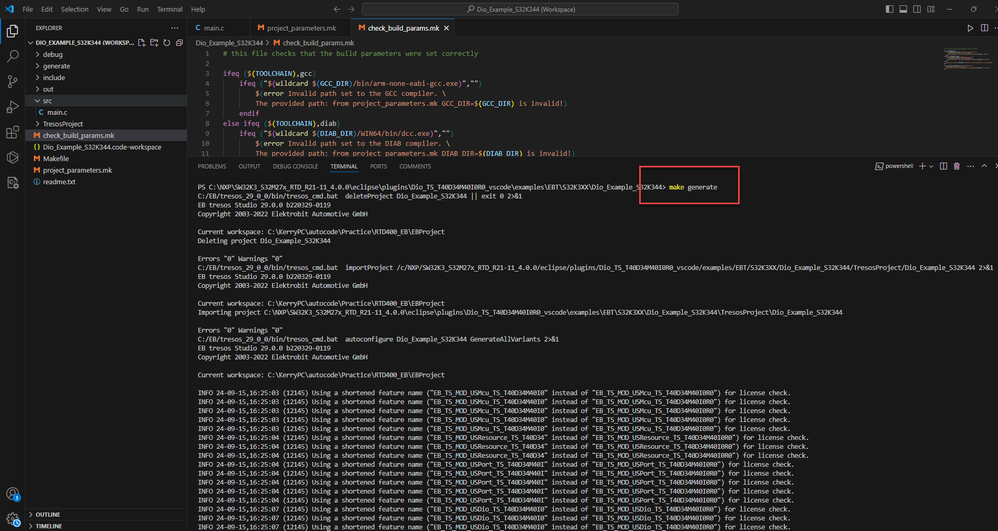
Fig 9

Fig 10
As you can see, after make build, an elf file has been generated in the out folder.
This elf file can be directly downloaded using two methods:
(1) S32DS empty project link to elf to download
(2) Lauderbach directly download elf file
2.5 debug the generated elf file
Since the S32K344-EVB has an onboard opensda tool, we directly use the S32DS empty project to link to the generated main.elf file to download and debug.
Create a new S32DS project, and the interface is PE Multilink, then directly change the elf file to main.elf in the debug configuration, and then put the previously generated elf file into the folder of the new S32DS project:
\Debug_FLASH
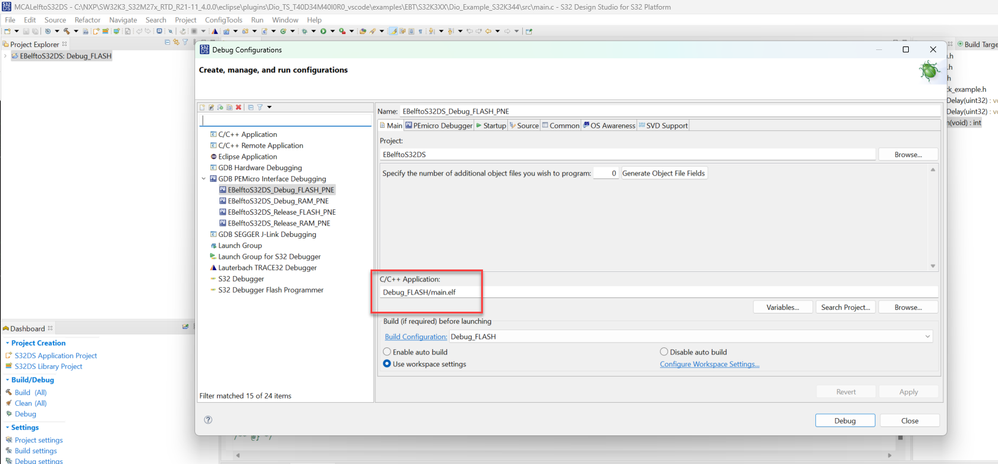
Fig 11
Then, enter debug mode, the results are as follows:

Fig 12
As you can see, the chip has entered debug mode and can run successfully.
Running at full speed, you can see the onboard red light flashing, so at this point, VSCode has compiled the MCAL code and run successfully.
