
- Forums
- Product Forums
- General Purpose MicrocontrollersGeneral Purpose Microcontrollers
- i.MX Forumsi.MX Forums
- QorIQ Processing PlatformsQorIQ Processing Platforms
- Identification and SecurityIdentification and Security
- Power ManagementPower Management
- Wireless ConnectivityWireless Connectivity
- RFID / NFCRFID / NFC
- Advanced AnalogAdvanced Analog
- Neural Processing UnitsNeural Processing Units
- MCX Microcontrollers
- S32G
- S32K
- S32V
- MPC5xxx
- Other NXP Products
- S12 / MagniV Microcontrollers
- Powertrain and Electrification Analog Drivers
- Sensors
- Vybrid Processors
- Digital Signal Controllers
- 8-bit Microcontrollers
- ColdFire/68K Microcontrollers and Processors
- PowerQUICC Processors
- OSBDM and TBDML
- S32M
- S32Z/E
-
- Solution Forums
- Software Forums
- MCUXpresso Software and ToolsMCUXpresso Software and Tools
- CodeWarriorCodeWarrior
- MQX Software SolutionsMQX Software Solutions
- Model-Based Design Toolbox (MBDT)Model-Based Design Toolbox (MBDT)
- FreeMASTER
- eIQ Machine Learning Software
- Embedded Software and Tools Clinic
- S32 SDK
- S32 Design Studio
- GUI Guider
- Zephyr Project
- Voice Technology
- Application Software Packs
- Secure Provisioning SDK (SPSDK)
- Processor Expert Software
- Generative AI & LLMs
-
- Topics
- Mobile Robotics - Drones and RoversMobile Robotics - Drones and Rovers
- NXP Training ContentNXP Training Content
- University ProgramsUniversity Programs
- Rapid IoT
- NXP Designs
- SafeAssure-Community
- OSS Security & Maintenance
- Using Our Community
-
- Cloud Lab Forums
-
- Knowledge Bases
- ARM Microcontrollers
- i.MX Processors
- Identification and Security
- Model-Based Design Toolbox (MBDT)
- QorIQ Processing Platforms
- S32 Automotive Processing Platform
- Wireless Connectivity
- CodeWarrior
- MCUXpresso Suite of Software and Tools
- MQX Software Solutions
- RFID / NFC
- Advanced Analog
- Neural Processing Units
-
- NXP Tech Blogs
- Home
- :
- Model-Based Design Toolbox (MBDT)
- :
- Model-Based Design Toolbox (MBDT)
- :
- dsc PWM swap mask
dsc PWM swap mask
- Subscribe to RSS Feed
- Mark Topic as New
- Mark Topic as Read
- Float this Topic for Current User
- Bookmark
- Subscribe
- Mute
- Printer Friendly Page
dsc PWM swap mask

- Mark as New
- Bookmark
- Subscribe
- Mute
- Subscribe to RSS Feed
- Permalink
- Report Inappropriate Content
hello
I want to control bldcmotor.
I would like to operate the swap mask setting from the DSC PWM block.
Looking at the block, the terminal is missing.
How can I change the swap mask setting
Best regards.,
hayaoki7

 stefancinipeanu
- Mark as New
- Bookmark
- Subscribe
- Mute
- Subscribe to RSS Feed
- Permalink
- Report Inappropriate Content
Hello, @hayaoki7
Sorry if I misunderstand, but could you be more specific about swap mask setting? What are you trying to achieve?
Regards,
Stefan.
- Mark as New
- Bookmark
- Subscribe
- Mute
- Subscribe to RSS Feed
- Permalink
- Report Inappropriate Content
hello,
I want to set the PWM of the BLDC motor in the attached image.
Taken from Freescale AN1916.
To do this, you need a PWM mask and swap.
PWM of MC56F8xxxx has mask and PWM, so it should be possible to deal with it.
If you can use this, you will be able to move in complementary mode.
Is there a way to do this with a model?
thank you.
Best regards,
hayaoki7
- Mark as New
- Bookmark
- Subscribe
- Mute
- Subscribe to RSS Feed
- Permalink
- Report Inappropriate Content
hello
There is no dedicated swap register like in the MC56F83xx.
Is there any register setting that allows alternative operation?

thank you.
Best regards,
Hayaoki7
stefancinipeanu
- Mark as New
- Bookmark
- Subscribe
- Mute
- Subscribe to RSS Feed
- Permalink
- Report Inappropriate Content
Hello, @hayaoki7
As far as I understand you are trying to use PWM in complementary mode. You can do that by changing the settings directly from ConfigTools mex file attached to the model. By pressing the Configure... button, the configuration will open.

From the PWM peripheral menu, you can choose the output mode to be in Complementary mode and also you can choose which channel will be the main channel. For example in the below picture, the PWM channels A and B are in complementary mode with channel A main(Complementary mode control source -> PWM23 - channel A).
After you are done with configuration, save the mex and click Update button from the Simulink PWM block.
Hope this helps.
Regards,
Stefan.
- Mark as New
- Bookmark
- Subscribe
- Mute
- Subscribe to RSS Feed
- Permalink
- Report Inappropriate Content
Hello
I tried to build mc56f81000_flexpwm_center_alig.mdl in the sample to check the operation of complementary mode PWM.
As a result, it could not be built.
PWMA_SM0_COUNTER_CLK_SOURCE_FREQ_HZ
PWMA_SM1_COUNTER_CLK_SOURCE_FREQ_HZ
PWMA_SM2_COUNTER_CLK_SOURCE_FREQ_HZ
An error will occur if the above three variables are not defined.
FMSTR_Poll();
In addition to the main function, this function
void mc56f81000_flexpwm_center_alig_step(void) is generated inside this function. This is because FMSTR_Poll() is generated at this location.
Please let me know how to fix these.
Polling is not performed even in mc56f81000_gpio_polling.mdl, and GPIO polling is generated in the step function. will result in an error.
The model of mc56F81000 in the sample folder is MC56F81868. The target mounted on MC56F81000-EVK is MC56F81768. Can the program be written to the target correctly?
Best regards,
Hayaoki7
- Mark as New
- Bookmark
- Subscribe
- Mute
- Subscribe to RSS Feed
- Permalink
- Report Inappropriate Content
I tried the sample model to try complementary PWM. There was a problem.
① MC56F81768 is mounted on MC56F81000-EVK. Is there any problem with MC56F81868?
mc56f81000_flexpwm_center_alig.mdl changed the target to MC56F81768 and tested it and got error ②.
mc56f81000_gpio_polling.mdl cannot be downloaded to the target.
② I tried mc56f81000_flexpwm_center_alig.mdl, but I got an error. From the three PWM blocks in the model
undefined identifier 'PWMA_SM0_COUNTER_CLK_SOURCE_FREQ_HZ'
undefined identifier 'PWMA_SM1_COUNTER_CLK_SOURCE_FREQ_HZ'
undefined identifier 'PWMA_SM2_COUNTER_CLK_SOURCE_FREQ_HZ'
I have an error and don't know how to fix it. I would like to request a correction.
③ FMSTR_Poll(); function is
in void mc56f81000_flexpwm_center_alig_step(void). It's strange that it's in this function. Not the polling position.
I checked mc56f81000_gpio_polling.mdl, but it's the same. Generated in the interrupt process instead of the main function. I suspect this is a bug.
Please tell me how to deal with it.
thank you.
Best regards,
Hayaoki7
stefancinipeanu
- Mark as New
- Bookmark
- Subscribe
- Mute
- Subscribe to RSS Feed
- Permalink
- Report Inappropriate Content
Hi, @hayaoki7
From this post I see that you want to use a different hardware part of MC56F81000 family (the MC56F81666VLF). I don`t know if you managed to insert the SDK correctly in the toolbox, but I will explain to you step by step how this can be done.
1. In the MCUXpresso SDK builder after you choose the hardware part from Proccessor -> dsc tab and then select the hardware part you want to build the SDK, you also have to select all the additional packages that are supported for the version 2.7.3, including FreeMASTER, because we use those middlewares in our toolbox.
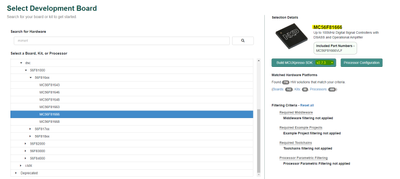
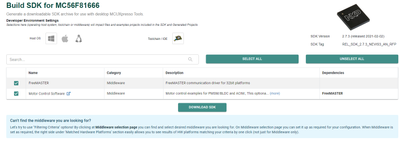
2. After you download the SDK, you have to extract the content from the zip file into a new directory "{toolbox_path}\NXP_MBDToolbox_DSC\DSC_Platform_SDK\SDK_2_7_3_MC56F81666"
3. When you open a model, for example the mc56f81000_flexpwm_edge_aligned.mdl, you have to change some settings from the Hardware Settings tab. In the Hardware Implementation -> Target hardware resources -> Hardware you have to choose your Hardware Part, which is going to be MC56F81666VLF.
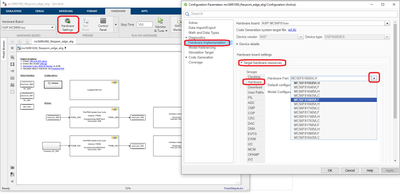
4. After you have done that, a pop-up will show up to warn you have to tell a path to the SDK folder that you have just download and extract in the step 2.

5. Then you will click Apply and save the model.
6. In order to build the application successfully, you also have to do some changes in the mex Configuration Tools file attached to the model. For that, please open outside MATLAB the mc56f81000_flexpwm_edge_aligned.mex and go to File -> Switch processor
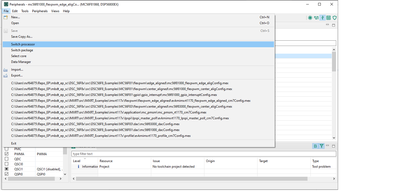
7. From here, you also have to look up and choose for your hardware part, as shown below. And then clcik Finish.
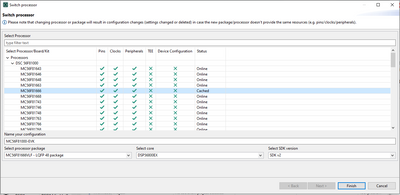
8. From this point, if any errors appear in the current configuration, you have to resolve them by yourself in order for a successful build. Then you will save the configuration file and try to build the model.
It should work with no errors. Let me know if this approach worked.
Thank you! Regards!
Stefan.
- Mark as New
- Bookmark
- Subscribe
- Mute
- Subscribe to RSS Feed
- Permalink
- Report Inappropriate Content
hello
MC56F81000-EVK made the target change as you sent, and was able to build and download to the target. I just have a problem. Download to target fails frequently. At that time, an error as shown in the figure appears. Is there any way to solve this? Any good ideas?
Also, I found that R2022B can not be built. Is there any way to improve this?
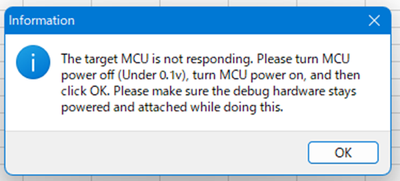
thank you.
Best regards,
Hayaoki7
stefancinipeanu
- Mark as New
- Bookmark
- Subscribe
- Mute
- Subscribe to RSS Feed
- Permalink
- Report Inappropriate Content
Hi, @hayaoki7
For downloading the application to the target, there are 2 downloading support methods: CW Flash and PEmicro Flash. the CW Flash is delivered together with the toolbox and the PEmicro had to be downloaded separately and integrated into the toolbox. Which method did you use? From the image that you have sent, I assumed that you`ve used the PEmicro Flash. Did you try also with the CW Flash?
As a quick info, to change settings for downloading the application, you have to go to Hardware settings -> Hardware implementation -> Target hardware resources -> Download
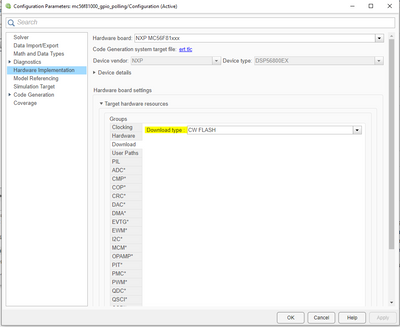
For the other issue that you`ve mentioned, I`ve tried to build an example in R2022b and I had no problems with building and downloading the application on MC56F81000-EVK. What issues do you have on R2022b?
Regards,
Stefan.
- Mark as New
- Bookmark
- Subscribe
- Mute
- Subscribe to RSS Feed
- Permalink
- Report Inappropriate Content
hello
In R2022B, when building mc56f81000_flexpwm_center_alig.mdl, the following 3 variables are not defined error is displayed and the build is aborted.
PWMA_SM0_COUNTER_CLK_SOURCE_FREQ_HZ
PWMA_SM1_COUNTER_CLK_SOURCE_FREQ_HZ
PWMA_SM2_COUNTER_CLK_SOURCE_FREQ_HZ
mc56f81000_gpio_polling.mdl could be built and downloaded by setting SDK and changing CWFLASH.
mc56f81000_flexpwm_center_alig.mdl I can't do it no matter how many times I try.
mc56f83000_flexpwm_center_alig.mdl gives the same error.
The PMSM sample also gives the same error.
Is there any way to improve this?
thank you.
Best regards,
Hayaoki7
stefancinipeanu
- Mark as New
- Bookmark
- Subscribe
- Mute
- Subscribe to RSS Feed
- Permalink
- Report Inappropriate Content
Could you send me the model along with the mex file?
- Mark as New
- Bookmark
- Subscribe
- Mute
- Subscribe to RSS Feed
- Permalink
- Report Inappropriate Content
hello
I will send you the model. DSC MBD sample model. In the case of MC56F81000, it is an SDK setting problem (solved), but I will send the PWM model of MC56F83000 that has not been edited. R2022B fails to build with this error every time. Please give me a solution.
thank you.
Best regards,
Hayaoki7
- Mark as New
- Bookmark
- Subscribe
- Mute
- Subscribe to RSS Feed
- Permalink
- Report Inappropriate Content
hello
Were you able to build and download the attached model with R2022B to the target?
thank you.
Best regards,
Hayaoki7
- Mark as New
- Bookmark
- Subscribe
- Mute
- Subscribe to RSS Feed
- Permalink
- Report Inappropriate Content
hello
My MATLAB R2022B has S32K1 and DSC set up. Running mbd_s32k_path gives no errors. I get an error when I run mbd_dsc_path. Does this error prevent the build?
Also, is there any way to avoid this error?
thank you.
Best regards,
Hayaoki7

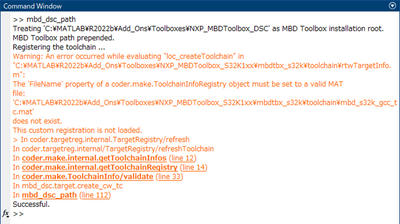
stefancinipeanu
- Mark as New
- Bookmark
- Subscribe
- Mute
- Subscribe to RSS Feed
- Permalink
- Report Inappropriate Content
Hi, @hayaoki7
Sorry for the late response. I have been investigated the issue that you`ve encountered and it seems that you are right, the model that you have sent and also some others from our toolbox examples are no longer building in MATLAB R2022b.
The reason for this issue is that for PWM peripheral, we use some values defined inside the peripherals.h file which is generated by the MCU ConfigTools using the mex file attached next to the model. This header file along with others (peripherals.h, board.h, clock_config.h, and pin_mux.h) are included inside the MW_target_hardware_resources.h file (generated by the Embedded Coder). In older versions of MATLAB, this MW_target_hardware_resources.h header was included inside the generic header file <model_name>.h, but in R2022b the resources header is now present inside the ert_main.c file and that`s why the compiler does not see the defines from peripherals.h anymore. We have to investigate further to find a stable solution for this kind of issue.
Meanwhile, as a quick workaround, I will attach to this post a zip containing a file that you have to copy to the following directory path: {toolbox_path}\mbdtbx_dsc\blocks\flexpwm
What I have done was to force the inclusion of peripherals.h header where those defines are.
Sorry for this inconvenience. I am going to open a ticket for this. Let me know if this workaround works for you.
Best regards,
Stefan.
- Mark as New
- Bookmark
- Subscribe
- Mute
- Subscribe to RSS Feed
- Permalink
- Report Inappropriate Content
Hello
I was able to build it. Thank you.
I downloaded it to the target and did a PWM operation test.
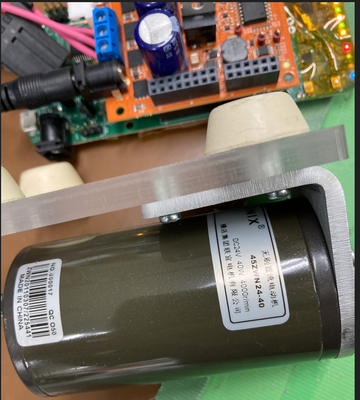
The test used the motor in the photo.
R2022B: Motor does not move.
R2022A: Motor has run.
I've attached a photo of the motor I tested. I expect improvement.
thank you.
Best regards,
Hayaoki7
- Mark as New
- Bookmark
- Subscribe
- Mute
- Subscribe to RSS Feed
- Permalink
- Report Inappropriate Content
Hello
I hope that the problem will be improved.
Best regards
Hayaoki7
