
- Forums
- Product Forums
- General Purpose MicrocontrollersGeneral Purpose Microcontrollers
- i.MX Forumsi.MX Forums
- QorIQ Processing PlatformsQorIQ Processing Platforms
- Identification and SecurityIdentification and Security
- Power ManagementPower Management
- Wireless ConnectivityWireless Connectivity
- RFID / NFCRFID / NFC
- Advanced AnalogAdvanced Analog
- Neural Processing UnitsNeural Processing Units
- MCX Microcontrollers
- S32G
- S32K
- S32V
- MPC5xxx
- Other NXP Products
- S12 / MagniV Microcontrollers
- Powertrain and Electrification Analog Drivers
- Sensors
- Vybrid Processors
- Digital Signal Controllers
- 8-bit Microcontrollers
- ColdFire/68K Microcontrollers and Processors
- PowerQUICC Processors
- OSBDM and TBDML
- S32M
- S32Z/E
-
- Solution Forums
- Software Forums
- MCUXpresso Software and ToolsMCUXpresso Software and Tools
- CodeWarriorCodeWarrior
- MQX Software SolutionsMQX Software Solutions
- Model-Based Design Toolbox (MBDT)Model-Based Design Toolbox (MBDT)
- FreeMASTER
- eIQ Machine Learning Software
- Embedded Software and Tools Clinic
- S32 SDK
- S32 Design Studio
- GUI Guider
- Zephyr Project
- Voice Technology
- Application Software Packs
- Secure Provisioning SDK (SPSDK)
- Processor Expert Software
- Generative AI & LLMs
-
- Topics
- Mobile Robotics - Drones and RoversMobile Robotics - Drones and Rovers
- NXP Training ContentNXP Training Content
- University ProgramsUniversity Programs
- Rapid IoT
- NXP Designs
- SafeAssure-Community
- OSS Security & Maintenance
- Using Our Community
-
- Cloud Lab Forums
-
- Knowledge Bases
- ARM Microcontrollers
- i.MX Processors
- Identification and Security
- Model-Based Design Toolbox (MBDT)
- QorIQ Processing Platforms
- S32 Automotive Processing Platform
- Wireless Connectivity
- CodeWarrior
- MCUXpresso Suite of Software and Tools
- MQX Software Solutions
- RFID / NFC
- Advanced Analog
- Neural Processing Units
-
- NXP Tech Blogs
- Home
- :
- モデルベース・デザイン・ツールボックス(MBDT)
- :
- モデルベース・デザイン・ツールボックス(MBDT)
- :
- S32K3x4-Q172P_with_MBDT_Blink_Project
S32K3x4-Q172P_with_MBDT_Blink_Project
- RSS フィードを購読する
- トピックを新着としてマーク
- トピックを既読としてマーク
- このトピックを現在のユーザーにフロートします
- ブックマーク
- 購読
- ミュート
- 印刷用ページ

- 新着としてマーク
- ブックマーク
- 購読
- ミュート
- RSS フィードを購読する
- ハイライト
- 印刷
- 不適切なコンテンツを報告
Dear Sir,
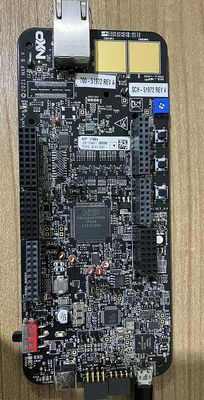
As I am testing new S32K344 evaluation kit with new MBDT approach (S32CT).
I have failed to flash and setup, because I am not quite familiar with this NXP new MBDT toolchain approach.
Could you help point any direction to get blink program up-running ?
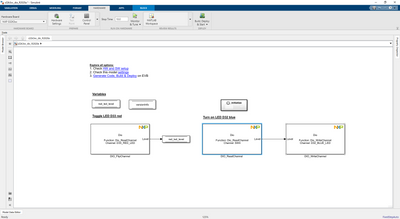
1st, I already configured the I/O from BGA257 to MQFP172 in S32CT
2nd, I assigned IO, and updated the Code and Refreash in Simulink
(However, the Label, and Channel Id does not update followingly)
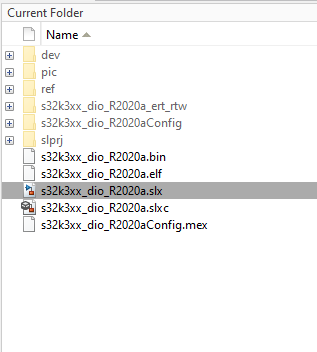
But Even so, I am success to build this project and get *.bin & *.elf files.
(But fail to flash, so I am not sure when is correct procedure)
Or would you guy have any example project file for this eval board ?
Best regards,
Narudol T.
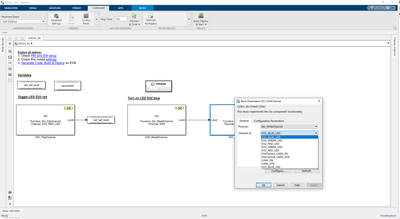
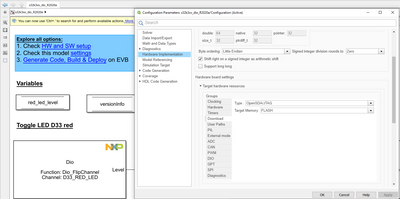
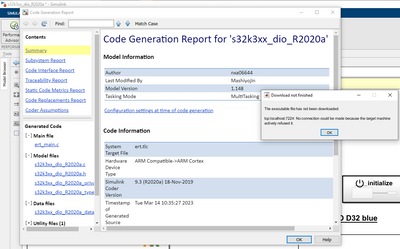
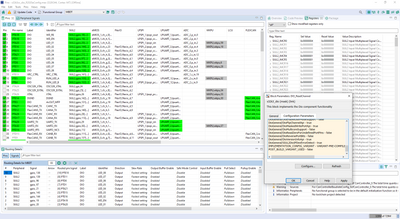
解決済! 解決策の投稿を見る。

 georgevictor
- 新着としてマーク
- ブックマーク
- 購読
- ミュート
- RSS フィードを購読する
- ハイライト
- 印刷
- 不適切なコンテンツを報告
Hi, @Narudol-T,
I'll answer your queries in the same sequence that they were posed:
1. The webinar section is found on the main MBDT community page.
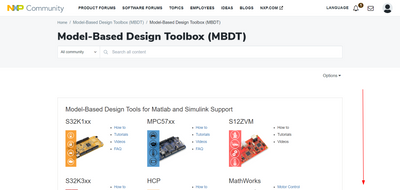
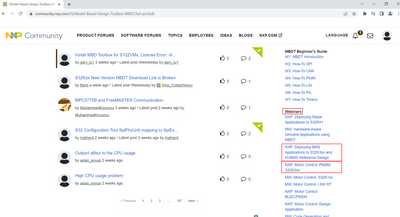
There are some S32K3xx webinars here that deal with particular applications, but they all provide at some point a thorough explanation of the overall workflow.
2. The Dio Port structure PTA (Low- 0-15, High- 16-31), PTB (Low-0-15, High-16-31) consists in 2 sections(each having 16 pins (0-15) ). As you can see you have a limitation regarding the channel id number:
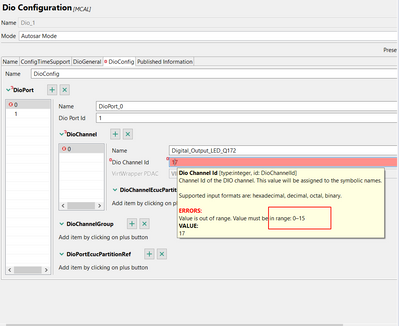
Considering this, if you want to control the PTA29 pin you cannot use ID 29 but instead you can assign a channel with the ID 13 in the Port ID 1(which stands for PTAH(16-31)). To a have a more
clear picture, you can consider this formula PinNumber = PortID * 16(pins per port) + Channel ID, in our case PinNumber equals with 29(mscr number from pin_muxing).
3. The RTD MCAL(Microcontroller Abstraction Layer) drivers are high level drivers based on SDK(low level drivers).
If you're interested in learning more about the RTD, MCAL, and SDK, click the following link:
https://www.nxp.com/docs/en/application-note/AN13435.pdf.
You can use the same Simulink workflow that you are familiar with from previous MBDT toolboxes to call an MCAL API.
The implementation of the API's for each component is found inside the RTD folder.
In our toolbox, the s32k3xx_isr_custom_code_s32ct example from the isr example folder serves as an illustration of how to use an MCAL API inside Simulink. We provide a default configuration for the ICU component in S32CT and EB tresos and based on that, we use custom code blocks to include ICU API calls inside the logic of the application.
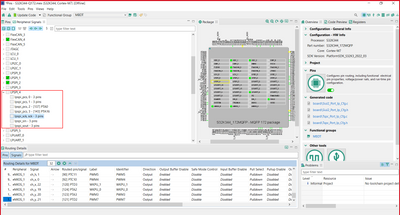
4. The MBDT toolbox for S32K3 provides default configuration projects for both S32K344-Q172 and S32K344-Q257 packages. You can start your custom board configuration project starting from this default projects depending on the processor you are using. Please note that inside the default mex files we provide we enable only LPSPI1 and LPSPI2 instances. For configuring LPSPI4 you must enable the proper settings in the SPI component, its interrupts inside the Platform component, and the pins inside the Pins Tool. For the pins configuration, you can go to the Peripheral Signals tab, and route each one of the LPSPI4 signals to the available pins as illustrated below:
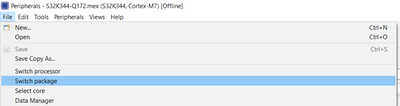
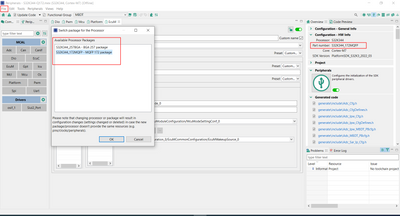
If you already have an S32CT project please note that you also have the possibility of changing the processor package for your configuration like in the following picture:
Hope this helps,
Victor
georgevictor
- 新着としてマーク
- ブックマーク
- 購読
- ミュート
- RSS フィードを購読する
- ハイライト
- 印刷
- 不適切なコンテンツを報告
Hi @Narudol-T
Thank you for using our MBDT for K3. I see that you are using an old toolbox version (1.1.0 I guess) that doesn't support the S32K3x4-Q172 board.
The latest MBDT for S32K3 release (version 1.3.0) includes support for this board and a variety of examples. Be informed that this latest toolbox version requires a newer version of MATLAB, starting with 2021a.
After you have installed the toolbox, you can open the same dio s32ct example, named s32k3xx_dio_s32ct. After opening the model, you only need to select the board from Hardware Settings, apply the changes, and build the model.
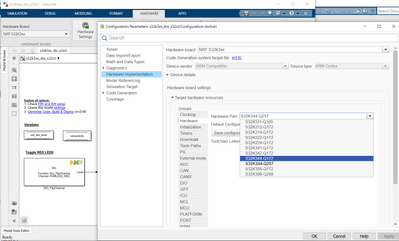
You can also take a look over the example readme for further information about board changing.
Please let me know if this helped you.
Best regards,
Victor
- 新着としてマーク
- ブックマーク
- 購読
- ミュート
- RSS フィードを購読する
- ハイライト
- 印刷
- 不適切なコンテンツを報告
Dear Victor,
Thank you NXP team too that bring-out good product to market.
Because I am familiar with old-workflow of NXP's MBDT not new one.
Even I have installed version as your suggestion MATLAB_2021a with S32K344_1.30
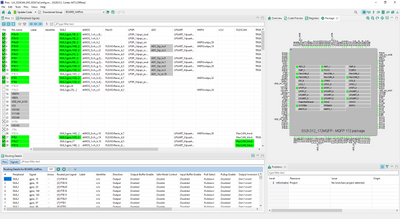
I configured the PIN arrangement in S32CT and update to simulink.
However, the channel_id is not updated.
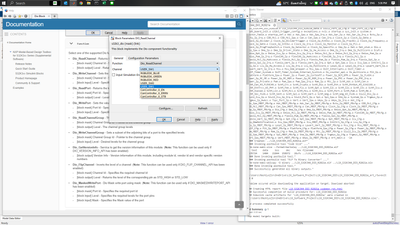
I am not sure, what is this channel_id inside drop-down list ?
Because in the help, it also does not mention it.
Can you help advise me ?
BTW, in case I do customed board, the design workflow is still same, correct ?
Best regards,
Narudol T.
georgevictor
- 新着としてマーク
- ブックマーク
- 購読
- ミュート
- RSS フィードを購読する
- ハイライト
- 印刷
- 不適切なコンテンツを報告
Hi, @Narudol-T,
A quick introduction about the new MBDT workflow for S32K3xx:
The MBDT for S32K3xx generates code based on RTD (Real Time Drivers) MCAL components. The configuration of these components is done using an external configuration tool (S32 Configuration Tool integrated in our toolbox or EBtresos tool that needs to be downloaded). For more details about using and configuring these components, you can open the S32K3_RTD folder found in the toolbox root and search for the user manual for a desired component. As an example, in the next picture, you can see the location of the DIO user manual.
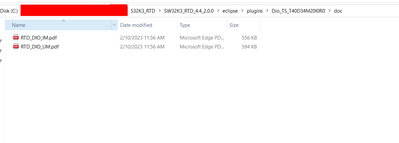
For further details about the new MBDT workflow you can take a look over our S32K3 webinars found in the lower right section of the MBDT community page .
Regarding your application, I see that you have a standard S32K344-Q172 board. For this I would mention the following:
1. In case you want to run our DIO example for s32ct, the model help mention that the S32k344-Q172 is supported and there is no need to configure the pin arrangement. When you select a hardware Part for an example, a default configuration provided by MBDT (for S32CT, the .mex file and the modelName_Config folder) is associated to the model. As you can see in the .mex configuration the LED and switches are already configured.
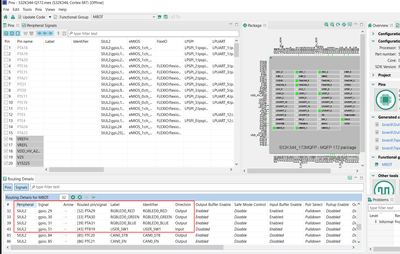
This means that, after selecting your Hardware Part, according to the board you have, you will only need to press the build button, it's plug and play.
2. In case you want to customize our default project provided for S32K344-Q172, for your application particularities, you can open the project and modify it as required.
For example, to configure an additional DIO channel the followings steps are required:
- configure the pins you need (adding new ones, or rerouting the already configured ones) in the Pins diagram. This will only do the hardware routing for your pin to a specific peripheral, in our case let's take the RGBLED0_RED pin that is configured to SIUL2 as a gpio (general purpose I/O pin). The gpio 29th pin is routed to the PTA port of the MCU.
For using DIO functions to control the pins there is one additional step that must be made:
- a DIO channel corresponding to the pin must be configured inside the DIO component
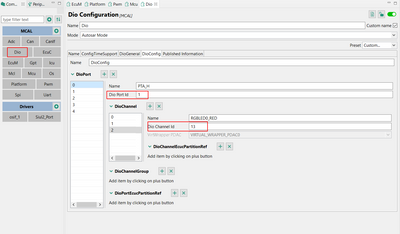
Ports (PTA, PTB, PTC, etc.) are structured in 2 sections, each of them containing 16 pins, and they are identified as: Low (pins from 0-15) and High (pins from 16-31). For more details you can hover the Dio Port Id element and check the details as displayed in the image below:
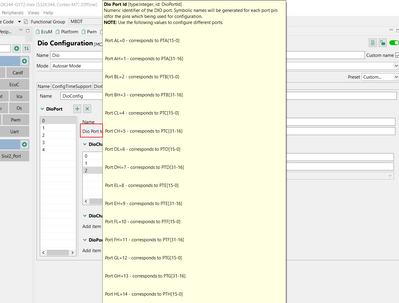
Therefore, if you would like to configure a DIO channel to PTA29 you should set the port ID to 1 corresponding to PTA_H (pins form 16-31). The channel ID setting should be configured to 13 because PTA29 can be found on the 13th position of the PTA_H port.
3. In case you have a custom board you can try use the functionality described in section 3.7 Support for custom default project in Release Notes. This functionality helps you to configure and save a custom configuration template that can be further associated to multiple applications. The link to Release Notes is found in the bottom of the example help.
Hope this helps you,
Victor
- 新着としてマーク
- ブックマーク
- 購読
- ミュート
- RSS フィードを購読する
- ハイライト
- 印刷
- 不適切なコンテンツを報告
Dear Victor,
This is very very useful reply. Thank you very much.
May I rise few more question regarding this new MBDT workflow.
I think it may go beyong this topic already, but please let me know if need to setup new topic thread.
1) Do you mean that webinar is this below link ?
https://community.nxp.com/t5/NXP-Model-Based-Design-Tools/S32K3-Videos/ta-p/13728022
2) I can understand and found the document regarding "PORT_ID" already. (undestandble)
but I still does not understand why PTA29 can be found on the 13th position of the PTA_H port ? (CHANNEL_ID)
Which document is indicating this information ?
3) Does this MCAL layer are performing as the "Middle_Ware" layer like can_pal ?
Usually in previous MBDT design workflow, I could call the RTD function directly from SIMULINK by using MATLAB coder and C-H header files.
Now with this new workflow, Am I still able call those low level RTD function ?
Or I need to call MCAL abstraction layer instead ?
Easy example, that I have some I2C or SPI pheripheral device with C-H driver.
And I just want to use it by calling it from SIMULINK.
4) I am designing the customed HW board based on S32K3_RM which shows few different setting from the S32CT plugin.
For example, there is "LPSPI4_XXX" inside the excel sheet in MQFP package, but there is no pin_muxing setup inside S32CT
Also, "V15" (1.5VDC power) are also become normal DIO port inside this S32CT for 172 MQFP package.
So, which one should I setup the HW - SW followingly ?
Best regards,
Narudol T.
georgevictor
- 新着としてマーク
- ブックマーク
- 購読
- ミュート
- RSS フィードを購読する
- ハイライト
- 印刷
- 不適切なコンテンツを報告
Hi, @Narudol-T,
I'll answer your queries in the same sequence that they were posed:
1. The webinar section is found on the main MBDT community page.
There are some S32K3xx webinars here that deal with particular applications, but they all provide at some point a thorough explanation of the overall workflow.
2. The Dio Port structure PTA (Low- 0-15, High- 16-31), PTB (Low-0-15, High-16-31) consists in 2 sections(each having 16 pins (0-15) ). As you can see you have a limitation regarding the channel id number:
Considering this, if you want to control the PTA29 pin you cannot use ID 29 but instead you can assign a channel with the ID 13 in the Port ID 1(which stands for PTAH(16-31)). To a have a more
clear picture, you can consider this formula PinNumber = PortID * 16(pins per port) + Channel ID, in our case PinNumber equals with 29(mscr number from pin_muxing).
3. The RTD MCAL(Microcontroller Abstraction Layer) drivers are high level drivers based on SDK(low level drivers).
If you're interested in learning more about the RTD, MCAL, and SDK, click the following link:
https://www.nxp.com/docs/en/application-note/AN13435.pdf.
You can use the same Simulink workflow that you are familiar with from previous MBDT toolboxes to call an MCAL API.
The implementation of the API's for each component is found inside the RTD folder.
In our toolbox, the s32k3xx_isr_custom_code_s32ct example from the isr example folder serves as an illustration of how to use an MCAL API inside Simulink. We provide a default configuration for the ICU component in S32CT and EB tresos and based on that, we use custom code blocks to include ICU API calls inside the logic of the application.
4. The MBDT toolbox for S32K3 provides default configuration projects for both S32K344-Q172 and S32K344-Q257 packages. You can start your custom board configuration project starting from this default projects depending on the processor you are using. Please note that inside the default mex files we provide we enable only LPSPI1 and LPSPI2 instances. For configuring LPSPI4 you must enable the proper settings in the SPI component, its interrupts inside the Platform component, and the pins inside the Pins Tool. For the pins configuration, you can go to the Peripheral Signals tab, and route each one of the LPSPI4 signals to the available pins as illustrated below:
If you already have an S32CT project please note that you also have the possibility of changing the processor package for your configuration like in the following picture:
Hope this helps,
Victor
- 新着としてマーク
- ブックマーク
- 購読
- ミュート
- RSS フィードを購読する
- ハイライト
- 印刷
- 不適切なコンテンツを報告
Dear Victor
I accepted this as solution first. because I goes beyond topic already.
So communities can easily understand the content.
May be I will setup later issues in different topics for your kind consultant.
Thank you again..
Best regards,
Narudol T.
