
- Forums
- Product Forums
- General Purpose MicrocontrollersGeneral Purpose Microcontrollers
- i.MX Forumsi.MX Forums
- QorIQ Processing PlatformsQorIQ Processing Platforms
- Identification and SecurityIdentification and Security
- Power ManagementPower Management
- Wireless ConnectivityWireless Connectivity
- RFID / NFCRFID / NFC
- Advanced AnalogAdvanced Analog
- Neural Processing UnitsNeural Processing Units
- MCX Microcontrollers
- S32G
- S32K
- S32V
- MPC5xxx
- Other NXP Products
- S12 / MagniV Microcontrollers
- Powertrain and Electrification Analog Drivers
- Sensors
- Vybrid Processors
- Digital Signal Controllers
- 8-bit Microcontrollers
- ColdFire/68K Microcontrollers and Processors
- PowerQUICC Processors
- OSBDM and TBDML
- S32M
- S32Z/E
-
- Solution Forums
- Software Forums
- MCUXpresso Software and ToolsMCUXpresso Software and Tools
- CodeWarriorCodeWarrior
- MQX Software SolutionsMQX Software Solutions
- Model-Based Design Toolbox (MBDT)Model-Based Design Toolbox (MBDT)
- FreeMASTER
- eIQ Machine Learning Software
- Embedded Software and Tools Clinic
- S32 SDK
- S32 Design Studio
- GUI Guider
- Zephyr Project
- Voice Technology
- Application Software Packs
- Secure Provisioning SDK (SPSDK)
- Processor Expert Software
- Generative AI & LLMs
-
- Topics
- Mobile Robotics - Drones and RoversMobile Robotics - Drones and Rovers
- NXP Training ContentNXP Training Content
- University ProgramsUniversity Programs
- Rapid IoT
- NXP Designs
- SafeAssure-Community
- OSS Security & Maintenance
- Using Our Community
-
- Cloud Lab Forums
-
- Knowledge Bases
- ARM Microcontrollers
- i.MX Processors
- Identification and Security
- Model-Based Design Toolbox (MBDT)
- QorIQ Processing Platforms
- S32 Automotive Processing Platform
- Wireless Connectivity
- CodeWarrior
- MCUXpresso Suite of Software and Tools
- MQX Software Solutions
- RFID / NFC
- Advanced Analog
- Neural Processing Units
-
- NXP Tech Blogs
- Home
- :
- MCUXpressoソフトウェアとツール
- :
- MCUXpressoセキュアプロビジョニングツール
- :
- questions about Provisioning Tool
questions about Provisioning Tool
- RSS フィードを購読する
- トピックを新着としてマーク
- トピックを既読としてマーク
- このトピックを現在のユーザーにフロートします
- ブックマーク
- 購読
- ミュート
- 印刷用ページ

- 新着としてマーク
- ブックマーク
- 購読
- ミュート
- RSS フィードを購読する
- ハイライト
- 印刷
- 不適切なコンテンツを報告
Hello,
I am trying out some features of RT1170-EVK and have some questions:
- Is it possible to input an executable provided with boot headers into Secure Provisioning Tool? How?
- Is it possible for Secure Provisioning Tool to generate the encrypted bootable image (thus containing FCB, IVT, keyblob, etc.) offline (without having an EVK connected)?
- Is it possible, using Secure Provisioning Tool, to force the binary write address (different from the one indicated in the .elf)?
解決済! 解決策の投稿を見る。

 marek-trmac
- 新着としてマーク
- ブックマーク
- 購読
- ミュート
- RSS フィードを購読する
- ハイライト
- 印刷
- 不適切なコンテンツを報告
Hi Max,
for the first question: Dual boot for RT11xx is supported since SEC tool v7. Kindly update
Marek
NOTE: If you find the answer useful, kindly click on [ACCEPT AS SOLUTION] button
 liborukropec
- 新着としてマーク
- ブックマーク
- 購読
- ミュート
- RSS フィードを購読する
- ハイライト
- 印刷
- 不適切なコンテンツを報告
Hello Massimiliano,
Is it possible to input an executable provided with boot headers into Secure Provisioning Tool? How?
No, you have to disable the XIP boot header, see User Guide "6.2 RT10xx/RT11xx device workflow" on page 58. Note: In the next version this will be possible.
Is it possible for Secure Provisioning Tool to generate the encrypted bootable image (thus containing FCB, IVT, keyblob, etc.) offline (without having an EVK connected)?
For this device it is not necessary to have board connected for build process. Applies to all encryption types HAB/OTFAD/IEE.
Is it possible, using Secure Provisioning Tool, to force the binary write address (different from the one indicated in the .elf)?
No, for srec/elf/axf the address is detected automatically and cannot be changed. But if you provide *.bin, you have to specify the address
Regards,
Libor
- 新着としてマーク
- ブックマーク
- 購読
- ミュート
- RSS フィードを購読する
- ハイライト
- 印刷
- 不適切なコンテンツを報告
For this device it is not necessary to have board connected for build process. Applies to all encryption types HAB/OTFAD/IEE.
so how can I build the binary packed with all the boot headers, including keyblob and FCB?
No, for srec/elf/axf the address is detected automatically and cannot be changed. But if you provide *.bin, you have to specify the address
So with Provisioning tool I am not able to try the remap feature, and I necessarily have to use JLINK, right? And that brings us back to the previous question, because to use JLINK I need to have the image bundled all together with the boot headers.
best regards
Max
liborukropec
- 新着としてマーク
- ブックマーク
- 購読
- ミュート
- RSS フィードを購読する
- ハイライト
- 印刷
- 不適切なコンテンツを報告
Hi Max,
For this device it is not necessary to have board connected for build process. Applies to all encryption types HAB/OTFAD/IEE.
so how can I build the binary packed with all the boot headers, including keyblob and FCB?
SEC tool does all this for you. You provide just the simplified Flash configuration or you have to manually provide the FCB bin and SEC assembles everything together into bootable image, including keyblob if encryption is enabled.
So with Provisioning tool I am not able to try the remap feature, and I necessarily have to use JLINK, right?
You are able to try remap feature, it is supported in SEC tool as well, see the documentation. On the Build tab there's "Dual image boot" button offering configuration of the remap feature - based on the configuration the resulting build and write script files reflect this config, so you do not need to hassle with addresses manually.
Regards,
Libor
- 新着としてマーク
- ブックマーク
- 購読
- ミュート
- RSS フィードを購読する
- ハイライト
- 印刷
- 不適切なコンテンツを報告
SEC tool does all this for you. You provide just the simplified Flash configuration or you have to manually provide the FCB bin and SEC assembles everything together into bootable image, including keyblob if encryption is enabled.
Where can I find the explanation of this on the user guide?
The examples I find in the SDK, imported into MCUXpresso IDE, can only be compiled to contain or not contain boot headers (FCB, IVT, etc.), but I have not found a way to have the boot headers generated as separate files.
You are able to try remap feature, it is supported in SEC tool as well, see the documentation. On the Build tab there's "Dual image boot" button offering configuration of the remap feature - based on the configuration the resulting build and write script files reflect this config, so you do not need to hassle with addresses manually.
could you point me to the section in the user guide where it explains this "dual image" feature? I have tried searching inside the PDF without finding anything useful.
regards
Max
marek-trmac
- 新着としてマーク
- ブックマーク
- 購読
- ミュート
- RSS フィードを購読する
- ハイライト
- 印刷
- 不適切なコンテンツを報告
Hi Massimiliano
I'd recommend to follow the workflow from the user guide and try it. SEC tool generates the script (either build script or write script), that you can review before execution and you can also customize it (create a copy and modify). The scripts are pretty readable, so I suppose you will understand. You can also modify the target address in the script.
About the packed library, SEC tool usually write the parts separately.
The reason, why SEC tool generates scripts is: SEC tool cannot generate all formats and all variants, what users want, so it generates one variant that can be customized.
Marek
NOTE: If you find the answer useful, kindly click on [ACCEPT AS SOLUTION] button
- 新着としてマーク
- ブックマーク
- 購読
- ミュート
- RSS フィードを購読する
- ハイライト
- 印刷
- 不適切なコンテンツを報告
I'd recommend to follow the workflow from the user guide and try it
I've read the user guide, but I can't get an executable with all the boot headers accepted as input.
In fact, following the guide, it's clear that a connection to an EVK is required.
regards
Max
marek-trmac
- 新着としてマーク
- ブックマーク
- 購読
- ミュート
- RSS フィードを購読する
- ハイライト
- 印刷
- 不適切なコンテンツを報告
Hi Max,
here all paragraphs copied from the documentation. I copied unsigned boot type, as it is good to start with something simple and ensure it works. After it works, I recommend to read the build script and write script, to understand how it works. For dual boot, there is not any "step-by-step" procedure. The dual boot shall be configured in 6.2.3.1, step 5.
6.2.1.1 Image running from external NOR flash
Note: For the current version of SEC, a source image for building a bootable image may contain the XIP boot header only for RT10xx processors. It is recommended to disable the XIP boot header by setting the compiler symbol XIP_BOOT_HEADER_ENABLE to 0.
• MCUXpresso IDE
The led_blinky example is linked into external flash by default.
1. Go to Project > Properties > C/C++ Build > Settings > MCU C Compiler > Preprocessor > Defined
symbols and set XIP_BOOT_HEADER_ENABLE to 0.
2. Build the image.
You will find the resulting source image as Debug\evkmimxrt10##_iled_blinky.axf. You can later use it as
Source executable image by SEC.
6.2.2 Connecting the board
6.2.3 Booting images
6.2.3.1 Booting unsigned image
An unsigned image is typically used for development. It is recommended to start with this boot type before working with secured images to verify that the executable image works properly.
First, build a bootable image:
1. Make sure you have selected the Unsigned boot type in the Toolbar.
2. Switch to the Build image view.
3. Select image build in Section 6.2.1 as a Source executable image.
4. For images executed from SDRAM, configure SDRAM using DCD or XMCD (RT11xx). For EVK boards, the following DCD file can be used: data\targets\MIMXRT1###/evkmimxrt1xxx_SDRAM_dcd.
bin. For RT11xx, the following XMCD configuration file can be used: data\targets\MIMXRT11##/
evkmimxrt11xx_xmcd_semc_sdram_simplified.yaml.
Note: For customization of DCD files, refer to Section 6.2.4.
5. If needed, open Dual image boot and configure (RT11xx - FlexSPI NOR).
6. Click Build image to build a bootable image.
When the bootable image has been successfully built:
1. Make sure that the board is in Serial Boot mode.
2. Switch to the Write image view.
3. Make sure that the Use built image check-box is selected.
4. Click Write image.
If the write operation was successful, switch boot mode (see Table 3 ) and reset the board.
Hope this helps
Marek
NOTE: If you find the answer useful, kindly click on [ACCEPT AS SOLUTION] button
- 新着としてマーク
- ブックマーク
- 購読
- ミュート
- RSS フィードを購読する
- ハイライト
- 印刷
- 不適切なコンテンツを報告
On the Build tab there's "Dual image boot" button offering configuration of the remap feature
here is the screenshot of the build tab, I can't see the "dual image boot" button. Can you point me to it?
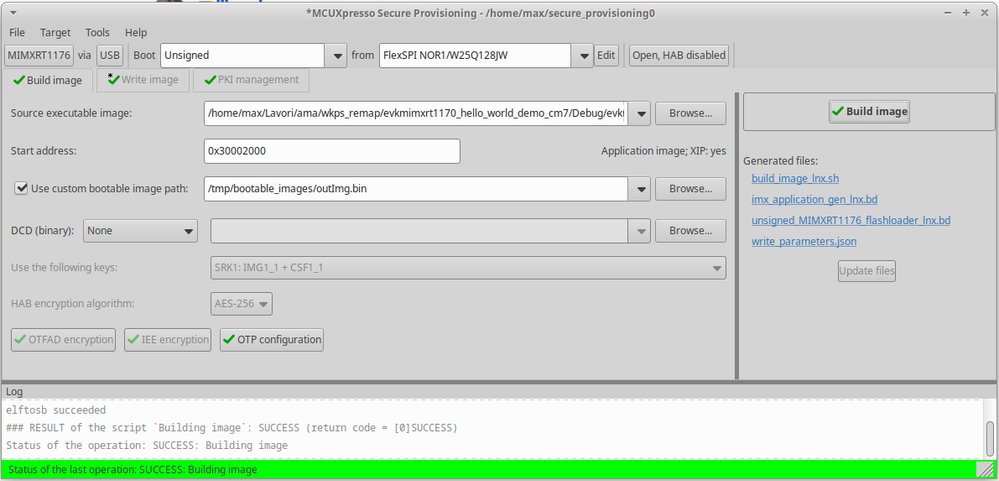
For the rest: with SEC I cannot create an image that also contains FCB. It seems that it is built and written only by flashloader.
So I try to put the question in other terms:
with SEC and offline (no connection to any card), how do I create an image (plaintext or encrypted) that contains all the boot headers, including FCB and keyblob, so that I can write it to the flash using JLINK (and not with SEC itself)?
regards
Max
marek-trmac
- 新着としてマーク
- ブックマーク
- 購読
- ミュート
- RSS フィードを購読する
- ハイライト
- 印刷
- 不適切なコンテンツを報告
Hi Max,
> how do I create an image (plaintext or encrypted) that contains all the boot headers, including FCB and keyblob, so that I can write it to the flash using JLINK (and not with SEC itself)?
SEC tool usually write the parts separately and it is not configurable. SEC tool cannot generate all formats and all variants, what users want, so it generates one variant that can be customized (it is possible to modify build and write scripts manually).
Marek
NOTE: If you find the answer useful, kindly click on [ACCEPT AS SOLUTION] button
marek-trmac
- 新着としてマーク
- ブックマーク
- 購読
- ミュート
- RSS フィードを購読する
- ハイライト
- 印刷
- 不適切なコンテンツを報告
Hi Max,
for the first question: Dual boot for RT11xx is supported since SEC tool v7. Kindly update
Marek
NOTE: If you find the answer useful, kindly click on [ACCEPT AS SOLUTION] button
