
- Forums
- Product Forums
- General Purpose MicrocontrollersGeneral Purpose Microcontrollers
- i.MX Forumsi.MX Forums
- QorIQ Processing PlatformsQorIQ Processing Platforms
- Identification and SecurityIdentification and Security
- Power ManagementPower Management
- Wireless ConnectivityWireless Connectivity
- RFID / NFCRFID / NFC
- Advanced AnalogAdvanced Analog
- Neural Processing UnitsNeural Processing Units
- MCX Microcontrollers
- S32G
- S32K
- S32V
- MPC5xxx
- Other NXP Products
- S12 / MagniV Microcontrollers
- Powertrain and Electrification Analog Drivers
- Sensors
- Vybrid Processors
- Digital Signal Controllers
- 8-bit Microcontrollers
- ColdFire/68K Microcontrollers and Processors
- PowerQUICC Processors
- OSBDM and TBDML
- S32M
- S32Z/E
-
- Solution Forums
- Software Forums
- MCUXpresso Software and ToolsMCUXpresso Software and Tools
- CodeWarriorCodeWarrior
- MQX Software SolutionsMQX Software Solutions
- Model-Based Design Toolbox (MBDT)Model-Based Design Toolbox (MBDT)
- FreeMASTER
- eIQ Machine Learning Software
- Embedded Software and Tools Clinic
- S32 SDK
- S32 Design Studio
- GUI Guider
- Zephyr Project
- Voice Technology
- Application Software Packs
- Secure Provisioning SDK (SPSDK)
- Processor Expert Software
- Generative AI & LLMs
-
- Topics
- Mobile Robotics - Drones and RoversMobile Robotics - Drones and Rovers
- NXP Training ContentNXP Training Content
- University ProgramsUniversity Programs
- Rapid IoT
- NXP Designs
- SafeAssure-Community
- OSS Security & Maintenance
- Using Our Community
-
- Cloud Lab Forums
-
- Knowledge Bases
- ARM Microcontrollers
- i.MX Processors
- Identification and Security
- Model-Based Design Toolbox (MBDT)
- QorIQ Processing Platforms
- S32 Automotive Processing Platform
- Wireless Connectivity
- CodeWarrior
- MCUXpresso Suite of Software and Tools
- MQX Software Solutions
- RFID / NFC
- Advanced Analog
- Neural Processing Units
-
- NXP Tech Blogs
- Home
- :
- 通用微控制器
- :
- Kinetis微控制器
- :
- MK22FX512AVLK12 - no support in MCUXpresso Peripherals tool
MK22FX512AVLK12 - no support in MCUXpresso Peripherals tool
MK22FX512AVLK12 - no support in MCUXpresso Peripherals tool

Hi, I have a custom board with MK22FX512AVLK12. The MCUXpresso Pins and Clocks tools recognize this MCU however the Peripherals tool does not. It reports the following message:

This is surprising since the MCUXpresso Supported Devices Table (July2021) states Peripheral Tool is available for K22 product family.

Have I misconfigured something? I am not sure where to check other than project settings:
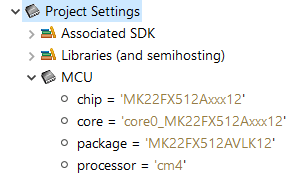
The real issue behind the need for peripheral tool is to get USB working on this MCU. I have tried example projects form FRDM-k22 and twrk21 and the code compiles, but I get "A request for the USB device descriptor failed." during enumeration attempt.
I think the clocks are ok:

but, from what I've read, K22 used in FRDM board does not have memory protection unit and I am not sure if the examples from K21 can run on K22. Any help would be greatly appreciated. Thanks!
Hi again, it seems that I've hit another obstacle. I had to modify the cdc vcom example and separate USB send and USB receive (the reasoning seems obvious, but maybe I am missing something).
The issue is that the s_recvSize (number of received bytes) is not incrementing. When looking through the code I noticed the following code which is the only place where s_recvSize is set.
if ((1 == s_cdcVcom.attach) && (1 == s_cdcVcom.startTransactions))
{
s_recvSize = message->length;
...
the s_recvSize does not get updated because s_cdcVcom.startTransactions = 0
when I checked the contents of the s_currRecvBuf, I see that the correct data made its way into this buffer, so the bulk of the process is correct and the issue is recognizing that the data is there and counting it.
Next I went after s_cdcVcom.startTransactions and noticed that the only place it is set to 1 is inside USB_DeviceProcessClassRequest function under case USB_DEVICE_CDC_REQUEST_SET_CONTROL_LINE_STATE:
This case does not run when data is sent to this device.
I figured out a workaround (replaced the check for startTransactions with message length check) which seems to be working. I am interested in opinions or maybe a explanation why the s_cdcVcom.startTransactions does not filp to 0 when data is received.
usb_status_t USB_DeviceCdcAcmBulkOut(usb_device_handle handle,
                                     usb_device_endpoint_callback_message_struct_t *message,
                                     void *callbackParam)
{
    usb_status_t error = kStatus_USB_Error;

   //if ((1 == s_cdcVcom.attach) && (1 == s_cdcVcom.startTransactions))  ******Original Code, startTransaction is always 0
    if ((1 == s_cdcVcom.attach) && (message->length))
    {
        s_recvSize = message->length;
...

@ErichStyger has replied but I'm curious about how you split up your code between the receive and transmit capabilities.
I believe that you should be working with "..._dev_cdc_vcom_bm" correct? (I can't remember the eval board you're taking the code from.)
In this app, there is the "APPTask" method which simply replies with any packet (of any number of bytes up to DATA_BUF_SIZE) that is called from an infinite loop:
void APPTask(void)
{
usb_status_t error = kStatus_USB_Error;
  if ((1 == s_cdcVcom.attach) && (1 == s_cdcVcom.startTransactions))
  {
/* User Code */
    if ((0 != s_recvSize) && (0xFFFFFFFFU != s_recvSize))
    {
int32_t i;

      /* Copy Buffer to Send Buff */
      for (i = 0; i < s_recvSize; i++)
      {
        s_currSendBuf[s_sendSize++] = s_currRecvBuf[i];
      }
      s_recvSize = 0;
    }

    if (s_sendSize)
    {
uint32_t size = s_sendSize;
      s_sendSize = 0;

      error = USB_DeviceCdcAcmSend(s_cdcVcom.cdcAcmHandle
                                 , USB_CDC_VCOM_BULK_IN_ENDPOINT
                                 , s_currSendBuf
                                 , size);

      if (error != kStatus_USB_Success)
      {
      /* Failure to send Data Handling code here */
      }
    }
  }
}
In the code I copied above, I took out an #if looking for a number of defines and reformatted the USB_DeviceCdcAcmSend so things wouldn't scroll off to the right.
I'm putting this out there because I'm asking why don't you just call "USB_DeviceCdcAcmSend" from your application? I *beleive* that it can be called while data is being received but will not be sent until the current receive packet is finished.
This is exactly how I'm doing it in my applications - although I should put in the caveats that I know the USB host will not send characters after sending a string terminated in a CR (0x0D) ASCII character but I did do some testing years ago and couldn't find any problems.
Again, minimize the changes you're making to your application code - little steps.
@myke_predko
my host app uses independent tx and rx paths and it is sending binary data, not ASCII. In most cases the host app will initiate the communication, so the USB receive on the K22 MCU will be the first function to be called. This however is dependent on an interrupt. I must be missing something here, because I do not see how calling "USB_DeviceCdcAcmSend" will help with receiving. Could you elaborate.
@ErichStyger , sorry I did not have time to work on this project in past couple days and I have not checked this part of your implementation.
Thanks!
Sorry, now I'm a bit confused. What platform, device and SDK did you get the ...dev_cdc_vcom_bm application from?
I'm asking because when I look at the twrk21f120m_dev_cdc_vcom_bm as well as other versions that I have used for reference I don't see any method called "USB_DeviceCdcAcmBulkOut". Everything I have has the "USB_DeviceCdcVcomCallback" which is a ISR and it has to be treated as such.
I could have been clearer, but my comment was that you know that data is being received as is, poll your Rx buffer from outside the ISR, process the request/data and reply to the host from outside the ISR.

StartTransaction only indicates that the device is able to send/receive data. imho in the provided example code it is no used correctly, so I had to tweak and fix handling of it in the code (see the example I have provided on GitHub), among other things like buffer alignments or 'empty' packets.
I hope this helps,
Erich
Thanks to @myke_predko and @ErichStyger for quick response and getting me out of a ditch!
Starting from scratch with twrk21f120m_dev_cdc_vcom_lite_bm example proved to be a good strategy. As you can see COM7 showed up.
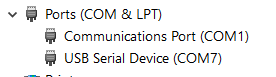
Here are the differences worth mentioning:
1) I had to copy sources folder in addition to copying usb and osa folders.
2) This time I used the lite version of the twrk21f120m_dev_cdc_vcom example. I am not sure if this is part of the reason it works now.
In summary here is what I have done to make this work (took around 30min, not counting days of previous work ;-))
Hopefully this will be helpful to the next person.
- download twrk21f120m_dev_cdc_vcom_lite_bm example
- create new project selecting processor used on my board K22FX512AVLK
- Configured MCU and package in project explorer
- Configure preprocessor terms
- Created the following source folders
- usb
- osa
- sources
- Copied files from the example to these folders
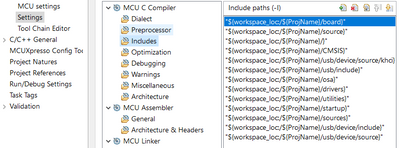
- Update includes to list the following folders
- Find virtual_com.c and comment out main function (you will have your own)
- Update clock config (see previous posts)
- Compile
- If you still have errors then then make sure that includes are all correct.
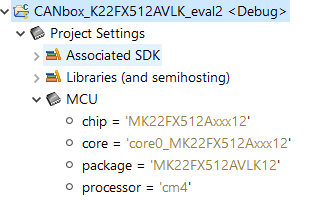
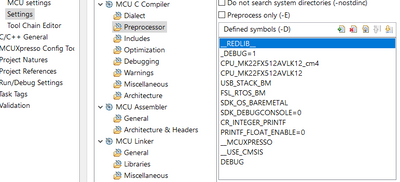
Great job and I know from personal experience that when you modify the code for your application you'll wonder why you had problems in the first place.
Keep us updated as to your progress.
The short answer is that different Kinetis parts (even if they appear to be in the same series, ie MK22) have different SDKs and each SDK has access to different tools. Personally, I find the situation quite infuriating because the Freedom boards tend to have the latest (and greatest) SDK versions with full access to the various wizards (like the peripheral tool) while the vast majority of part numbers do not. I consider the most up to date SDKs only available on Freedom and, in some limited cases Tower, boards to be a form of bait and switch and I have been incredibly frustrated by it.
Now that I've had my rant let's talk about your situation.
I've done what you're trying to do and it's a non trivial exercise. You didn't say which USB device class you are trying to implement and that may be an issue, but in my experience implementing CDC on the MK22FX512xxxx & MK22FN1M0zxxx the "A request for the USB device descriptor failed." is most likely a clocking error but there could be other issues and it looks like you're on the right path to solving your problem.
First off, you didn't show the full clock wizard - Having a 48MHz USB clock out doesn't show the full story. Here is my clocking diagram for my MK221M0Axxxx implementation:

I personally find the clock wizard in MCUXpresso to be somewhat frustrating to work with as clicking different options does not always get the response you want or expect. You need a pretty good understanding of the clock module from the Reference Manual as well as the patience of Job to get a correct clock configuration.
Next you have to make sure your build preprocessor and includes have to be correct. You're looking in the right spot.
Finally, you have to have the right driver and resource includes available to your application.
As I said, it's a non-trivial exercise.
Fortunately there is a relatively easy solution to all this and that is to start with the example USB application from the TWRK-MK21F (which is what I believe is the recommended resource for the MK22FX but I'll leave it to the NXP support staff to confirm it) and start working from there.
Download the example application and verify that works on your device. From there, I recommend you create a new project with the same files taking note that you copy in "clock_config.c/.h" from the working project, the "usb" and "osa" folders (making sure they are "source folders" in your project) the USB source files and, finally, make sure your build preprocessor and includes match the example application. Test what you've done to make sure it still works, DOCUMENT WHAT YOU'VE DONE and then you can start modifying it to your own application.
As I was creating my (FreeRTOS) application, I maintained a list of setup/configuration instructions for each project, here's one from an early one to give you an idea of what's involved.
0. Have MK22_FRTOS_7a project available

1. Create Project:
SDK: MK22FN1M0Axxx12
Name: MK22_FRTOS_USB_8
Device Packages: MK22FN1M0AVMD12
Operating Systems: FreeRTOS
Drivers: adc
- clock
- common
- flash
- ftm
- gpio
- port
- sim
- smc
- sysmpu
- uart
CMSIS Drviers:
Utilities: assert
- debug_console
Middleware:

2. Setup IO Pins
Copy in MK22_FRTOS_USB_7a.mex
- Rename to renumber to "8" (the current project number)
- NOTE: No Clock Specification
- "Update Code" from the Pin Specification

3. Build and test.
- See "Hello World" in Debug Console

4. Replace "source" folder contents with "MK22_FRTOS_USB_7a" project's contents
- Rename "MK22_FRTOS_USB_7a" to "MK22_FRTOS_USB_8"
- Update "versionTracking.h" to indicate new project

5. Create "source folders" for:
- osa
- usb
And copy in the contents from the respective folders in "MK22_FRTOS_USB_8" project's folders

6. Replace in "board" folder:
- clock_config.c
- clock_config.h
With the files from the previous project

7. Open "Properties"=>"C/C++ Build"=>"Settings"=>"Preprocessor" and match the following terms:
__REDLIB__
CPU_MK22FN1M0AVMC12_cm4
CPU_MK22FN1M0AVMC12
_DEBUG=1
USB_STACK_FREERTOS
USB_STACK_FREERTOS_HEAP_SIZE=32768
FSL_RTOS_FREE_RTOS
SDK_DEBUGCONSOLE=0
CR_INTEGER_PRINTF
PRINTF_FLOAT_ENABLE=0
__MCUXPRESSO
__USE_CMSIS
DEBUG

8. Open "Properties"=>"C/C++ Build"=>"Settings"=>"Includes" and match the following includes:
"${workspace_loc:/${ProjName}/board}"
"${workspace_loc:/${ProjName}/source}"
"${workspace_loc:/${ProjName}/}"
"${workspace_loc:/${ProjName}/usb/device/source/khci}"
"${workspace_loc:/${ProjName}/usb/include}"
"${workspace_loc:/${ProjName}/osa}"
"${workspace_loc:/${ProjName}/drivers}"
"${workspace_loc:/${ProjName}/CMSIS}"
"${workspace_loc:/${ProjName}/freertos/include}"
"${workspace_loc:/${ProjName}/freertos/portable}"
"${workspace_loc:/${ProjName}/utilities}"
"${workspace_loc:/${ProjName}/startup}"
"${workspace_loc:/${ProjName}/usb/device/class/cdc}"
"${workspace_loc:/${ProjName}/usb/device/class}"
"${workspace_loc:/${ProjName}/usb/device/source}"
"${workspace_loc:/${ProjName}/usb/device/include}"

9. Build and test
- Check the operation of USB
Good luck!
@myke_predko, Thanks for the detailed explanation.
My project is a cdc virtual com device.
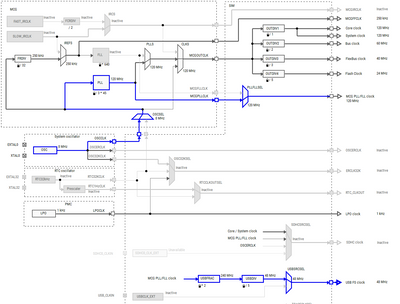
I reviewed my clock tree and it was very close to the one you posted. The only difference was the PLL (/2 *30) instead of (/3 * 45). I am not sure if it makes any difference.
I also went through my preprocessor terms and there were several diffs. One major diff is that I do not use RTOS in my project hence I had USB_STACK_BM. However I am not sure what to do about USB_STACK_FREERTOS_HEAP_SIZE=32768. I could spend time on converting my project to RTOS (this was something I always wanted to do), but I had my bare metal project already running on MK66 and this was an attempt to port it to a cheaper hardware. The process on MK66 was flawless, the example worked almost right out of the box. This also means I did not learn much
I did try the project with updated clock config and preprocessor terms, but there was no difference in behavior.
I wonder if part of the USB example is overriding the clock config. I'll try to decipher these two functions next:

In my adaptation of the twrk21 example I created a fresh project for my uC and then copied usb and osa folders and the virtual_com.c and virtual_com.h files. I did mark new folders as "source folders". After this the project compiled successfully. However the usb device would not enumerate.
I played with some breakpoints and I realized that USB_DeviceGetDeviceDescriptor function does not get called so the process is breaking before it hits this step.
Here is my clock config:
Hey @marcin99
I'll start my comments with the clock. If I remember correctly, I did have issues with the PLL and had it at /2*30 and then changed it to /3*45. Give it a try - or copy in clock_config.c/.h files as I did and call the that setup from main(), just as the USB application did which leads me to recommend:
When I said copy the demo project, I meant literally. Create a new project and copy in the source folders from the example project and make sure the build preprocessor and includes match and then confirm that the project works with your device. I had problems like you are and I found that the best way to get things working was to try and recreate the project on my device (or even a Freedom board, the approach is a valuable way of learning the software and the device).
It was in this process that I discovered that I was having problems with clocking and decided to copy in the clock_config.c/.h files and looked at clocking after I got everything else working.
Unless you're working with FreeRTOS (in which case you should be using the FreeRTOS USB example), igore the USB_STACK_FREERTOS preprocessor directives and use the ones that come with the SDK example application.
That's great you have application code working, don't try to integrate it into the USB code until you have the USB code running - I highly recommend that you start with getting the example USB code running on your device and then (after you celebrate) start merging your existing application code with the USB code.
Can I recommend that you don't try to debug the USB code until you have the example application running? Chances are there isn't a call to the USB_DeviceGetDeviceDescriptor method because something earlier is not happening correctly.
I needed two weeks to get the basic USB application running with a number of false starts because I believed I understood what was going on and I could take some short cuts and modify the code or build parameters before I had replicated the example application.
I do have an example for the K22FX512 (we are using it on our robots) on GitHub:
The USB stack has been ported, but I see that the above example is not using it (it is present in this project shared). If you want, I can update it so you see how the USB stack can be used.
I hope this helps,
Erich
hi, thanks for reply.
an example of a working project on this particular uC would be great! Please update if possible.
I keep wondering if I need to move away from bare metal implementation. Do you see any issues with usb running on bare metal projects?
Hi @marcin99 ,
I have updated and pushed the project on GitHub:
It is rather simple (running a FreeRTOS task and printing text to the enumerated VCOM):
It *is* using FreeRTOS, and I second the opinion of @myke_predko about that sometimes it is better to start bare-metal. But imho using an RTOS with the SDK USB stack (if doing it right) has many benfits. I admit too that I had to heavily tweak and change the SDK stack to fix issues and to make it work in a reliable way:We are using it on our robots and are able to use it for high speed USB CDC communication to update other processors as a gateway (see for example https://mcuoneclipse.com/2019/09/01/programming-the-esp32-with-an-arm-cortex-m-usb-cdc-gateway/ )
I hope this helps,
Erich
If I can put in my two cents here - I'm a big proponent of only creating MCU applications using an RTOS but I'm going to recommend that you stick with your current approach and avoid moving to an RTOS at this time.
There are very few downsides with writing your application with an RTOS and the upsides include: Faster code development, easier code reuse, faster application execution, easier debug and higher quality code. However, there is a lot of learning and changing thinking habits to effectively architect and write RTOS application code.
It seems to me that you have a lot on your plate with getting a USB CDC interface working and then integrating it into your existing application. It makes sense that you get this work done before considering working with an RTOS.
There aren't any problems with running USB on a bare metal device, but there are a number of tricks to getting the USB example code working in an RTOS application.
