
- Forums
- Product Forums
- General Purpose MicrocontrollersGeneral Purpose Microcontrollers
- i.MX Forumsi.MX Forums
- QorIQ Processing PlatformsQorIQ Processing Platforms
- Identification and SecurityIdentification and Security
- Power ManagementPower Management
- Wireless ConnectivityWireless Connectivity
- RFID / NFCRFID / NFC
- Advanced AnalogAdvanced Analog
- Neural Processing UnitsNeural Processing Units
- MCX Microcontrollers
- S32G
- S32K
- S32V
- MPC5xxx
- Other NXP Products
- S12 / MagniV Microcontrollers
- Powertrain and Electrification Analog Drivers
- Sensors
- Vybrid Processors
- Digital Signal Controllers
- 8-bit Microcontrollers
- ColdFire/68K Microcontrollers and Processors
- PowerQUICC Processors
- OSBDM and TBDML
- S32M
- S32Z/E
-
- Solution Forums
- Software Forums
- MCUXpresso Software and ToolsMCUXpresso Software and Tools
- CodeWarriorCodeWarrior
- MQX Software SolutionsMQX Software Solutions
- Model-Based Design Toolbox (MBDT)Model-Based Design Toolbox (MBDT)
- FreeMASTER
- eIQ Machine Learning Software
- Embedded Software and Tools Clinic
- S32 SDK
- S32 Design Studio
- GUI Guider
- Zephyr Project
- Voice Technology
- Application Software Packs
- Secure Provisioning SDK (SPSDK)
- Processor Expert Software
- Generative AI & LLMs
-
- Topics
- Mobile Robotics - Drones and RoversMobile Robotics - Drones and Rovers
- NXP Training ContentNXP Training Content
- University ProgramsUniversity Programs
- Rapid IoT
- NXP Designs
- SafeAssure-Community
- OSS Security & Maintenance
- Using Our Community
-
- Cloud Lab Forums
-
- Knowledge Bases
- ARM Microcontrollers
- i.MX Processors
- Identification and Security
- Model-Based Design Toolbox (MBDT)
- QorIQ Processing Platforms
- S32 Automotive Processing Platform
- Wireless Connectivity
- CodeWarrior
- MCUXpresso Suite of Software and Tools
- MQX Software Solutions
- RFID / NFC
- Advanced Analog
- Neural Processing Units
-
- NXP Tech Blogs
- Home
- :
- MCUXpressoソフトウェアとツール
- :
- Kinetisデザインスタジオ
- :
- Crazy idea ?
Crazy idea ?
- RSS フィードを購読する
- トピックを新着としてマーク
- トピックを既読としてマーク
- このトピックを現在のユーザーにフロートします
- ブックマーク
- 購読
- ミュート
- 印刷用ページ

- 新着としてマーク
- ブックマーク
- 購読
- ミュート
- RSS フィードを購読する
- ハイライト
- 印刷
- 不適切なコンテンツを報告
NXP and Freescale will merge. Why not merge LPCxpresso and KDS saving the best of both worlds ?
Starting from LPCxpresso, Processor expert may be added as is .
Can KDSK included whit some work ?
Adding the PnE and other drivers may the system be working ?
LPCxpresso has a link2 driver whith j-link capabilities. Probably, apart from license problem it could be also used for Freescale MCUs adding the live view of memory locations for M4 MCUs.
Thanks for your opinion.
Your Sincerely,
Pier Giovanni
解決済! 解決策の投稿を見る。

 BlackNight
- 新着としてマーク
- ブックマーク
- 購読
- ミュート
- RSS フィードを購読する
- ハイライト
- 印刷
- 不適切なコンテンツを報告
Hi Pier Giovanni,
well, this is not a cracy idea. Both KDS and LPCXpresso are Eclipse based. KDS is stock Eclipse Luna with GNU ARM Embedded (launchpad) tools, while LPCXpresso comes with several extensions and additional features. Processor Expert itself is designed that it can be installed into any Eclipse, and this is already the case and used for different Eclipse distributions (Atollic TrueSTUDIO, Emprog ThunderBench).
With that said, you can use LPCXpressio with Processor Expert and the Kinetis SDK *today* :-). See this article for details.
As for the live view of memory locations: that might be indeed possible with the LPCXpresso debugger, but I have not tried that myself.
I hope this helps,
Erich
 marek_neuzil
- 新着としてマーク
- ブックマーク
- 購読
- ミュート
- RSS フィードを購読する
- ハイライト
- 印刷
- 不適切なコンテンツを報告
Hello Pier Giovanni,
It is interesting idea to merge Processor Expert for Kinetis (par of the KDS) and LPCxpresso. I have tried slightly different configuration that described Erich in his blog post.
I have installed LPCxpresso v7.7.2 (LPCXpresso IDE Downloads | www.LPCware.com) and I have activated this installation as the Free Edition.
Because PEx for Kinetis (integrated in KDS) support GNU ARM Eclipse plugins I have installed these plugins by using Help > Install New Software... . I have used the http://gnuarmeclipse.sourceforge.net/updates link.
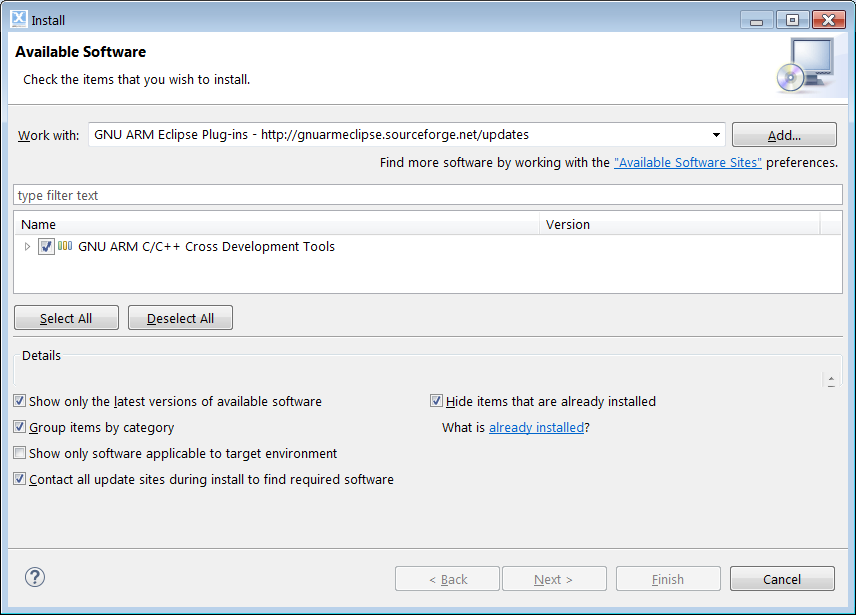
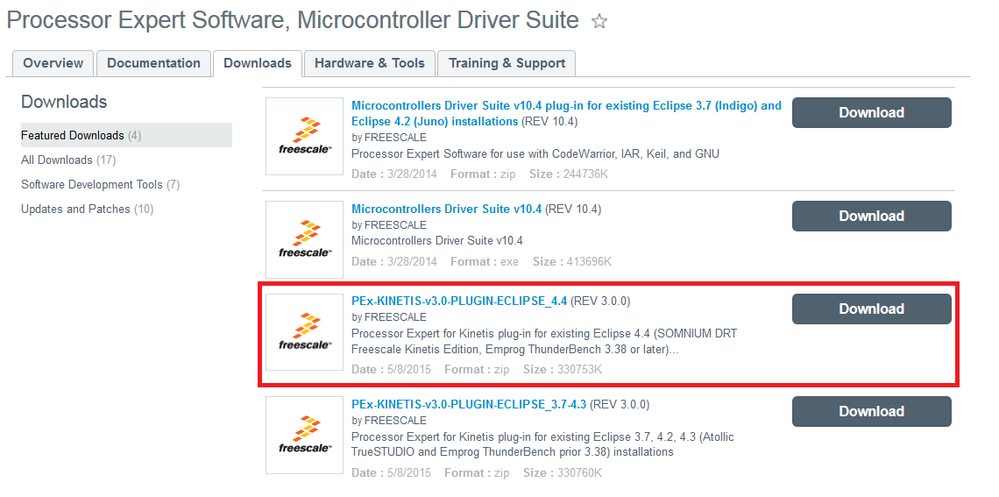
The LPCxpresso IDE is based on Eclipse Platform v4.4.2. Therefore I have downloaded and installed the
PEx-KINETIS-v3.0-PLUGIN-ECLIPSE_4.4 (REV 3.0.0) (see the page Processor Expert Software, Microcontroller Dr|Freescale):
Note:
The package contains freescale_updater.zip and PEx_for_Kinetis_3.0.0.zip. You need to install the Freescale updater firstly.
When you launch the LPCxpreso the default perspective is quite different. The Processor Expert windows are not visible. It can be added by using Processor Expert > Show Views command from the main menu. Windows are added and can be arranged.
A new Kinetis project can be created by using New Project Wizard (File > New > Kinetis Project).
I have created a new FRDM-K64F project without KSDK because KSDK has not been installed.
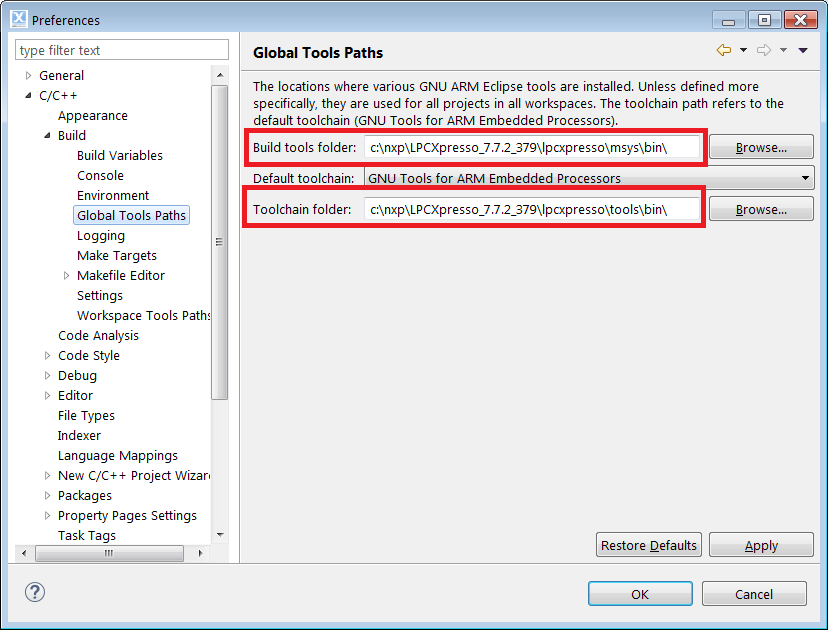
When I have set following Global Tool Path in Window > Preferences (see the screenshot below) I have been able to build the default project.
The LPCxpresso contains GBD SEGGER J-Link Debugging support by default. When you want to a P&E micro debugger (e.g. OpenSDA) you must install P&E micro GDB server driver for eclipse. You can use the Help > Install New Software... command and use the http://www.pemicro.com/eclipse/updates link to install it directly.
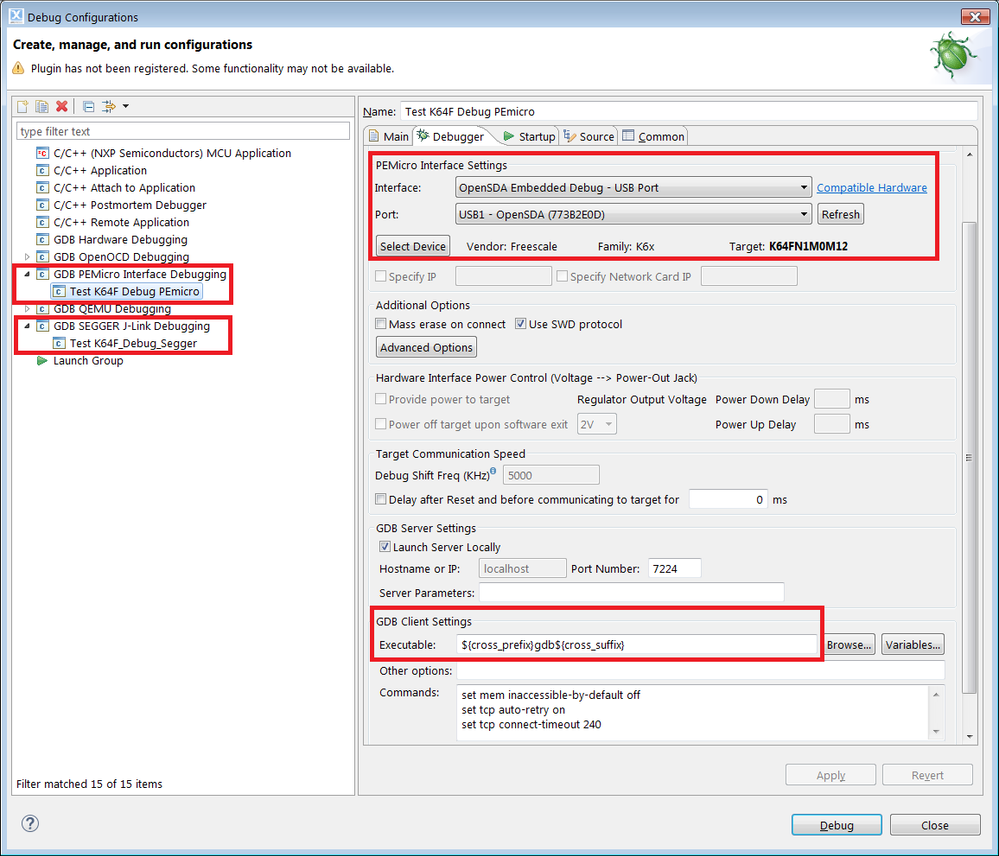
When you open Debug Configurations windows you can add and select GDB P&E micro debug connection or GDB SEGGER J-link debug connetction:
Note:
The default configuration of GDB P&E Interface must be updated. There must be selected the Interface, Port, Device and updated the Executable path (default LPCxpresso path: ${cross_prefix}gdb${cross_suffix}), see the screenshot above.
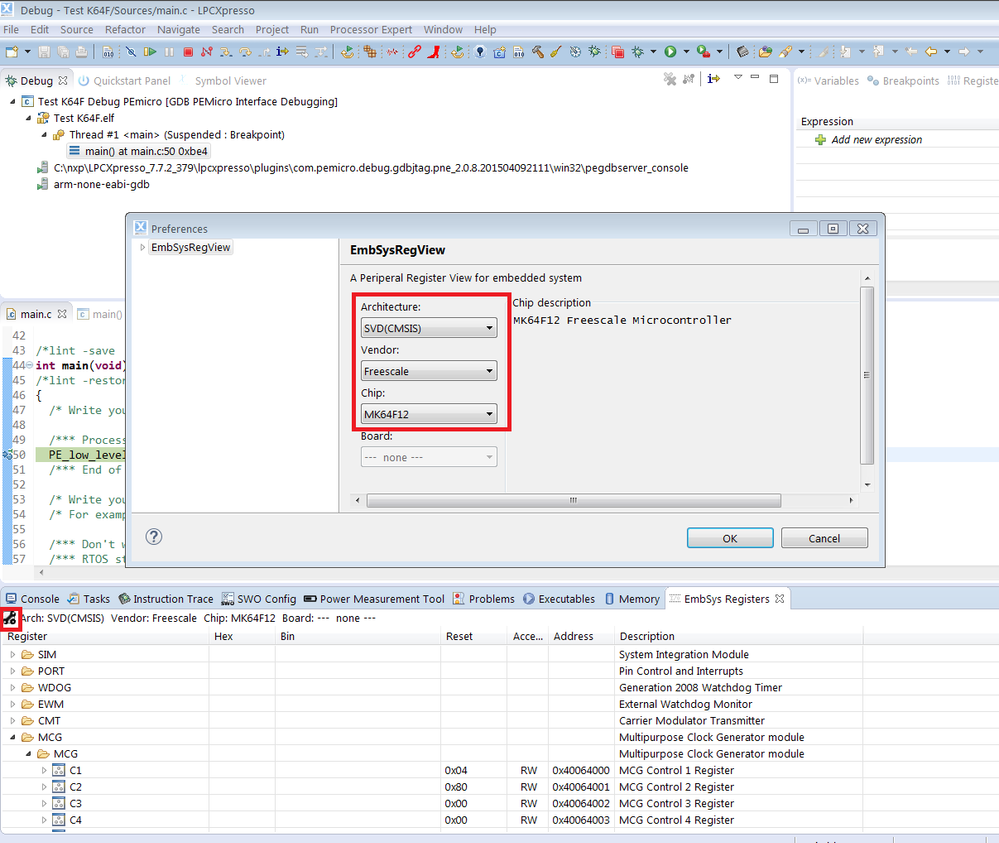
The default LPCxpress installation does not contains any data about Freescale Kinetis derivatives. Therefore there is not possible to see any registers in the Debug perspective. You can install the EmbSysRegView plugins that are available at the http://embsysregview.sourceforge.net/update site (use the Help > Install New Software... command).
When you start debugging, open the EmbSys Registers window (navigate to Window > Show View > Other and select the EmbSys Registers). In the EmbSys Registers window select SVD(CMSIS) architecture, Freescale vendor and the target Chip), see the screenshot below:
Summary:
The LPCxpresso Eclipse IDE can be used for installing Processor Expert for Kinetis, GNU ARM Eclipse plugins and other utilities. It seems that we are prepared for the merge.
Best Regards,
Marek Neuzil
- 新着としてマーク
- ブックマーク
- 購読
- ミュート
- RSS フィードを購読する
- ハイライト
- 印刷
- 不適切なコンテンツを報告
Hi to all,
the merged system seems to work fine.
I have problem to import files from KSDK, but this may be due to my knowledge since i have also trouble with KDS.
The file menu tab new links to Freescale devices, while new from "start here" window links to NXP devices. I think that someone whith the proper knowledge of Eclipse may change the menu file tab behviour to select both Freescale and NXP.
Just to end, the NXP Link2 probe ,obviously, does not have a selection for Freescale MCUs. The selection of generic M4 device does not work ( but also, the license is only for NXP devices).
Best Regards,
Pier Giovanni
BlackNight
- 新着としてマーク
- ブックマーク
- 購読
- ミュート
- RSS フィードを購読する
- ハイライト
- 印刷
- 不適切なコンテンツを報告
Hi Pier Giovanni,
well, this is not a cracy idea. Both KDS and LPCXpresso are Eclipse based. KDS is stock Eclipse Luna with GNU ARM Embedded (launchpad) tools, while LPCXpresso comes with several extensions and additional features. Processor Expert itself is designed that it can be installed into any Eclipse, and this is already the case and used for different Eclipse distributions (Atollic TrueSTUDIO, Emprog ThunderBench).
With that said, you can use LPCXpressio with Processor Expert and the Kinetis SDK *today* :-). See this article for details.
As for the live view of memory locations: that might be indeed possible with the LPCXpresso debugger, but I have not tried that myself.
I hope this helps,
Erich
- 新着としてマーク
- ブックマーク
- 購読
- ミュート
- RSS フィードを購読する
- ハイライト
- 印刷
- 不適切なコンテンツを報告
Hi Erich,
well, wonderfull, I will follow your article and I will try to degub a file on a n FRDM-K64F board using PnE, Segger SDA and
LPCxpresso debugger just to see what happen.
Yours Sincerely,
Pier Giovanni
