
- Forums
- Product Forums
- General Purpose MicrocontrollersGeneral Purpose Microcontrollers
- i.MX Forumsi.MX Forums
- QorIQ Processing PlatformsQorIQ Processing Platforms
- Identification and SecurityIdentification and Security
- Power ManagementPower Management
- Wireless ConnectivityWireless Connectivity
- RFID / NFCRFID / NFC
- Advanced AnalogAdvanced Analog
- Neural Processing UnitsNeural Processing Units
- MCX Microcontrollers
- S32G
- S32K
- S32V
- MPC5xxx
- Other NXP Products
- S12 / MagniV Microcontrollers
- Powertrain and Electrification Analog Drivers
- Sensors
- Vybrid Processors
- Digital Signal Controllers
- 8-bit Microcontrollers
- ColdFire/68K Microcontrollers and Processors
- PowerQUICC Processors
- OSBDM and TBDML
- S32M
- S32Z/E
-
- Solution Forums
- Software Forums
- MCUXpresso Software and ToolsMCUXpresso Software and Tools
- CodeWarriorCodeWarrior
- MQX Software SolutionsMQX Software Solutions
- Model-Based Design Toolbox (MBDT)Model-Based Design Toolbox (MBDT)
- FreeMASTER
- eIQ Machine Learning Software
- Embedded Software and Tools Clinic
- S32 SDK
- S32 Design Studio
- GUI Guider
- Zephyr Project
- Voice Technology
- Application Software Packs
- Secure Provisioning SDK (SPSDK)
- Processor Expert Software
- Generative AI & LLMs
-
- Topics
- Mobile Robotics - Drones and RoversMobile Robotics - Drones and Rovers
- NXP Training ContentNXP Training Content
- University ProgramsUniversity Programs
- Rapid IoT
- NXP Designs
- SafeAssure-Community
- OSS Security & Maintenance
- Using Our Community
-
- Cloud Lab Forums
-
- Knowledge Bases
- ARM Microcontrollers
- i.MX Processors
- Identification and Security
- Model-Based Design Toolbox (MBDT)
- QorIQ Processing Platforms
- S32 Automotive Processing Platform
- Wireless Connectivity
- CodeWarrior
- MCUXpresso Suite of Software and Tools
- MQX Software Solutions
- RFID / NFC
- Advanced Analog
- Neural Processing Units
-
- NXP Tech Blogs
- Home
- :
- Mobile Robotics - Drones and Rovers
- :
- HoverGames Drone Challenge
- :
- TightVNC Server on NavQ Companion Computer
TightVNC Server on NavQ Companion Computer
- Subscribe to RSS Feed
- Mark Topic as New
- Mark Topic as Read
- Float this Topic for Current User
- Bookmark
- Subscribe
- Mute
- Printer Friendly Page
TightVNC Server on NavQ Companion Computer

 Landon_Haugh
- Mark as New
- Bookmark
- Subscribe
- Mute
- Subscribe to RSS Feed
- Permalink
- Report Inappropriate Content
In order to run a TightVNC server on NavQ, you'll need to install an X11 window manager since the Demo image does not include one by default. IceWM is a lightweight window manager that works well with TightVNC.
To install tightvncserver, IceWM, and the necessary software, you can run the following command:
$ sudo apt install tightvncserver xinit icewm
To start a the vnc server, just run:
$ tightvncserver
It will ask you to enter a password for tightvnc. Type in a password and it will start a VNC server with IceWM. You can use TightVNC Viewer on Windows (Download TightVNC) to connect. Once you open TightVNC Viewer on your windows machine, you will need to type in the IP address of your NavQ followed by the display opened by tightvncserver.
Example:
My NavQ IP is 192.168.0.47 and tightvncserver started IceWM on display :1. I would put the following into TightVNC Viewer:
192.168.0.47:1
Press enter and it should ask you for the password you created for tightvncserver. Put the password in and you should be connected! Here's a screenshot of the setup:
This currently isn't the best solution for VNC, but it is a basic implementation at the moment. I will be working on getting more features enabled for this (such as viewing the camera in VNC using Gstreamer).

- Mark as New
- Bookmark
- Subscribe
- Mute
- Subscribe to RSS Feed
- Permalink
- Report Inappropriate Content
Thanks for the guide. If anyone is wondering how to install Xfce as their desktop environment. Here are the steps. Have fun!
First kill the already running vncserver using the following commands:
$ vncserver -kill :1
Now install xfce4 and xfce4-goodies :
$ sudo apt install xfce4 xfce4-goodies
Choose default (=N) for all the prompts that appear. It takes a while (around 6-7 minutes for me) based on your internet connection speed. Once everything is installed properly I configured the VNC server startup files to choose Xfce as the desktop environment by modifying the xstartup file. Before modifying make sure to backup the current file.
$ mv ~/.vnc/xstartup ~/.vnc/xstartup.bak
Now create a new xstartup file and open it in your text editor:
$ vi ~/.vnc/xstartup
Commands in this file are executed automatically whenever you start or restart the VNC server. We need VNC to start our desktop environment if it’s not already started. Add these commands to the file:
#!/bin/bash
xrdb $HOME/.Xresources
startxfce4 &
To ensure that the VNC server will be able to use this new startup file properly, we’ll need to make it executable.
$ sudo chmod +x ~/.vnc/xstartup
Now startup the vncserver:
$ vncserver
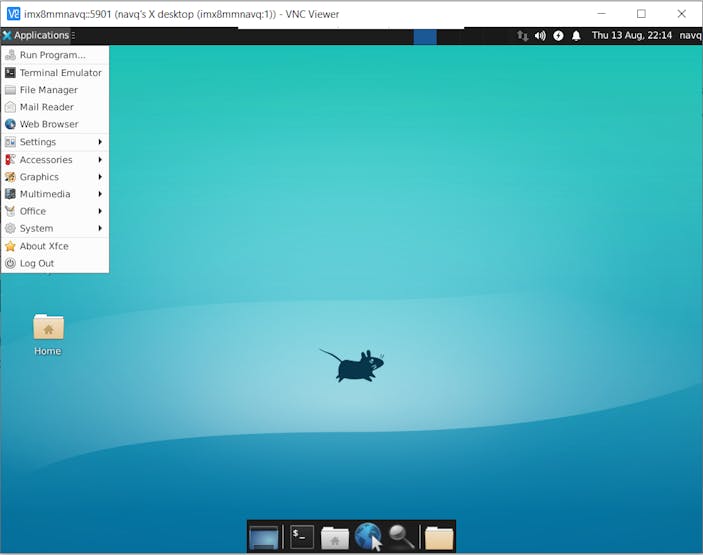
Connect with proper credentials from the windows client. For me the vncserver was hoste on port 5901 so I used imx8mmnavq::5091 to connect. Use your password that you created while installing tightVNC and voila! You have a shiny new NavQ Linux Desktop.
- Mark as New
- Bookmark
- Subscribe
- Mute
- Subscribe to RSS Feed
- Permalink
- Report Inappropriate Content
